How to Enable or Disable Task View Hints for Xbox Mode in Windows 11

This tutorial will show you how to turn accessibility control hints on or off in Task View when you’re using Xbox mode on Windows 11.
Enable or disable Task View hints for Xbox Mode in Windows 11 via Settings > Gaming > Xbox mode by toggling “Show accessibility control hints in Task View.” Alternatively, modify the “TaskSwitcherNexusInjectionEnabled” DWORD value to 1 (enable) or 0 (disable) at 🗝️HKEY_CURRENT_USER\Software\Microsoft\GameBar using Registry Editor or Windows Terminal.
What Is Xbox Mode?
Xbox mode in Windows 11 changes your PC to feel like an Xbox console, offering a full-screen view that helps you focus on gaming without distractions.
Xbox mode is made for controller gaming. The interface is clean and simple. You can switch between your games and apps easily. Just press and hold the Xbox button on your controller. When you want to go back to your desktop, you can do that too. Everything stays right where you left it.
Once you’re in Xbox mode, you’ll see the Xbox home screen. You can access your games from Xbox Game Pass, Xbox Play Anywhere, and other game stores.
What Are Task View Hints?
When you open Task View in Xbox mode (press ⊞ Win+Tab), you’ll see hints by default. These hints show you one-button ways to do things instead of pressing multiple buttons at once. You can turn these hints off if you don’t need them.
Option 1Use Settings
Enable or Disable Task View Hints for Xbox Mode in Settings
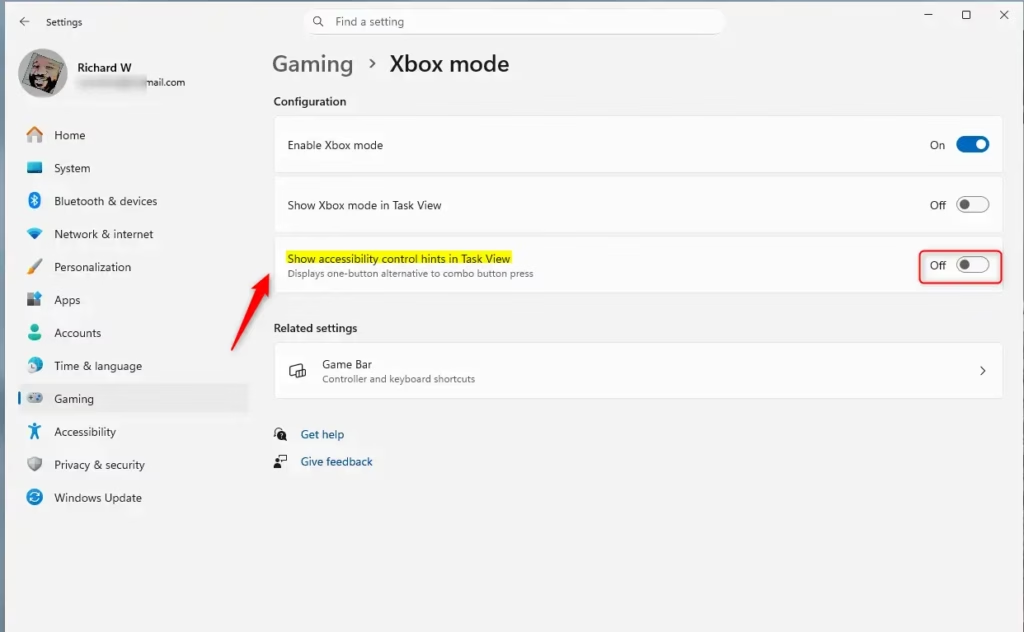
You can turn Xbox mode hints on or off in Windows 11 Settings to control how helpful Task View is when you’re using Xbox mode.- Open Settings by pressing ⊞ Win+I.
- Click on Gaming on the left side.
- Find the setting that says Show accessibility control hints in Task View. Turn it On (this is the default) or Off depending on what you want.
Note: This setting only works if you have Xbox mode turned on. - Close Settings when you’re done.
Option 2Use Registry Editor or Windows Terminal
Changing Xbox mode hints can also be done using the Windows Registry or by running a command in Windows Terminal if you prefer not to use Settings.
To enable “Show accessibility control hints in Task View” for Xbox Mode (this is the default):
Find this registry path:
HKEY_CURRENT_USER\Software\Microsoft\GameBar
Set this value to:
“TaskSwitcherNexusInjectionEnabled” set the value data to 1.
To disable “Show accessibility control hints in Task View” for Xbox Mode:
Find this registry path:
HKEY_CURRENT_USER\Software\Microsoft\GameBar
Set this value to:
“TaskSwitcherNexusInjectionEnabled” set the value data to 0.
Windows Terminal
Enable:
reg add "HKEY_CURRENT_USER\Software\Microsoft\GameBar" /v TaskSwitcherNexusInjectionEnabled /t REG_DWORD /d 1 /f
Disable:
reg add "HKEY_CURRENT_USER\Software\Microsoft\GameBar" /v TaskSwitcherNexusInjectionEnabled /t REG_DWORD /d 0 /f
Summary
Xbox mode hints in Windows 11’s Task View can be turned on or off, letting you choose if they help you learn the mode or if they’re just annoying.
What happens when you do this? When you open Task View in Xbox mode, the hints will either appear or disappear based on your choice. You have two ways to make this change. You can use the Settings app, which is the easiest way. Or you can use Registry Editor or Windows Terminal if you prefer working with the registry directly.
How do I go to the Xbox secret menu?
To open the Xbox secret menu or guide while in Xbox mode, press the Xbox button on your controller or use the ⊞ Win+G shortcut to open the Game Bar.
What does holding the Xbox button for 10 seconds do?
Holding the Xbox button on your controller for approximately 10 seconds performs a hard power cycle or forced shutdown of the console. On a Windows 11 PC, this action may not trigger a system shutdown but can force the Xbox app or Game Bar overlay to close or become unresponsive.
What does Xbox mode do?
Xbox mode in Windows 11 changes your PC’s look to feel like an Xbox console, offering a full-screen, controller-friendly way to play games and switch apps.
Is it better to keep game mode on or off?
It’s generally better to keep Game Mode turned on in Windows 11 because it helps your PC focus on gaming by stopping updates and improving frame rates.
Was this guide helpful?

About the Author
Richard
Tech Writer, IT Professional
Richard, a writer for Geek Rewind, is a tech enthusiast who loves breaking down complex IT topics into simple, easy-to-understand ideas. With years of hands-on experience in system administration and enterprise IT operations, he’s developed a knack for offering practical tips and solutions. Richard aims to make technology more accessible and actionable. He's deeply committed to the Geek Rewind community, always ready to answer questions and engage in discussions.



No comments yet — be the first to share your thoughts!