

This article explains how to add or remove the ability to use Windows Hello Fingerprint as a sign-in option and UAC credential provider in Windows 11.
Windows provides multiple options one can use to sign into a device. A more secure way to sign into Windows is to use Windows Hello. It provides a more personal and secure way to sign into Windows using a PIN, facial recognition, fingerprint, passkey, and more.
Users can also use a security key, a hardware device – usually a little USB key – that you can use instead of your username and password to sign in on the web.
A less secure way is to use a password.
Although Windows Hello fingerprint technology is more secure, it may not be compatible in all scenarios. Some environments can remove it as a sign-in option and UAC credential provider. This will disable the ability to use one’s Fingerprint to sign in to Windows on the Sign-in screen and a UAC credential provider.
There could be various reasons why one might want to add or remove the ability to use Windows Hello Fingerprint as a sign-in option in Windows. For instance, if the fingerprint reader is not working properly or the user wants to switch to a different sign-in method, they may want to remove the fingerprint option.
On the other hand, if the user wants to add a layer of security to their device, they may want to enable Windows Hello Fingerprint as a sign-in option. Not all devices support fingerprint sign-in, so compatibility issues may also play a role in whether or not to add or remove this option.
How to add or remove Fingerprint as a Sign-in option
As mentioned above, if you don’t want users using their fingerprints to sign into Windows or want to standardize the Windows sign-in process, you can remove the ability to use one’s Fingerprint as a sign-in option and UAC credential provider.
Here’s how to do it.
First, open Windows Registry Editor.
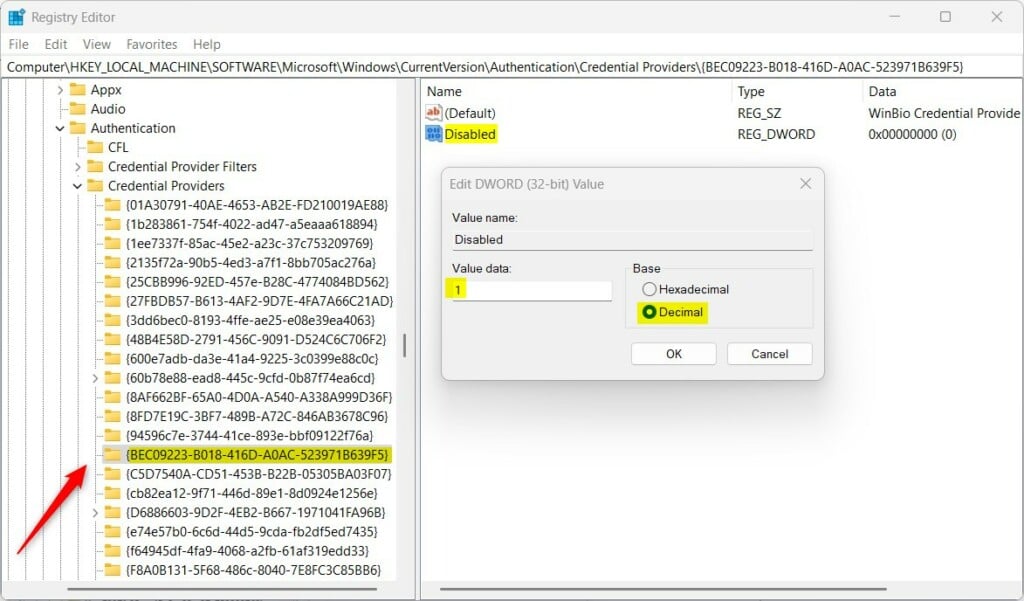
Then, navigate to the registry key below.
ComputerHKEY_LOCAL_MACHINESOFTWAREMicrosoftWindowsCurrentVersionAuthenticationCredential Providers{BEC09223-B018-416D-A0AC-523971B639F5}
Next, double-click the Disabled (REG_DWORD) name on the Explorer key’s right pane to open it. Then, enter a value 1 to disable users using their fingerprints in Windows.
To allow all users to use their fingerprints, simply delete the Disabled item.
If you do not see the ‘Disabled ‘item, right-click a blank area and create a new DWORD (32-bit) Value. Then, enter the name ‘Disabled ‘.
You may have to restart your computer to apply the changes.
Reference:
Conclusion:
- Enabling or disabling Windows Hello Fingerprint as a sign-in option offers flexibility based on individual needs and device compatibility.
- Understanding the steps to modify this feature through the Windows Registry enables users to customize their sign-in process effectively.
- It’s essential to consider security, device functionality, and user preference when deciding whether to add or remove fingerprint sign-in capability.
- Refer to the Microsoft support link for additional information on Windows sign-in options and account protection.


Leave a Reply Cancel reply