
This tutorial shows you how to turn the Recommended section on or off in File Explorer Home on Windows 11. The Recommended section replaces the Quick access section when you enable it.
What is File Explorer Home?
File Explorer Home lets you see your files and folders in one place. Here’s what you’ll find:
- Quick access = Shows up to 13 folders you pinned or opened often
- Favorites = Files you pinned
- Recent = Shows up to 25 files you opened most recently
Why Use the Recommended Section?
Starting with Windows 11 build 26100.7309 (24H2), the Recommended section makes it easier to find files you use often or recently downloaded. This feature now works for everyone, including people with personal Microsoft accounts.
If you’re signed in with a work or school account, File Explorer shows people icons in the Activity column. Hover over these icons to see Microsoft 365 Live Persona Card information. This shows who the person is and how they connect to your file.
Windows Insiders with a Microsoft account now see people icons in the Activity column on File Explorer Home. When you hover or click on these icons, you’ll see the Windows People Card. This card tells you who recently worked on the file and lets you start a chat or call through your apps.
What Happens When You Enable the Recommended Section?
When you turn on the Recommended section, it replaces the Quick access section on your File Explorer Home page.
Method 1: Use Folder Options
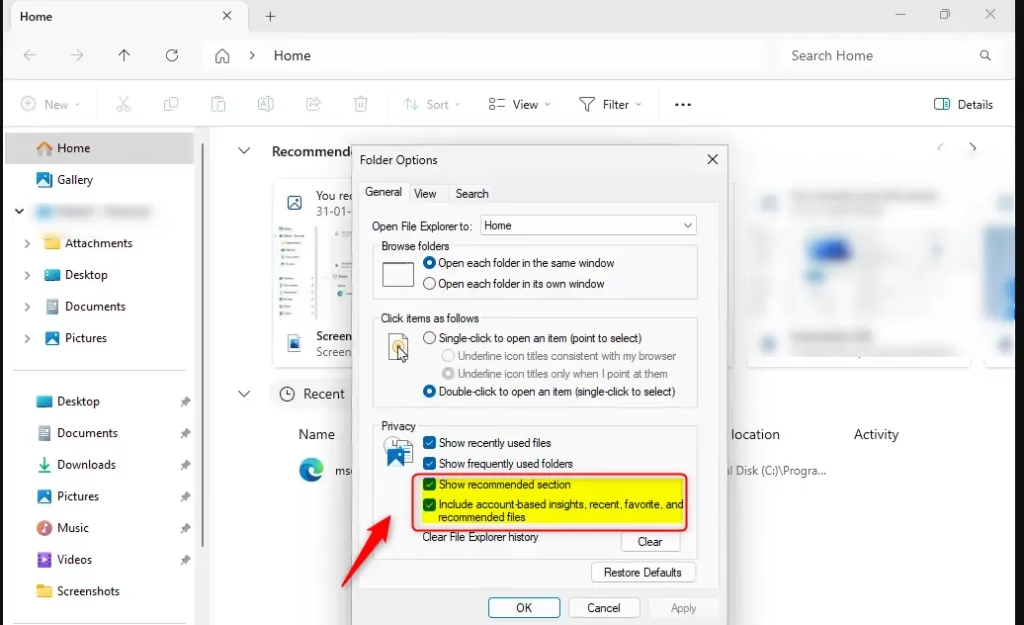
To Turn On the Recommended Section
This is the default setting.
- Open Folder Options.
- Go to the General tab.
- Under Privacy, check the box for Include account-based insights, recent, favorite, and recommended files.
- Under Privacy, check the box for Show recommended section.
- Click OK.
To Turn Off the Recommended Section
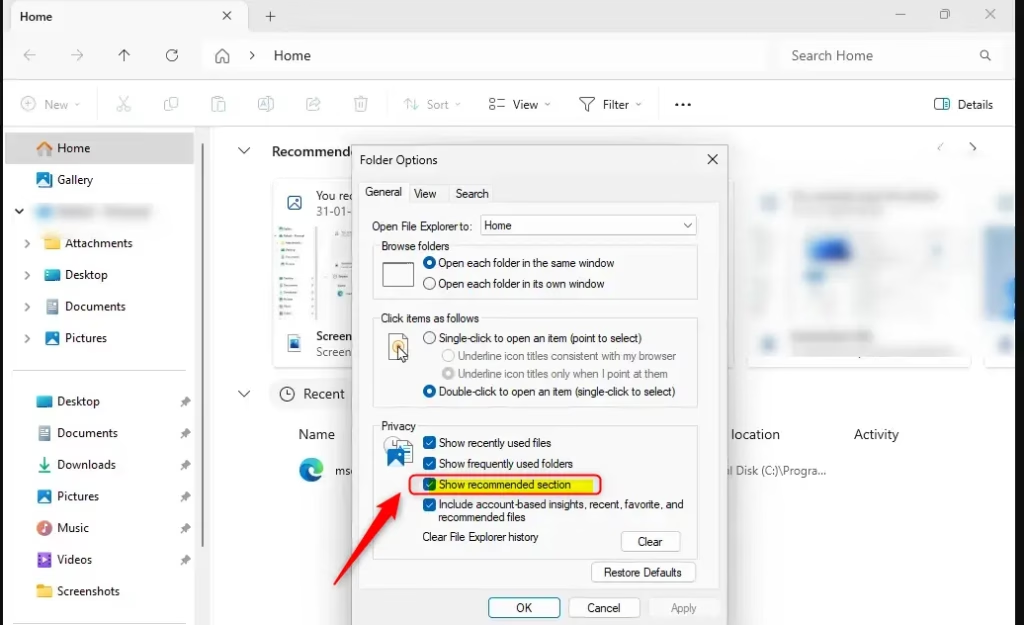
- Open Folder Options.
- Go to the General tab.
- Under Privacy, uncheck the box for Show recommended section.
- Click OK.
Method 2: Use Windows Terminal
⚠️ Admin privileges required
Open Windows Terminal as an administrator and run the commands below.
To Turn On the Recommended Section
This is the default setting.
reg add "HKEY_CURRENT_USER\Software\Microsoft\Windows\CurrentVersion\Explorer" /v ShowCloudFilesInQuickAccess /t REG_DWORD /d 1 /f
reg add "HKEY_CURRENT_USER\Software\Microsoft\Windows\CurrentVersion\Explorer" /v ShowRecommendations /t REG_DWORD /d 1 /f
To Turn Off the Recommended Section
reg add "HKEY_CURRENT_USER\Software\Microsoft\Windows\CurrentVersion\Explorer" /v ShowRecommendations /t REG_DWORD /d 0 /f
Summary
The Recommended section in File Explorer Home helps you quickly access files you use often or recently downloaded. You can turn this feature on or off in two ways: through Folder Options or by using Windows Terminal commands. When enabled, the Recommended section replaces Quick access on your File Explorer Home page. This feature is available to all Windows 11 users with the latest builds and works with personal Microsoft accounts, work accounts, and school accounts.
Leave a Reply