How to Enable OneDrive Sync on Metered Networks in Windows 11

Using a metered network in Windows 11? Here’s how to manage your OneDrive sync settings so your files stay up-to-date without racking up extra data charges.
Click the OneDrive cloud icon, then Help & Settings, and Settings. On the Settings tab, uncheck “Automatically pause sync when this device is on a metered network” to allow syncing. This ensures files stay updated even on limited data connections.
Understanding OneDrive Sync on Metered Networks
OneDrive sync on metered networks is paused by Windows to help you avoid extra data charges on limited internet plans.
Why change these settings?
You might want to change the default settings that pause OneDrive sync on metered networks if you have enough data and need your files to stay updated.
What happens when you are done?
If you change these settings, OneDrive will continue to upload and download your files even when your computer is connected to a metered network. This ensures your files are always current. Just be aware that this will consume your data allowance.
Before You Start: Data Usage Warning
Before you enable sync on a metered connection, remember this could impact your data caps. If you have a strict monthly limit, allowing OneDrive to sync large files might exhaust your data quickly. Always verify your current network status before proceeding.
How to Control OneDrive Sync via Settings
You can easily control OneDrive sync on metered networks by changing settings right inside the OneDrive app.
2. If you don’t see the icon, click the Show hidden icons arrow. If it’s still not there, open the Start menu, type OneDrive, and select it.
3. In the OneDrive app, click Help & Settings and then choose Settings.
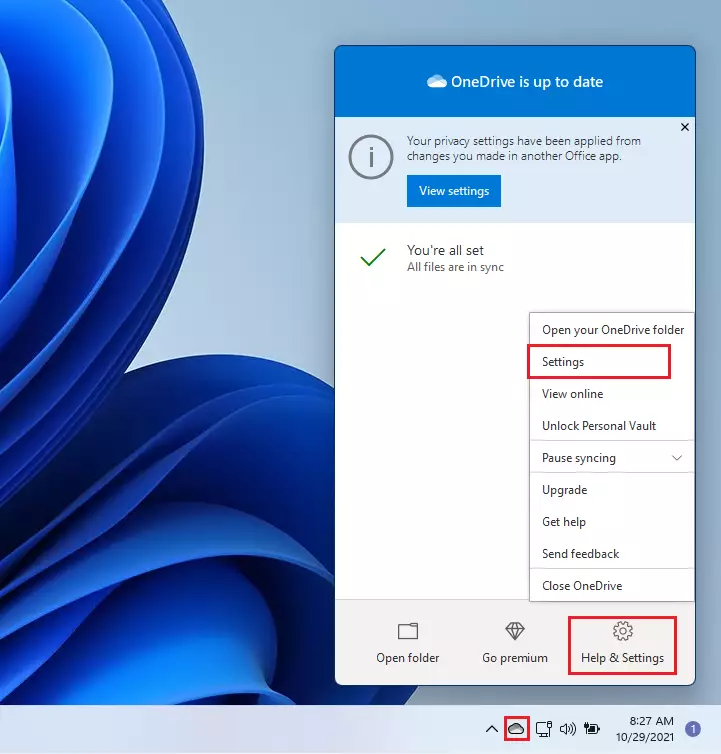
4. Go to the Settings tab. Locate the box labeled Automatically pause sync when this device is on a metered network.

5. Check or uncheck this box to choose your preference. Then, click OK to save your changes.

Verifying Network Status via PowerShell
Checking if Windows sees your internet connection as metered is important for OneDrive sync, and you can do this using PowerShell.
1. Right-click the Start button and select Terminal (Admin).
2. Type the following command and press Enter:
Get-NetConnectionProfile
3. Look for the NetworkCategory and InterfaceAlias. If the network is set to metered, you will see it listed in the connection profile details.
Advanced Configuration: Group Policy and Registry
For IT administrators managing multiple machines, you can force sync settings using the Group Policy Object (GPO) or the Registry Editor.
Using Registry Editor (Admin Required)
1. Press Win + R, type regedit, and press Enter.
2. Navigate to: HKEY_CURRENT_USER\Software\Microsoft\OneDrive
3. Create a new DWORD (32-bit) value named DisableMeteredNetworkSync and set its value to 0 to allow syncing.
Using Group Policy (Admin Required)
1. Open gpedit.msc.
2. Navigate to Computer Configuration\Administrative Templates\OneDrive.
3. Enable the policy Allow syncing on metered networks.
Summary
- OneDrive syncs your files across all your devices.
- Windows pauses syncing on metered networks by default to save your data.
- You can toggle this setting in the OneDrive Settings menu.
- Changes are specific to each device you own.
- Always verify your data plan before enabling sync on metered connections.
Why does Windows automatically mark some Wi-Fi networks as metered?
Windows automatically marks networks as metered if it detects a data limit set by your ISP or if you have manually toggled the setting in your Wi-Fi properties. This is a protective measure designed to prevent background apps from consuming your limited data allowance without your explicit permission.
Can I force OneDrive to sync on a metered connection without changing global network settings?
Yes, you can modify the OneDrive client settings directly within the application preferences as shown in this guide. This approach allows you to override the global Windows metered network restriction specifically for OneDrive, ensuring your files stay synced while keeping other background data-heavy processes paused to save your bandwidth.
Was this guide helpful?

About the Author
Richard
Tech Writer, IT Professional
Richard, a writer for Geek Rewind, is a tech enthusiast who loves breaking down complex IT topics into simple, easy-to-understand ideas. With years of hands-on experience in system administration and enterprise IT operations, he’s developed a knack for offering practical tips and solutions. Richard aims to make technology more accessible and actionable. He's deeply committed to the Geek Rewind community, always ready to answer questions and engage in discussions.




No comments yet — be the first to share your thoughts!