Enable Natural Scrolling in Ubuntu Linux

You enable natural scrolling in Ubuntu Linux by changing a specific setting within your system’s Mouse & Touchpad configuration.
Natural scrolling, also known as reverse scrolling, flips the direction of your scroll wheel or touchpad gestures. Instead of the content moving away from your finger’s direction, it moves with it, mimicking the feel of directly manipulating an object on screen.
For example, when you swipe down on your touchpad with natural scrolling enabled, the content on your display will move upwards. This often feels more intuitive on modern touchpads and trackballs.
This feature is readily available in most recent Ubuntu releases, including Ubuntu 22.04 LTS, directly within the graphical system settings, making it easy for you to toggle on or off at any time.
Open System Settings, then click Mouse & Touchpad. Under the Touchpad or Mouse section, toggle the Natural Scrolling button to the On position. This reverses the scroll direction for a more intuitive feel.
How to turn on or off natural Scrolling in Ubuntu Linux
If your device has a touchpad, you can click, double-click, drag, and scroll without needing extra buttons. Here’s how to set that up.
Ubuntu Linux keeps most of its settings in one place. You can manage everything from system configurations to user accounts and updates within the System Settings panel. You can also find it by clicking the System menu in the top-right corner of your desktop.
On the System menu, select Settings, as shown below.

Click the Mouse & Touchpad tile in the Settings app to open that panel.
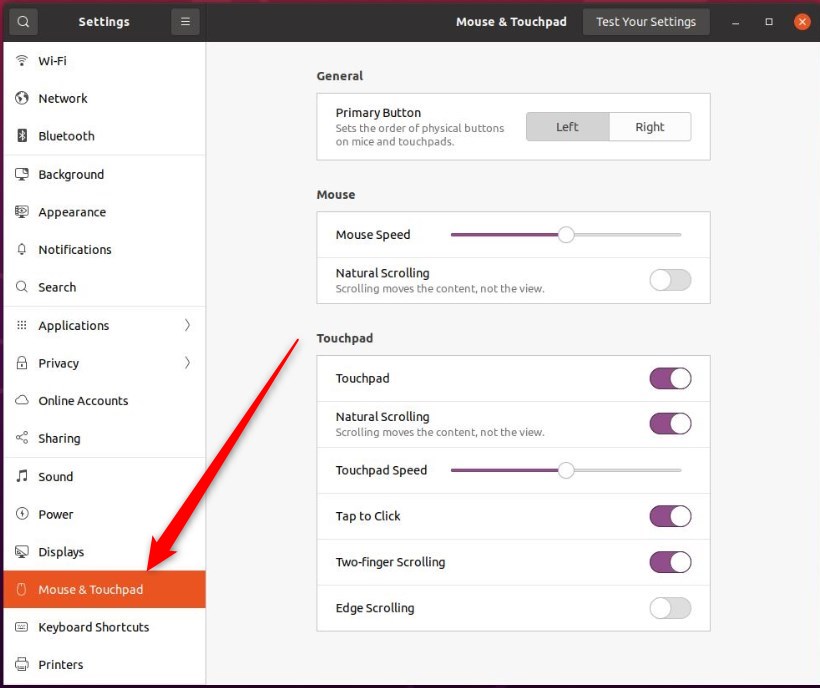
In the System Settings -> Mouse & Touchpad panel, under Touchpad, toggle the Touchpad button to the On position to enable it.
You’ll only see the Touchpad section if your system actually has a touchpad. Make sure it’s enabled before you change any settings within that section.
Once Touchpad is enabled, toggle the Natural Scrolling button to the On position to enable it.
To disable it, toggle the button to the Off position.
Natural Scrolling can also be turned on for your Mouse. Under Mouse, toggle the button for Natural Scrolling to turn it on.
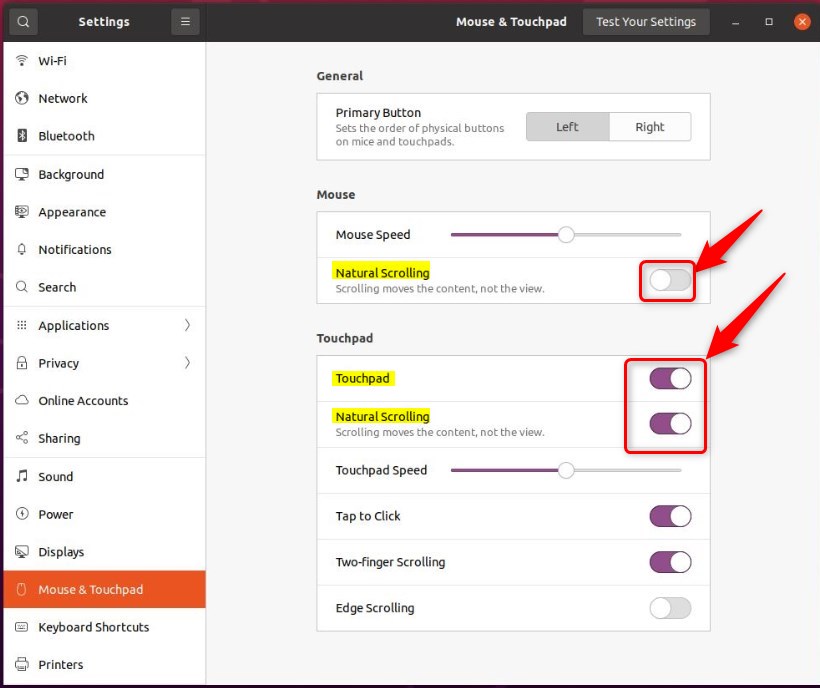
That should do it! You can now close the Settings app.
Conclusion:
- Enabling or disabling Natural Scrolling in Ubuntu Linux is a straightforward process that enhances the touchpad or mouse experience.
- Utilizing the System Settings panel or clicking on the System menu allows quick access to the necessary configurations.
- Remember to enable the Touchpad before adjusting settings related to Natural Scrolling.
- Verifying that the Touchpad or Mouse section is available on your system before attempting to configure Natural Scrolling is crucial.
Was this guide helpful?

About the Author
Richard
Tech Writer, IT Professional
Richard, a writer for Geek Rewind, is a tech enthusiast who loves breaking down complex IT topics into simple, easy-to-understand ideas. With years of hands-on experience in system administration and enterprise IT operations, he’s developed a knack for offering practical tips and solutions. Richard aims to make technology more accessible and actionable. He's deeply committed to the Geek Rewind community, always ready to answer questions and engage in discussions.

No comments yet — be the first to share your thoughts!