How to Enable or Disable Microsoft Store Desktop Shortcuts

You can enable or disable automatic Microsoft Store desktop shortcuts in Windows 11.
Desktop shortcuts are small icons that appear on your Windows desktop, providing quick access to applications. For apps installed from the Microsoft Store, these shortcuts can sometimes be created automatically upon installation.
Starting with Windows 11 version 22H2, Microsoft introduced a setting to control this behavior, allowing you to decide if you want these shortcuts generated by default.
This control ensures your desktop remains clutter-free based on your preferences, saving you from manually deleting unwanted icons after each store app installation.
What is the Microsoft Store?
The Microsoft Store is already on your Windows computer. Think of it like an app shop. You can find and install games and programs safely in one place.
How to Turn Desktop Shortcuts On or Off
Follow these simple steps to control whether new apps add shortcuts to your desktop.
- Open the Microsoft Store app. Click the Microsoft Store icon on your taskbar. Or search for “Microsoft Store” in the Start menu. Need help opening the Microsoft Store? Click here.
- Click your Profile picture. It’s at the top right corner near the search bar.
- Click on Settings. A menu will appear with options.
- Look for the Desktop shortcuts option. You’ll see a toggle switch next to it.
- Toggle the switch On if you want shortcuts to appear automatically. Toggle it Off if you don’t want them.
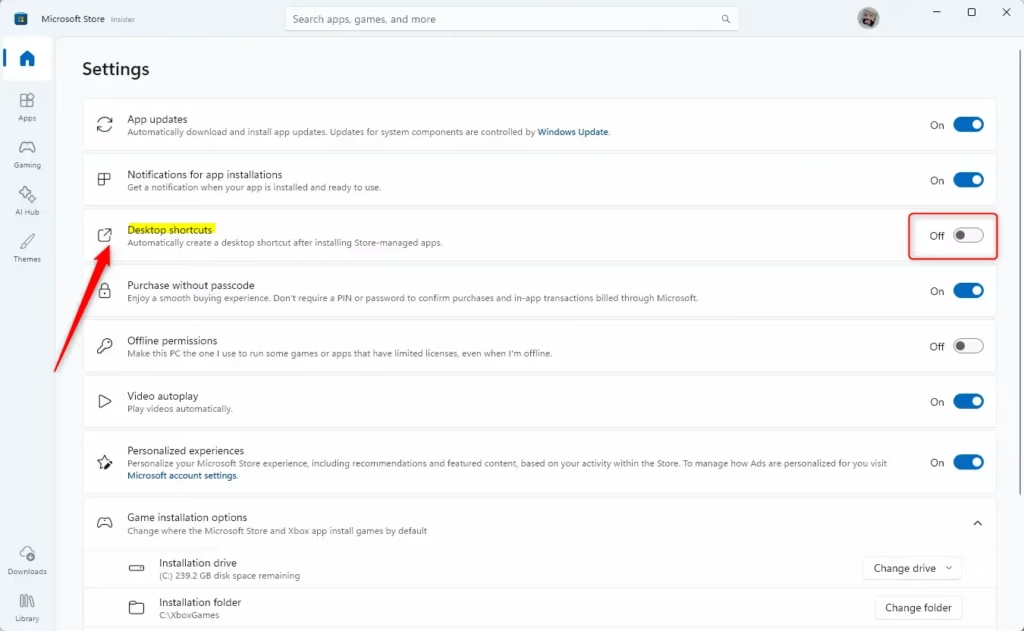
That’s it! Now you control whether new apps create shortcuts on your desktop.
Why is this useful?
- You can keep your desktop clean and tidy by turning shortcuts off.
- If you like quick access to apps, turning shortcuts on saves you time.
- This option puts you in control of how your computer looks and works.
Want to learn more about managing apps on Windows 11? Check out this helpful guide: Windows 11 App Management Tips.
Summary
You can easily enable or disable automatic desktop shortcuts for Microsoft Store apps in Windows 11. Open the Microsoft Store app, go to your Profile settings, and toggle the Desktop shortcuts option on or off. This gives you control over your desktop appearance and helps you keep your workspace organized the way you want it.
Was this guide helpful?

About the Author
Richard
Tech Writer, IT Professional
Richard, a writer for Geek Rewind, is a tech enthusiast who loves breaking down complex IT topics into simple, easy-to-understand ideas. With years of hands-on experience in system administration and enterprise IT operations, he’s developed a knack for offering practical tips and solutions. Richard aims to make technology more accessible and actionable. He's deeply committed to the Geek Rewind community, always ready to answer questions and engage in discussions.

No comments yet — be the first to share your thoughts!