

This tutorial shows you how to turn the Copilot app on or off so it keeps running in the background when you close it in Windows 11.
What is Microsoft Copilot?
Microsoft Copilot is an AI assistant. It helps you with many different tasks and activities on your computer.
Why Would You Want to Change This Setting?
Starting with Copilot app version 146 and higher, you can choose whether Copilot stays running when you close it.
When turned on: The Copilot app keeps running in the background. The Copilot icon stays in your taskbar system tray. You can click it to reopen or quit Copilot anytime.
When turned off: The Copilot app fully closes. It stops running completely.
How to Enable or Disable Keep Copilot Running on Close
- Open the Copilot app on your computer.
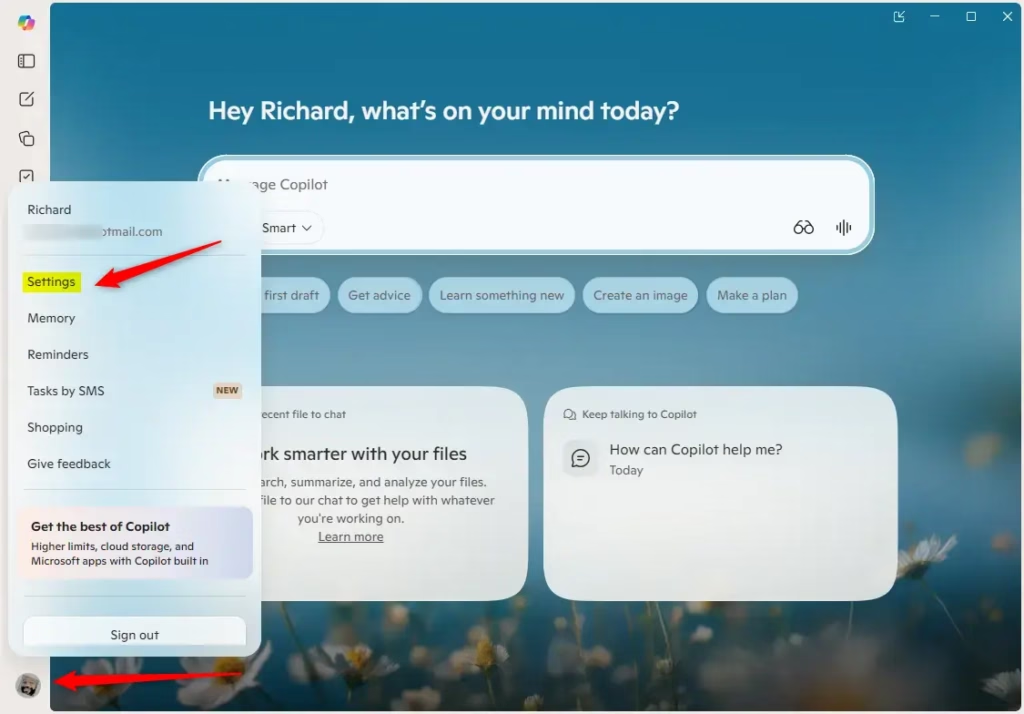
- Click the Account button on the left sidebar. Then click Settings.
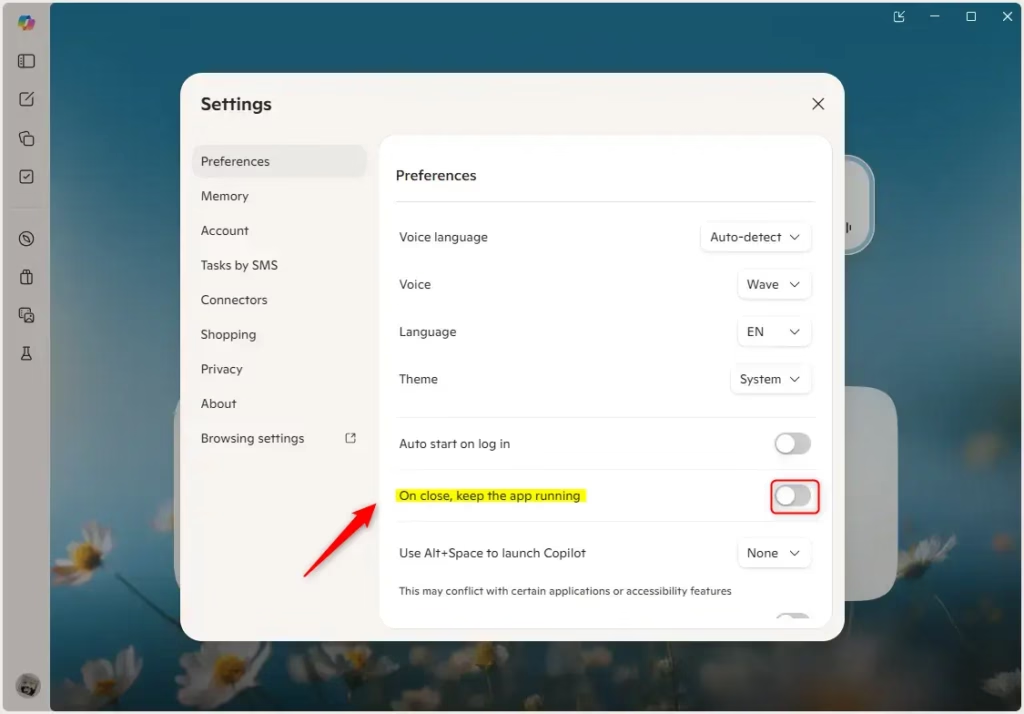
- Click Preferences on the left side. Turn on or off the option that says “On close, keep the app running” based on what you want.
That’s it! Your setting is now changed.
Summary
Microsoft Copilot can stay running in the background after you close it, or it can shut down completely. You control this with one simple setting. Open Copilot, go to Account settings, then Preferences, and toggle “On close, keep the app running” on or off. Choose what works best for how you use your computer.

Leave a Reply