
This tutorial will show you how to turn fullscreen optimizations on or off for games and apps in Windows 11. You can change this setting for just your account or for all users on your computer.
Why Fullscreen Optimizations Matter
Microsoft created fullscreen optimizations to give gamers the best of both worlds. Here’s what that means:
Fullscreen Exclusive (FSE) mode lets games take full control of your screen. Games run fast but can’t use overlays or alt-tab smoothly. Borderless windowed mode lets you use overlays and switch windows easily but can slow down performance.
Fullscreen optimizations blend these two modes together. Your game thinks it’s running in fullscreen exclusive mode, but Windows actually runs it in borderless windowed mode behind the scenes. This lets you get:
- Full screen display
- Fast performance
- Quick alt-tab switching
- Support for overlays like the Game Bar
How It Works
When fullscreen optimizations are on, Windows watches your game carefully. If your game is taking up the full screen with no other apps running, Windows hands almost all power to your game. This gives you the same speed as fullscreen exclusive mode. When you open an overlay (like the Game Bar), Windows takes back some control so the overlay displays smoothly on top of your game.
Fullscreen optimizations are turned on by default. They usually help games run better. However, some people find that turning them off helps their specific games perform better.
Reference: Demystifying Fullscreen Optimizations – DirectX Developer Blog
We wrote this article to explain the difference between Fullscreen Exclusive and Fullscreen Optimizations.
Option One:
Enable or Disable Fullscreen Optimizations for One App or Game (Your Account Only)
Follow these steps to change fullscreen optimizations for just your user account:
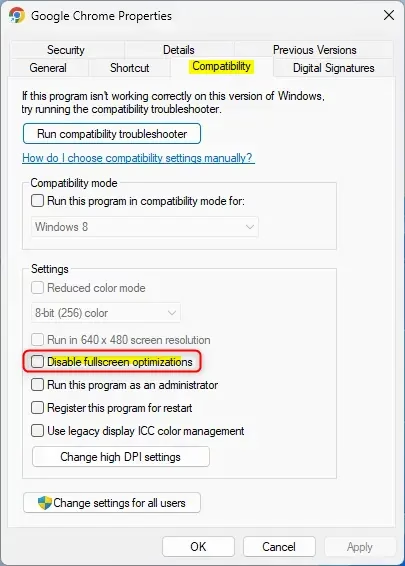
- Right click or press and hold on the EXE file of the app or game. Click on Properties.
- Click on the Compatibility tab. (see screenshot below)
- Check the box (to disable) or uncheck the box (to enable – default) next to Disable fullscreen optimizations.
- Click on OK.
Option Two:
Enable or Disable Fullscreen Optimizations for One App or Game (All Users)
⚠️ Admin Required: You must be signed in as an administrator to use this option.
Follow these steps to change fullscreen optimizations for everyone on your computer:
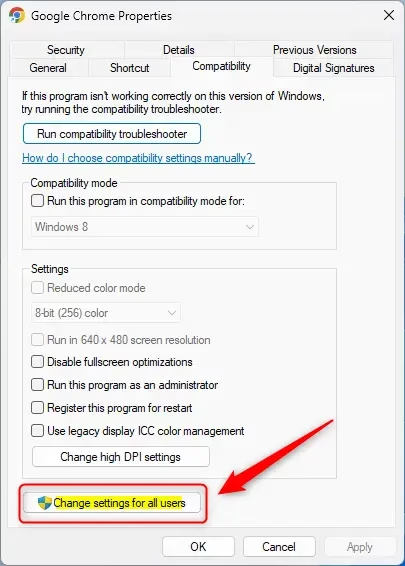
- Right click or press and hold on the EXE file of the app or game. Click on Properties.
- Click on the Compatibility tab. Then click on Change settings for all users.
- Check the box (to disable) or uncheck the box (to enable – default) next to Disable fullscreen optimizations. Then click on OK.
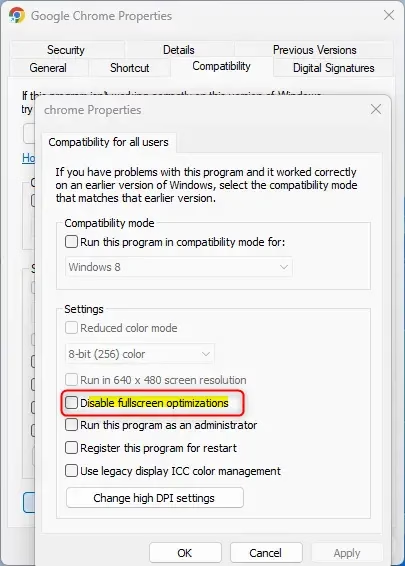
- Click on OK.
Summary
Fullscreen optimizations help games run faster while keeping useful features like overlays and quick alt-tab switching. If you want to turn fullscreen optimizations off for a specific game, use Option One (for your account only) or Option Two (for all users on the computer). Just right-click the game’s EXE file, go to Compatibility, and check or uncheck the “Disable fullscreen optimizations” box. Remember that Option Two requires admin privileges.

Leave a Reply Cancel reply