Enable Fractional Scaling in Ubuntu: A Step-by-Step Guide

You enable fractional scaling in Ubuntu to set display scaling between the standard 100% and 200% options.
Fractional scaling lets you select specific intermediate scaling levels, such as 125% or 150%, offering a more precise fit for your screen resolution, especially on high-resolution displays.
Ubuntu typically keeps this advanced scaling capability hidden, but you can easily unlock it with a simple command-line instruction.
This guide shows you exactly how to activate fractional scaling on your Ubuntu system, giving you granular control over how your desktop looks.
Open Settings, navigate to Displays, and toggle the Fractional Scaling switch to On. This unlocks additional scaling options like 125% and 150% for your display.
How to turn on or off fractional scaling in Ubuntu Linux
As described above, by default, Ubuntu Linux comes with two scaling options: 100% and 200%. Most devices, including those with 4k or high-resolution (HiDPI) screens, may work well with the default scaling options.
Here’s how to enable it.
Ubuntu Linux keeps most settings in one place. You can find system configurations, user management, and updates all within the System Settings panel.
To open System Settings, go to the Activities overview and type ‘Settings.’

Alternatively, click the System menu in the top-right corner of your desktop.
On the System menu, select Settings, as shown below.

In the Settings app, click the Displays tile.
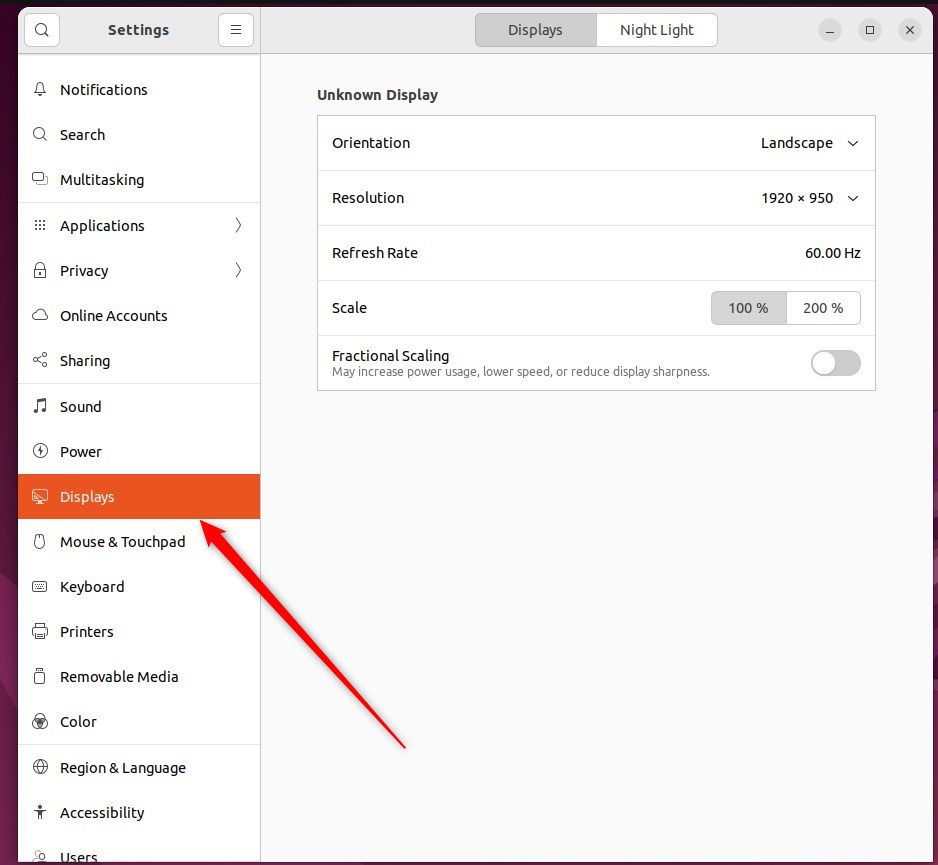
On the System Settings -> Displays settings panel, under Built-in or external monitor, toggle the switch button for Fractional Scaling to On to enable it.
To disable, toggle back to the Off position.
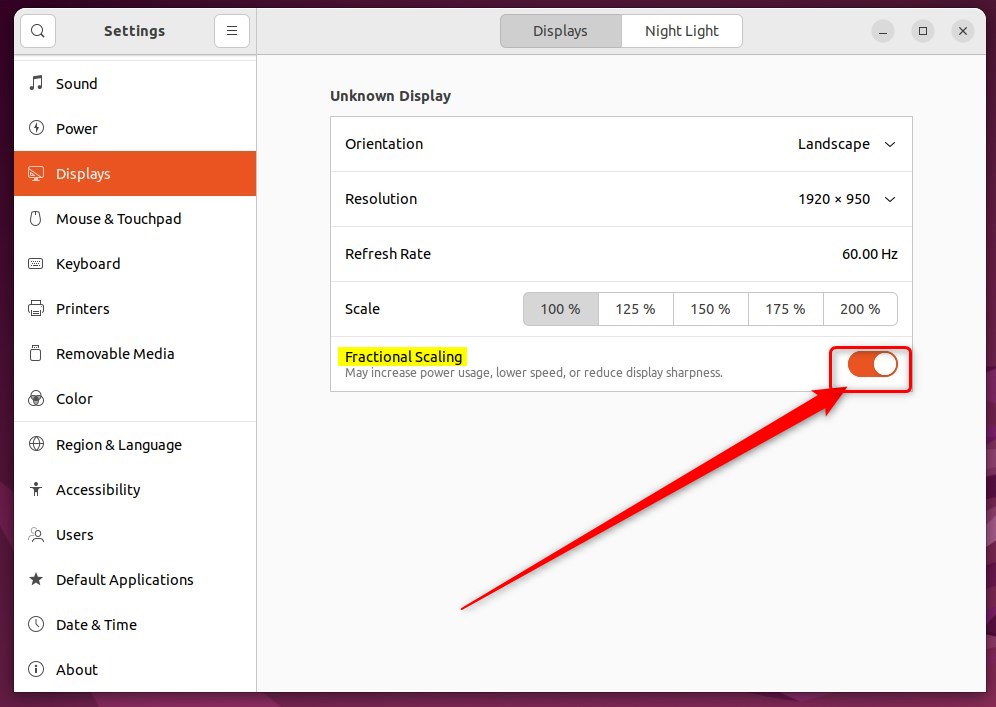
With Fractional scaling enabled, you get additional scaling values: 125%, 150%, and 175%.
That should do it! You can now close the Settings app.
Conclusion:
- Fractional scaling in Ubuntu Linux allows for more precise control over the display scaling options, particularly beneficial for devices with high-resolution displays.
- Enabling fractional scaling provides additional scaling values such as 125%, 150%, and 175%, offering more flexibility in customizing the display size.
- The System Settings panel in Ubuntu Linux provides a straightforward method for toggling fractional scaling on or off, catering to individual preferences and display requirements.
- This enhanced scaling functionality enhances the overall user experience on Ubuntu, ensuring a more tailored and visually optimized display.
Was this guide helpful?

About the Author
Richard
Tech Writer, IT Professional
Richard, a writer for Geek Rewind, is a tech enthusiast who loves breaking down complex IT topics into simple, easy-to-understand ideas. With years of hands-on experience in system administration and enterprise IT operations, he’s developed a knack for offering practical tips and solutions. Richard aims to make technology more accessible and actionable. He's deeply committed to the Geek Rewind community, always ready to answer questions and engage in discussions.



No comments yet — be the first to share your thoughts!