How to Enable or Disable Exclusive Mode for Audio Device in Windows 11

This guide explains how to turn Exclusive Mode on or off for your audio devices in Windows 11.
Why use this? Exclusive mode lets specific apps take total control of your speakers or microphone. This can improve sound quality for professional audio software by bypassing Windows background processing. However, it stops other apps from playing sound at the same time.
What happens when done? If enabled, your chosen app will have priority. Other applications may stop producing sound until you close the app using the exclusive connection.
Option One
Windows 11 exclusive mode can be toggled directly in Sound Settings by opening Settings (Win+I), navigating to System > Sound > All sound devices, selecting your audio device, and using the exclusive mode toggle under Advanced settings to enable or disable exclusive control.
- Open Settings (press Win+I).
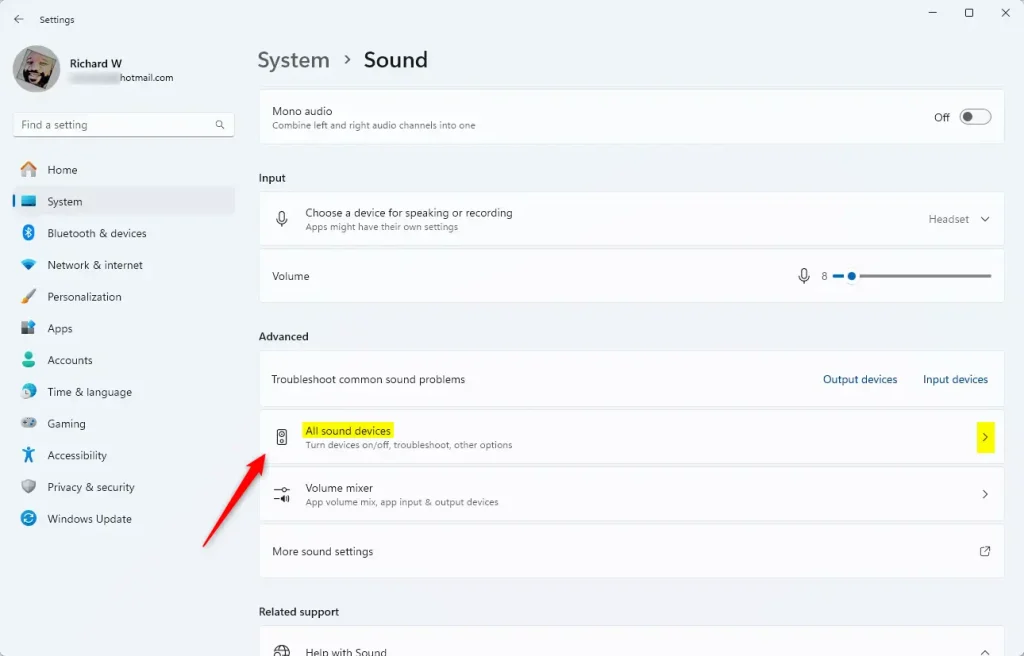
- Click System on the left, then click Sound on the right. Open Sound settings

- Click All sound devices. Open All sound devices settings
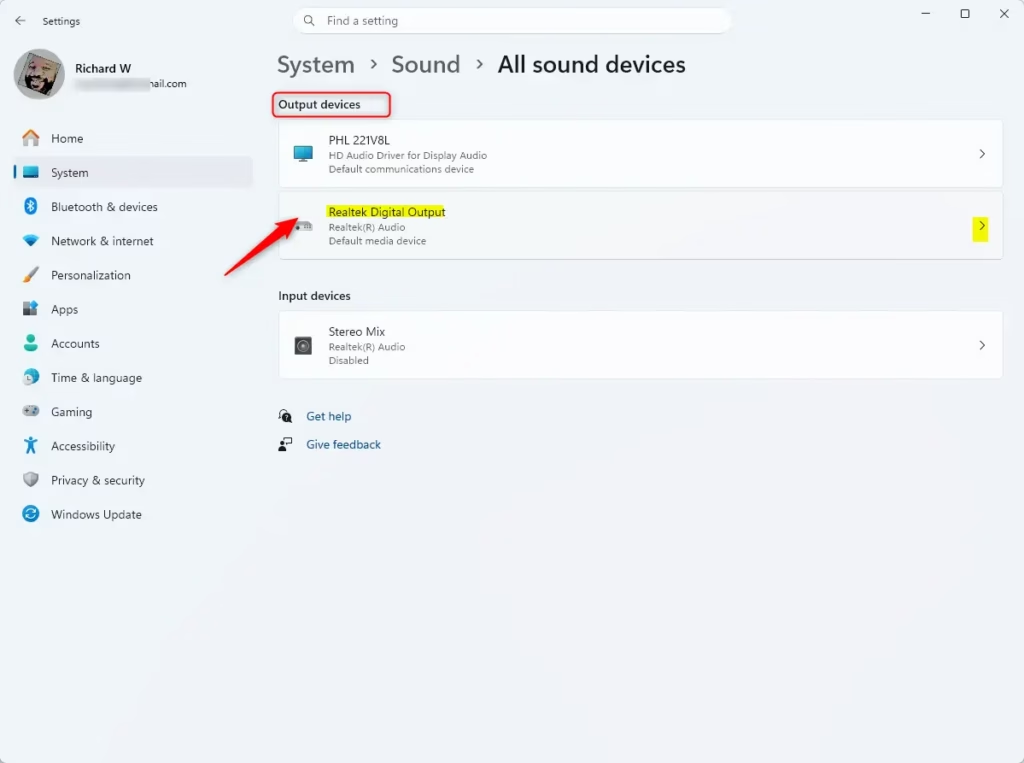
- Select the output or input device you want to change.
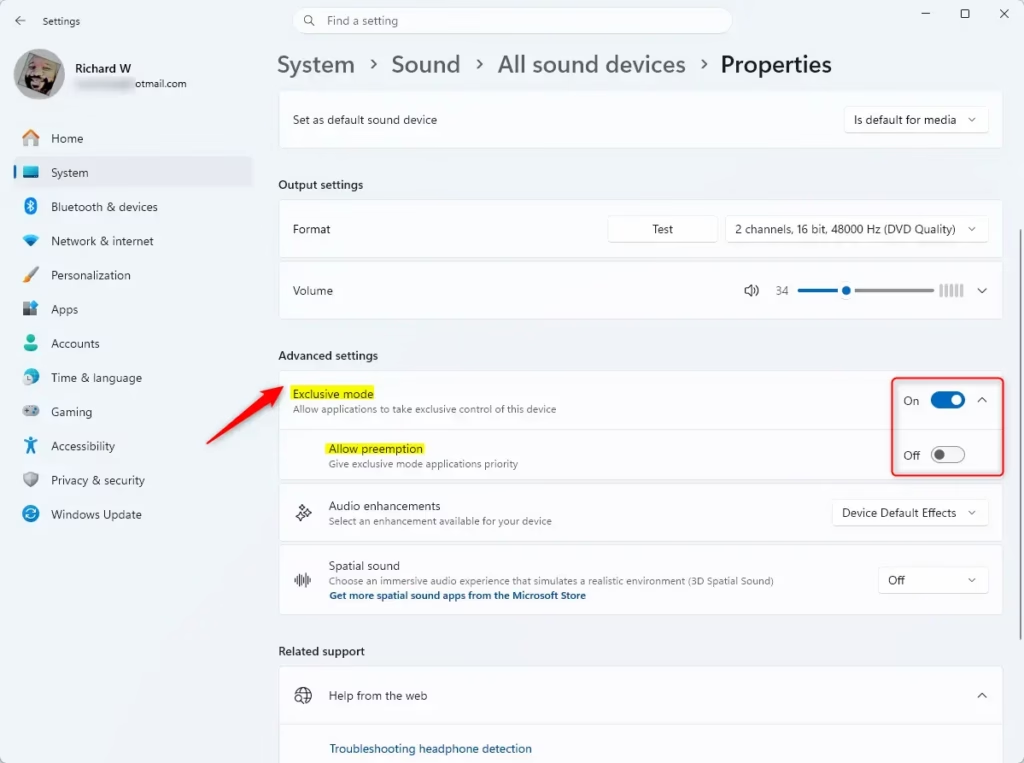
- Under Advanced settings, use the toggle switch to turn Exclusive mode on or off.
- If you turned it on, you can also toggle Allow preemption to decide if those apps get priority.
- Close the Settings window when finished.
Option Two
Enable or Disable Exclusive Mode for Audio Device in Control Panel
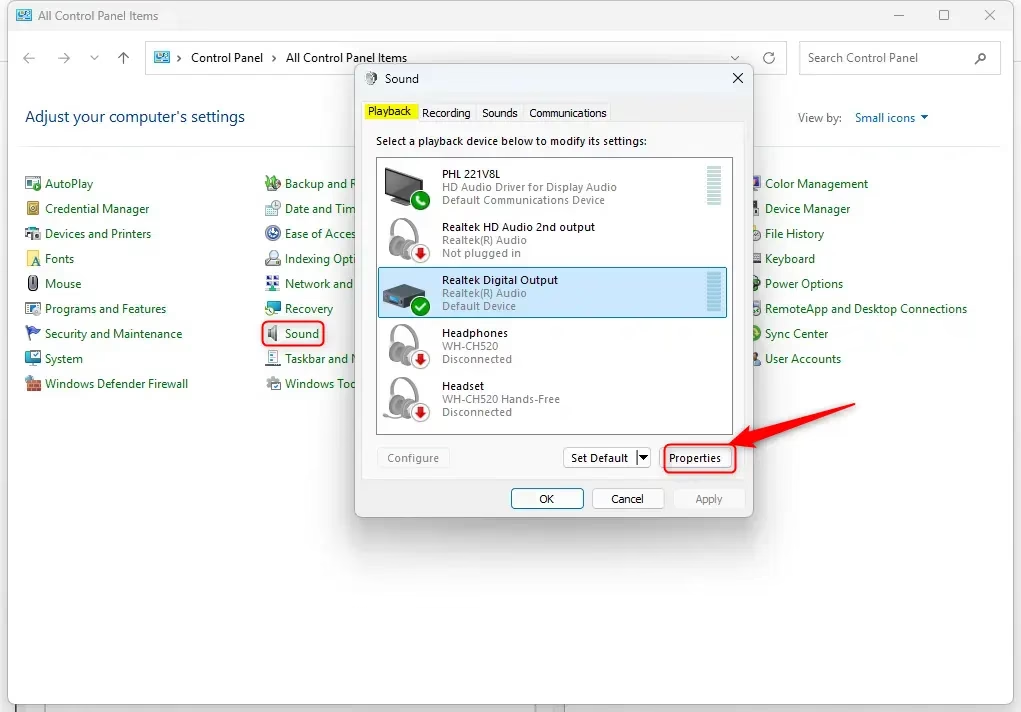
- Open the Control Panel and click the Sound icon.
- Select the Playback (output) or Recording (input) tab. Pick your device and click Properties.
- Click the Advanced tab.
- Check or uncheck the box for Allow applications to take exclusive control of this device.
- If checked, you can also check or uncheck Give exclusive mode applications priority.
- Click OK.
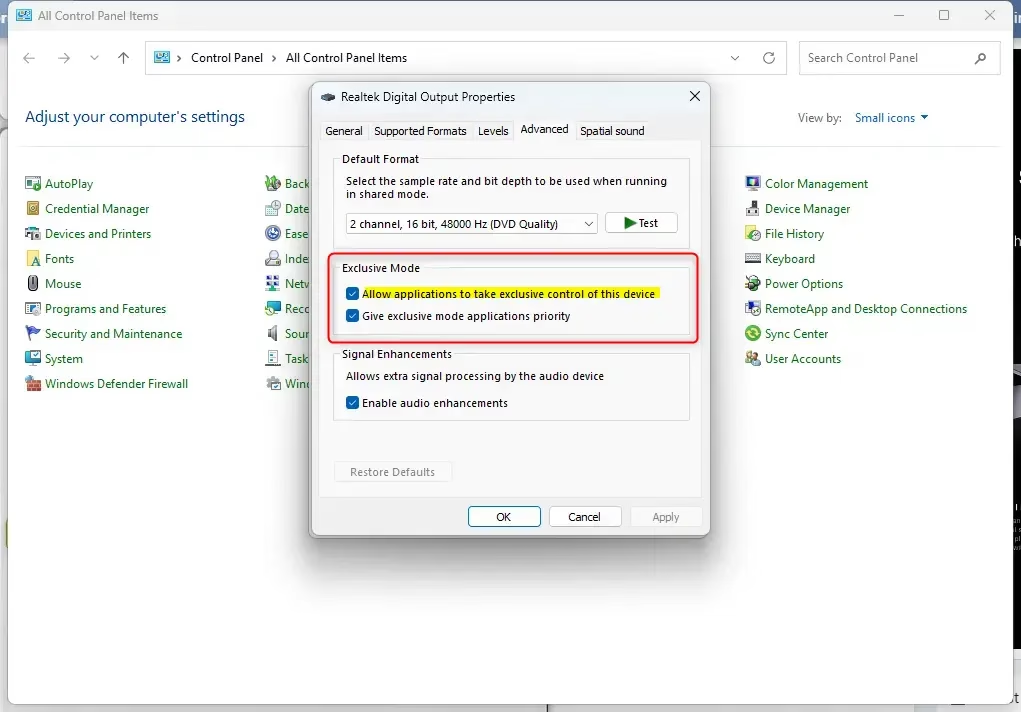
- Click OK again to save your changes.
Summary
Exclusive mode gives apps direct access to your audio hardware. You can manage this setting through the modern Settings menu or the classic Control Panel. Turning this on is great for high-quality audio work, but it may silence other apps while it is active.
Should I turn off exclusive mode for audio?
You should turn off exclusive mode if you frequently multitask with multiple audio sources, such as listening to music while watching videos or using notification sounds. Disabling it allows Windows to mix audio from various applications simultaneously, preventing playback errors or silence in secondary apps while a primary program is active.
How do I turn off exclusive mode audio in Windows 11?
To turn off exclusive mode, open Settings by pressing Win+I, navigate to System > Sound, and select All sound devices. Choose your specific audio device from the list, scroll down to the Advanced settings section, and toggle the Exclusive mode switch to the Off position to disable the feature.
Does Tidal Exclusive Mode Sound better?
Yes, Tidal Exclusive Mode can sound better because it allows the application to bypass the Windows audio engine. By taking direct control of the hardware, it prevents Windows from resampling the audio or applying unwanted processing, ensuring the digital signal reaches your DAC in its original, bit-perfect format for higher fidelity.
What does exclusive mode do for a microphone?
Exclusive mode for a microphone grants a single application total control over the input device, preventing other programs from accessing or modifying the audio stream. This is beneficial for professional recording software, as it minimizes latency and ensures the signal remains unprocessed by Windows, providing a cleaner, more stable recording environment.
Was this guide helpful?

Leave a Reply Cancel reply