How to Enable Updates for Edge on Metered Connections

This article shows you how to turn Microsoft Edge updates on or off when you’re using a metered internet connection.
Open Microsoft Edge settings, navigate to “About Microsoft Edge,” and toggle “Update” on to allow downloads over metered connections. This keeps your browser current but uses more data.
What is Microsoft Edge?
Microsoft Edge is the web browser that comes with Windows 11. It works the same way as Google Chrome and runs on Windows, Linux, and macOS computers.
By default, Microsoft Edge automatically checks for and installs the latest updates. You can also manually check for updates whenever you want.
Why Control Updates on Metered Connections?
Controlling Edge updates on metered connections is important because these plans have limited data, and letting Edge update automatically could use up your data allowance quickly.
So, what happens if you decide to enable updates on metered connections? Edge will download updates no matter what network you’re using. This keeps your browser current but uses more of your data.
Method 1Enable Updates Through Microsoft Edge Settings
Step 1Open Microsoft Edge
Click the Edge browser icon on your taskbar. Or click the Start menu, search for “Microsoft Edge,” and click it in the results.
Step 2 Go to Settings
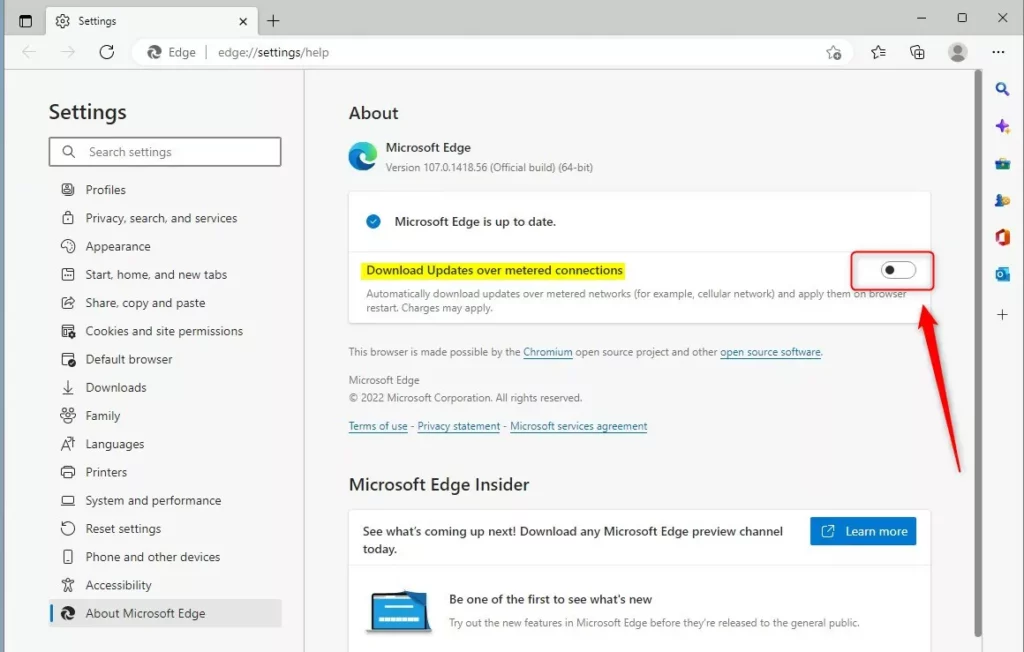
Click the three dots menu button in the top right corner of Edge. Select Help and feedback, then click About Microsoft Edge.
Step 3Turn Updates On or Off
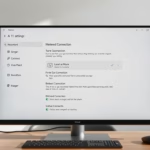
On the About Microsoft Edge page, you’ll see a toggle button. Turn the toggle On to let Edge download updates no matter your connection. Flip it Off to stick to updating only on regular networks.
Step 4Close Microsoft Edge
Close the browser to finish.
Method 2Enable Updates Using Windows Registry
You can also change this setting using the Windows Registry. This method gives you more control.
Step 1Open Registry Editor
⚠️ Admin Required
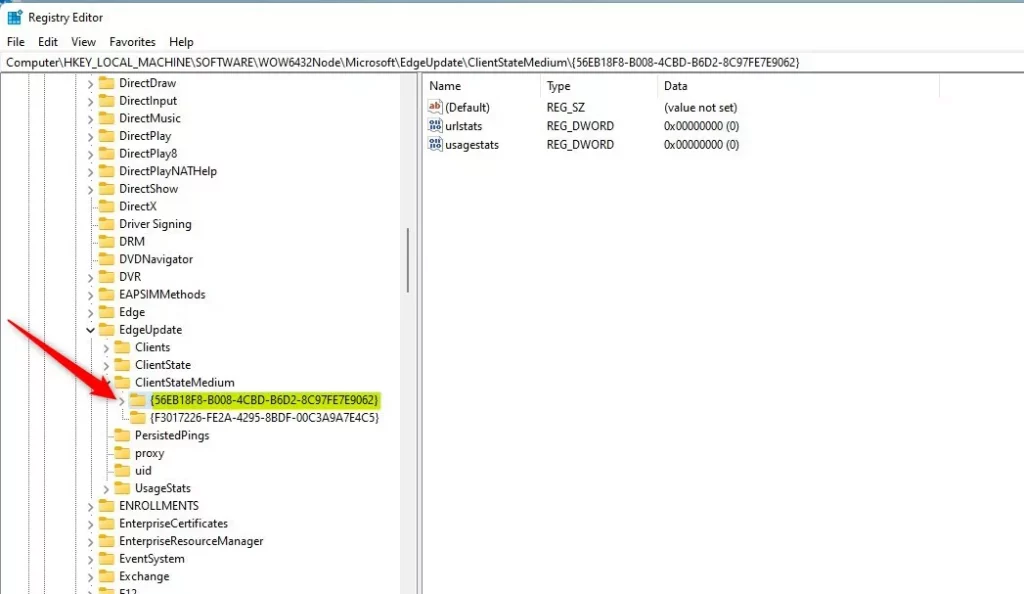
Open the Registry Editor (this is a tool for advanced Windows settings) and go to this folder path:
HKEY_LOCAL_MACHINE\SOFTWARE\WOW6432Node\Microsoft\EdgeUpdate\ClientStateMedium\{56EB18F8-B008-4CBD-B6D2-8C97FE7E9062}Step 2Create the Folder (If Needed)
If you don’t see the {56EB18F8-B008-4CBD-B6D2-8C97FE7E9062} folder, right-click on ClientStateMedium and create it as a new subkey (think of it as a new folder within the Registry).
Step 3Create a New Value
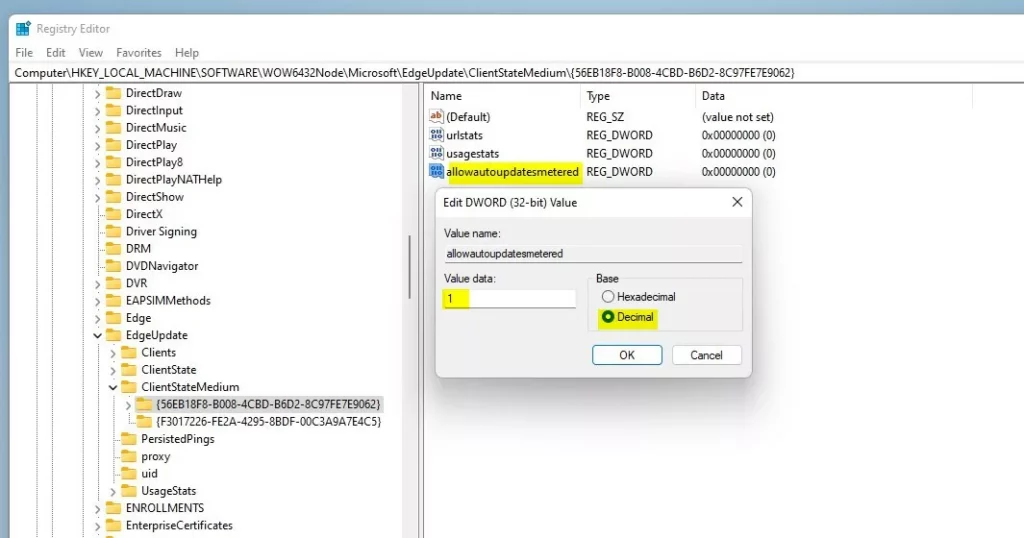
Right-click inside the {56EB18F8-B008-4CBD-B6D2-8C97FE7E9062} folder. Select New > DWORD (32-bit) Value. Name it allowautoupdatesmetered.
Step 4Set the Value
Double-click the new allowautoupdatesmetered entry. Set the value to:
- 1 = Turn on updates over metered connections
- 0 = Turn off updates over metered connections
Summary
You can manage Edge updates on metered connections using either the browser’s settings or the Windows Registry, depending on how much control you need.
- Use the Edge browser settings for a quick, easy change
- Use the Windows Registry for more advanced control
Turning on metered updates keeps Edge current but uses more data. Turn it off if you have a limited data plan. Choose what works best for your internet situation.
Was this guide helpful?

About the Author
Richard
Tech Writer, IT Professional
Richard, a writer for Geek Rewind, is a tech enthusiast who loves breaking down complex IT topics into simple, easy-to-understand ideas. With years of hands-on experience in system administration and enterprise IT operations, he’s developed a knack for offering practical tips and solutions. Richard aims to make technology more accessible and actionable. He's deeply committed to the Geek Rewind community, always ready to answer questions and engage in discussions.


No comments yet — be the first to share your thoughts!