

This article describes the steps to turn on or off the Dock or launcher on all displays in Ubuntu Linux.
The Dock or launcher shows you your favorite running applications. You can add, remove, and rearrange applications on the Dock in Ubuntu Linux.
The Dock will default only show on the primary monitor or display if you have multiple monitors connected to Ubuntu Linux. However, you can show the Dock on the primary or secondary monitor or all displays.
Follow the steps below if you have multiple displays and want to show the Dock on all.
How to show or hide the Dock on all displays in Ubuntu Linux
As described above, you can show the Dock on the primary or secondary monitor or all displays.
Below is how to do that.
Ubuntu Linux has a centralized location for the majority of its settings. From system configurations to creating new users and updating, all can be done from the System Settings panel.

Alternatively, click on the System menu at the top-right corner of the top bar on your desktop.
On the System menu, select Settings, as highlighted below.

Click on the Appearance tile to open the panel in the Settings app.
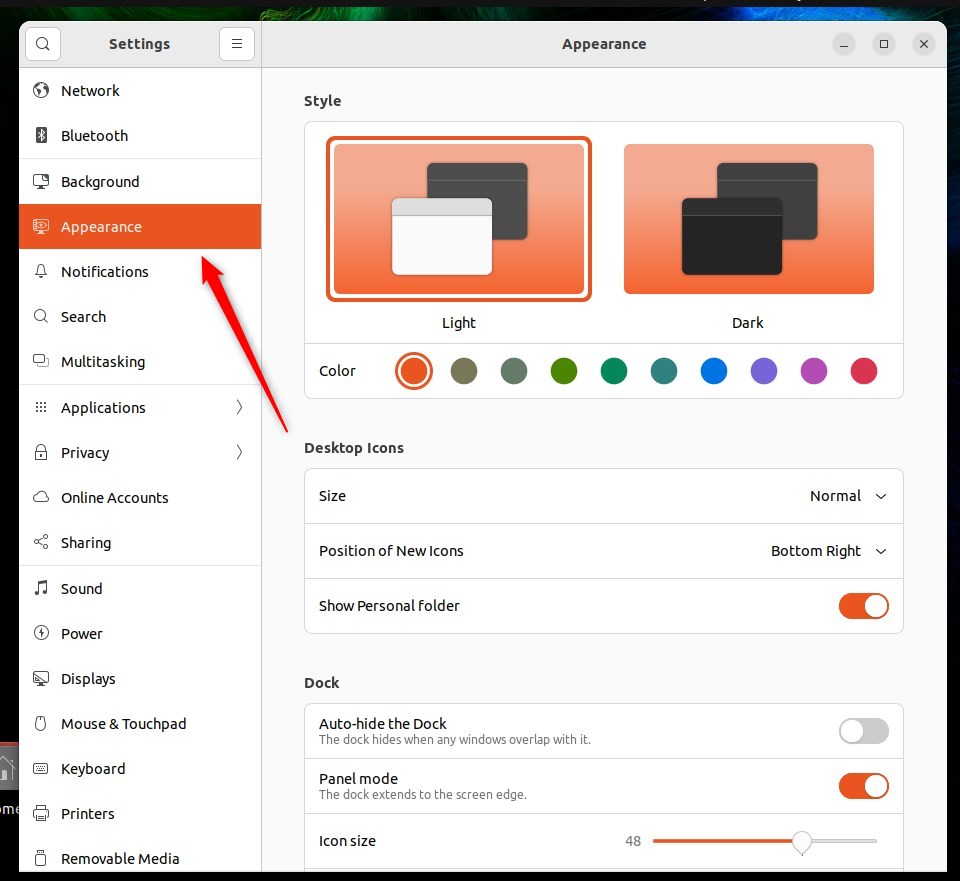
In the System Settings -> Appearance panel, under Dock, select Show on and choose All displays on the dropdown option as highlighted below.
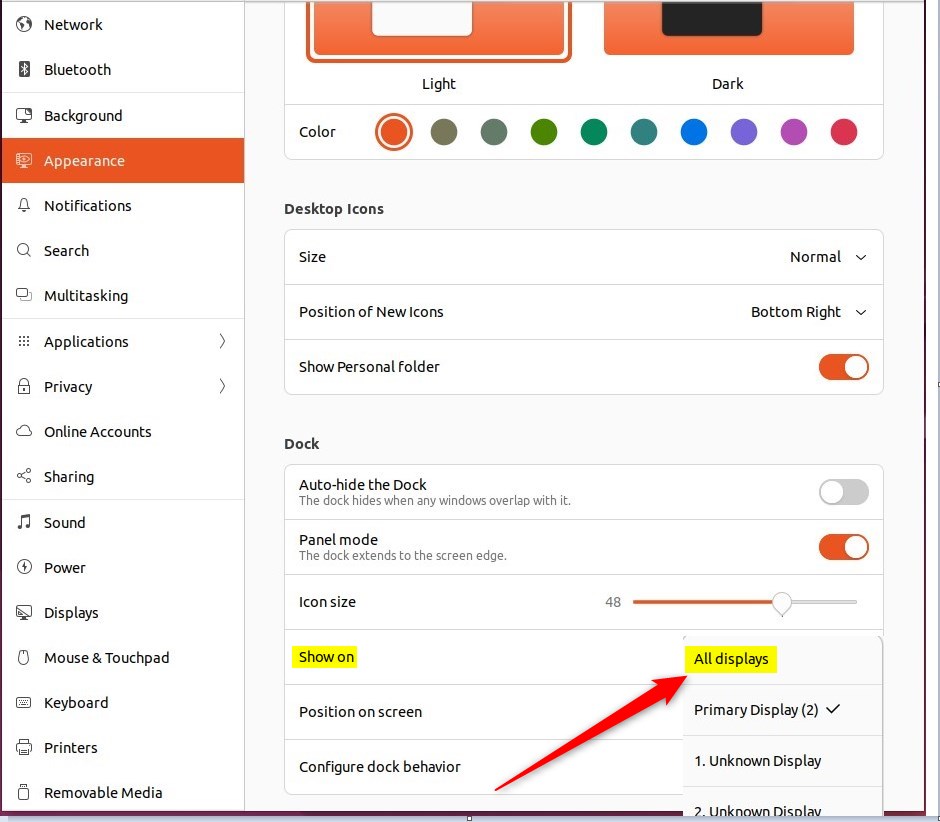
Choosing to show the Dock on all displays will allow you to access your favorite and running applications from all displays.
That should do it!
Conclusion:
- Enabling the Dock on all displays in Ubuntu Linux allows for easy access to running applications
- User-friendly steps provided help in customizing the Dock visibility based on individual preferences
- Exploring additional settings in the System panel can further personalize the Ubuntu Linux experience
Leave a Reply to How to Reset Ubuntu Dock to Default Settings – Geek Rewind Cancel reply