
This tutorial shows you how to turn on or off the display of additional keys pressed when using a pen in Windows 11.
You can connect a pen to your Windows 11 PC via Bluetooth. Then you can customize what your pen does and how it works.
Why would you want this?
When you press certain keys on your keyboard while using your pen, you might want to see them displayed on your screen. These keys are Shift, Ctrl, Alt, and Win. They are called modifier keys. This feature shows these keys under your pen cursor when you press them.
What happens when you enable this?
You will see the modifier keys appear on your screen whenever you press them while using your pen. This helps you know which keys are active.
Option One: Use Settings
- Open Settings by pressing Win+I on your keyboard.
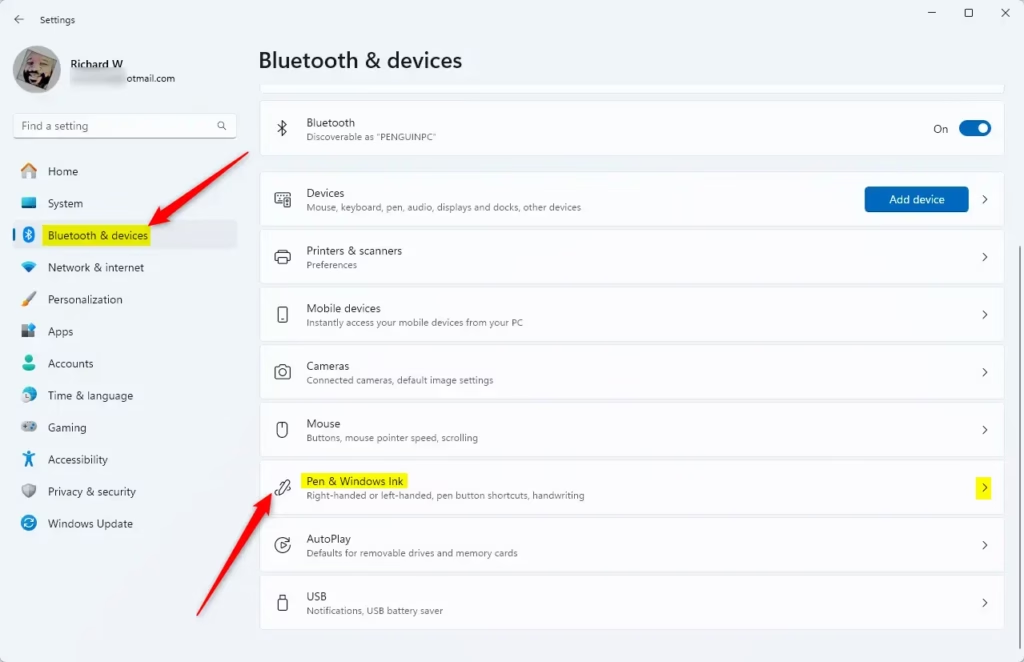
- Click or tap Bluetooth & devices on the left side. Then click or tap Pen & Windows Ink on the right side. Open Pen & Windows Ink settings
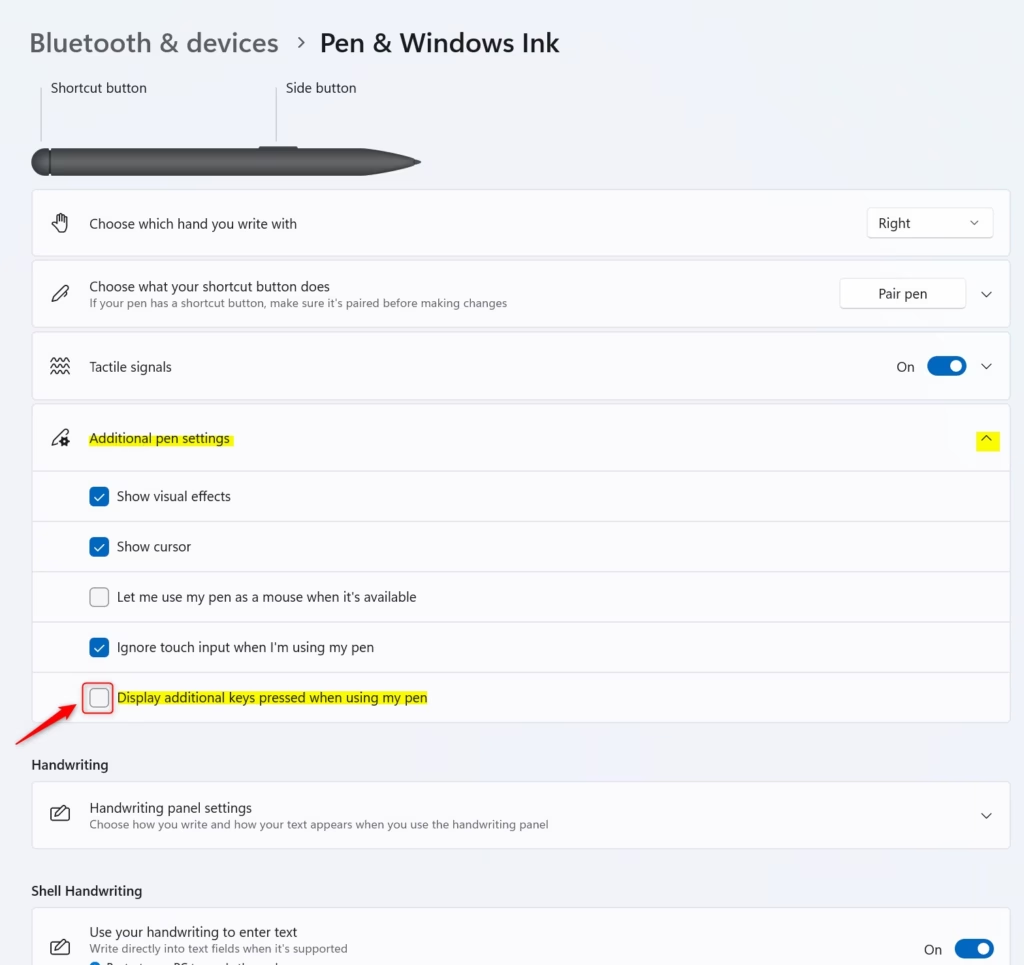
- Click or tap Additional pen settings to expand it.
- Check the box to enable or uncheck the box to disable Display additional keys pressed when using my pen. By default, this is unchecked (disabled).
- You can now close Settings.
Option Two: Use Registry
Open the Windows Terminal app and run the commands below.
Enable Display Additional Keys Pressed when using Pen
reg add "HKEY_CURRENT_USER\Software\Microsoft\Windows NT\CurrentVersion\Windows\Pen" /v PenKeySuppress /t REG_DWORD /d 1 /f
Disable Display Additional Keys Pressed when using Pen
This is the default setting.
reg add "HKEY_CURRENT_USER\Software\Microsoft\Windows NT\CurrentVersion\Windows\Pen" /v PenKeySuppress /t REG_DWORD /d 0 /f
Summary
You can show or hide modifier keys on your screen when using a pen in Windows 11. Use Settings for an easy way to change this. Or use the Registry if you prefer commands. The modifier keys are Shift, Ctrl, Alt, and Win. By default, these keys are hidden. Enable this feature if you want to see them displayed under your pen cursor.

Leave a Reply