

What is Copilot?
Microsoft Copilot is an AI assistant built into Windows 11. It helps you with everyday tasks on your computer.
Why Would You Use This Feature?
This feature lets Copilot read text from your apps while you work. It can also suggest edits when you’re sharing your screen. This is useful if you want AI feedback without switching between programs.
What Happens When You Turn This On?
When you enable this feature, Copilot gets permission to read text from your apps. It can also suggest edits while you’re sharing your screen. This means you get AI feedback without leaving your current app.
How to Enable or Disable This Feature
- Open the Copilot app on your Windows 11 computer.
- Sign in with your Microsoft account. This keeps your settings synced.
- Click or tap the Account button on the left side. Then click or tap Settings.
- Click or tap Preferences on the left side of Settings.
- Find the toggle that says “Allow Copilot to read and edit text in apps.” Turn it on or off based on what you want.
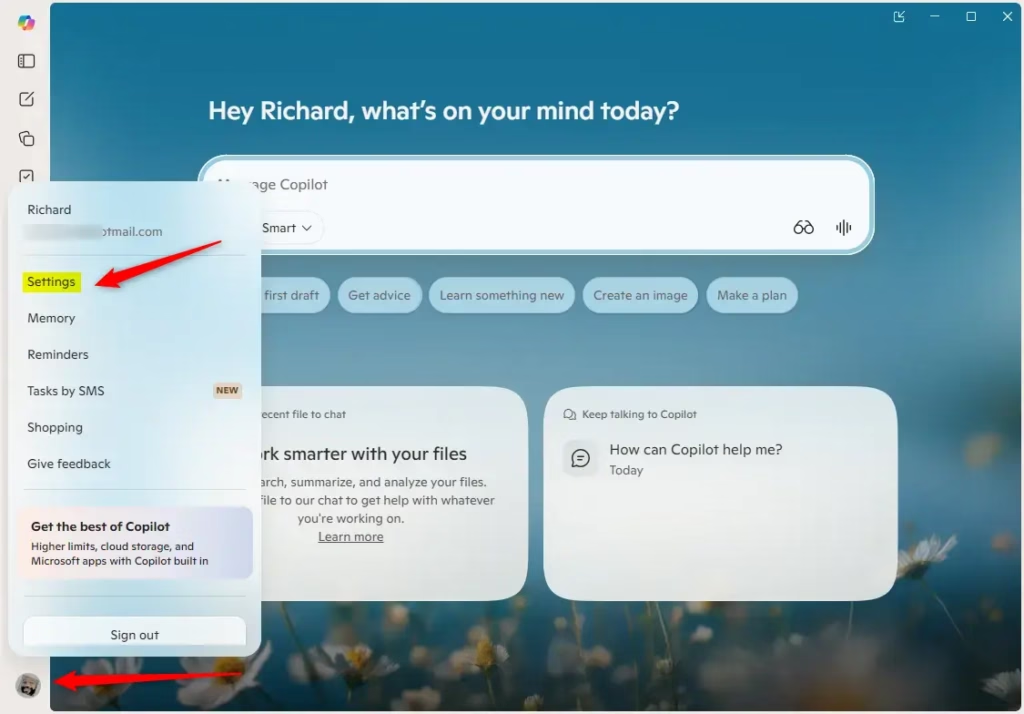
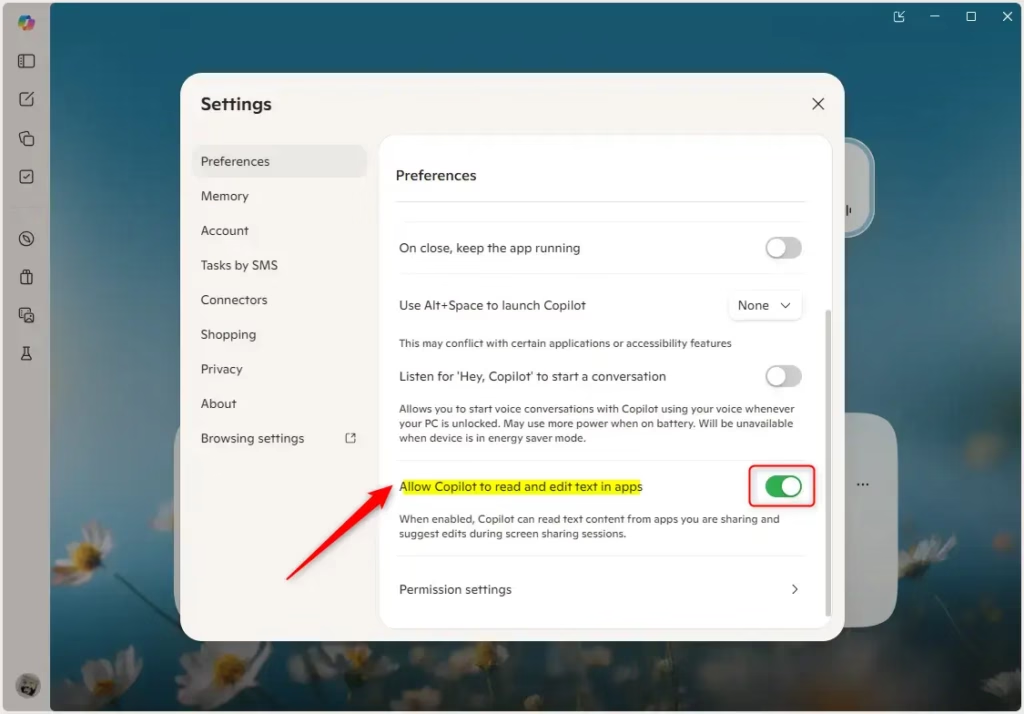
Enabling or disabling Copilot’s ability to read and edit text in shared apps requires accessing your Copilot settings through your Microsoft account. Open the Copilot app, sign in, navigate to Account > Settings > Preferences, and toggle the “Allow Copilot to read and edit text in apps” setting to your preferred state.
Summary
Copilot is Windows 11’s AI assistant that can help you by reading your screen and suggesting edits. To control whether Copilot can read and edit text in your apps, open Copilot and go to Account Settings, then Preferences. Toggle the “Allow Copilot to read and edit text in apps” setting on or off. This takes just a few clicks.

Leave a Reply