
This guide explains how to turn the Copilot Journeys feature on or off in the Microsoft Edge browser on Windows 11.
To enable or disable Copilot Journeys, open Edge Settings, navigate to AI innovations or Start, home, and new tab page, and toggle the Journeys setting on or off. Ensure Copilot Mode and the Copilot new tab page are enabled first.
Why use Copilot Journeys?
Copilot Journeys helps you keep your web browsing organized by remembering where you left off, grouping your sessions, and summarizing your progress.
What happens when you enable it?
Once turned on, Edge will track your browsing activity in the background. After you visit a few sites, you’ll see ‘Journey’ cards appear on your new tab page. Clicking these cards opens a chat with Copilot to help you continue your specific task.
How to Enable or Disable Copilot Journeys
You can easily turn Copilot Journeys on or off right in your Microsoft Edge settings.
- Open Microsoft Edge.
- Click the Settings and more (three dots) menu in the top right corner and select Settings.
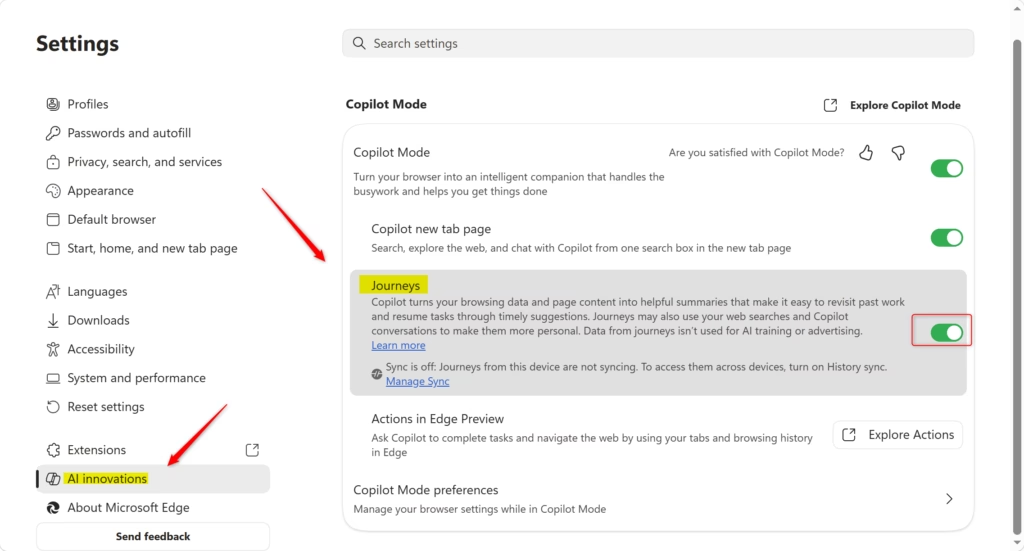
- In the left-hand menu, click on AI innovations or Start, home, and new tab page.
Note: If you do not see the menu, click the three-line icon or widen your browser window. - Locate the Journeys setting. Toggle the switch to On or Off based on your preference.
If you see an “Explore Journeys” button instead of a toggle, click it first to access the feature settings. - You can now close the Settings tab.
Privacy and Data
Copilot Journeys protects your privacy by skipping sensitive sites like banking and excluding private browsing sessions, and it deletes your data if you turn it off.
Summary
Copilot Journeys organizes your web tasks into summary cards on your new tab page, and you can manage this feature in Edge Settings under AI innovations or Start, home, and new tab page.
References:
Copilot Journeys – Microsoft Support
Meet Copilot Mode in Edge: Your AI browser
How do I turn on Copilot in Edge browser?
You can turn on Copilot in the Edge browser by opening Edge, clicking the ‘Settings and more’ menu, and then selecting ‘Settings’ to find the Copilot option.
Why is Copilot not showing in Edge?
Copilot may not appear if your browser is outdated, so ensure you have the latest version of Microsoft Edge installed. Additionally, check your Sidebar settings to confirm Copilot is enabled. If you are using a work or school account, your organization’s administrator may have disabled access to AI features.
Should I turn on Copilot mode in Edge?
Enabling Copilot Mode is recommended if you want to boost productivity through AI-assisted browsing. It provides real-time summaries, helps organize research tasks, and offers intelligent suggestions based on your activity. If you prefer a traditional browsing experience without AI tracking or suggestions, you should keep the feature turned off.
What is Ctrl+Shift+R in Edge?
The keyboard shortcut Ctrl+Shift+R in Edge forces a hard refresh of the current webpage, making the browser reload it directly from the server instead of using cached data.
Was this guide helpful?

About the Author
Richard
Tech Writer, IT Professional
Richard, a writer for Geek Rewind, is a tech enthusiast who loves breaking down complex IT topics into simple, easy-to-understand ideas. With years of hands-on experience in system administration and enterprise IT operations, he’s developed a knack for offering practical tips and solutions. Richard aims to make technology more accessible and actionable. He's deeply committed to the Geek Rewind community, always ready to answer questions and engage in discussions.


No comments yet — be the first to share your thoughts!