

This tutorial shows you how to let Copilot use your microphone. Or, if you want, how to stop it from using your microphone in Windows 11.
What is Microsoft Copilot?
Microsoft Copilot is an AI helper built into Windows. It can help you with many tasks. You can talk to it using your microphone. You can even say “Hey Copilot” to wake it up and start talking.
When you give Copilot microphone access, you can have voice conversations with it. This is helpful if you like to use your hands for other things or just prefer speaking.
Reference: Using Copilot Voice with Microsoft Copilot – Microsoft Support
Microsoft Copilot Voice lets you talk to Copilot using your natural voice instead of typing.
Option One: Use Copilot Settings
This is the easiest way to control microphone access.
- Open the Copilot app.
- Sign in with your Microsoft account if you want to keep your settings saved.
- Click or tap the Account button on the left side. Then click or tap Settings.
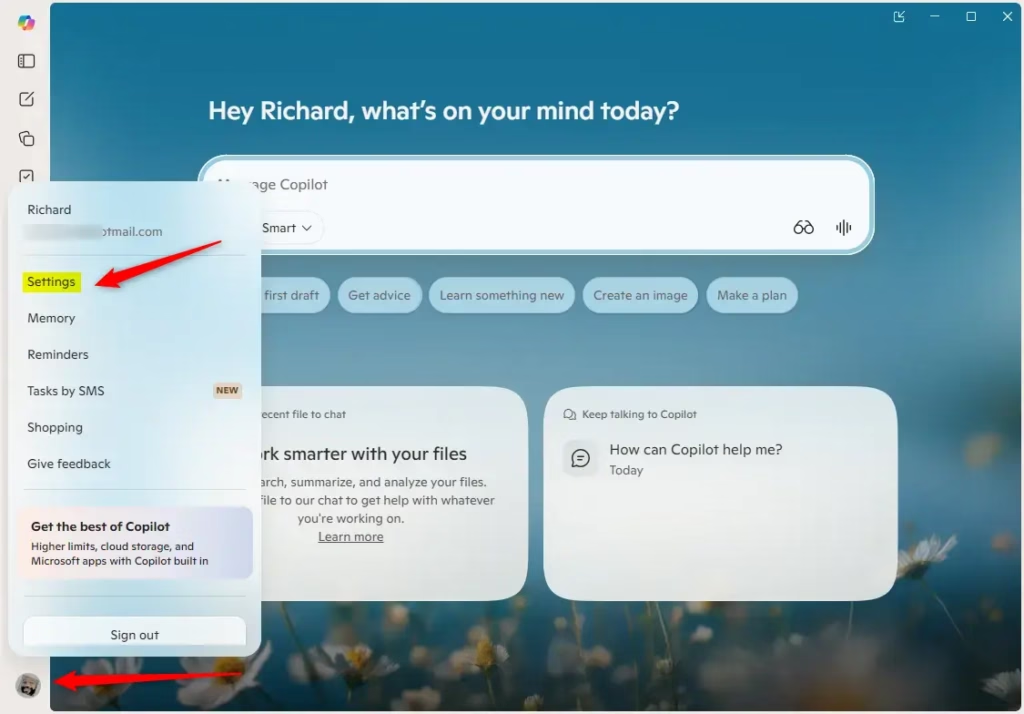
- Click or tap Preferences on the left. Then click or tap Permission settings on the right side.
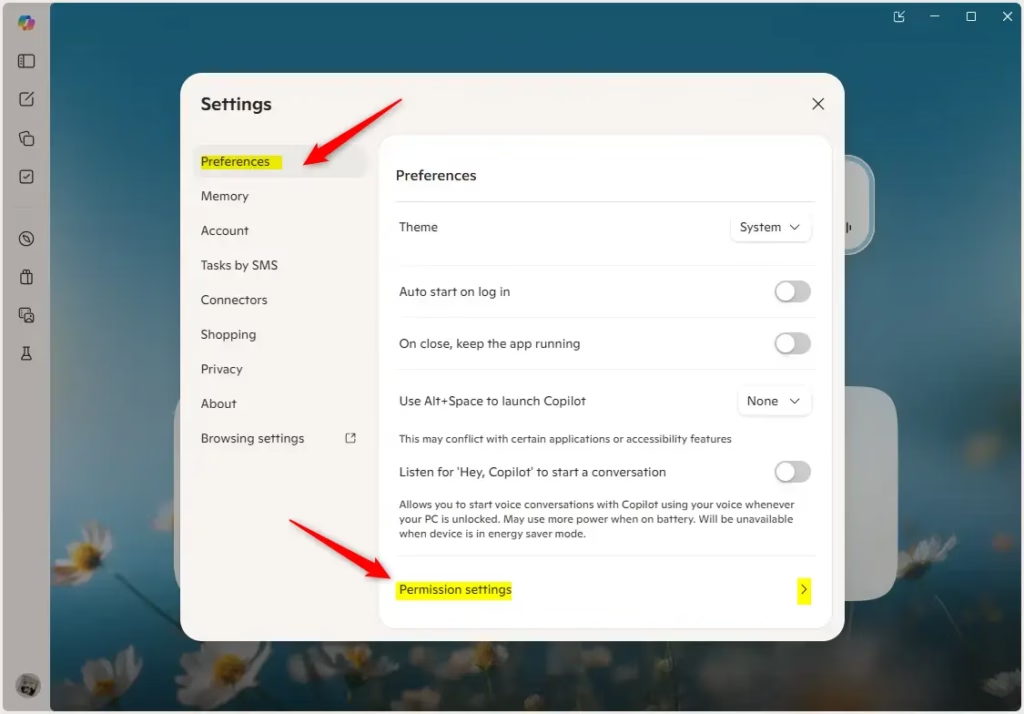
- Turn the Microphone switch on or off. On is the default setting.
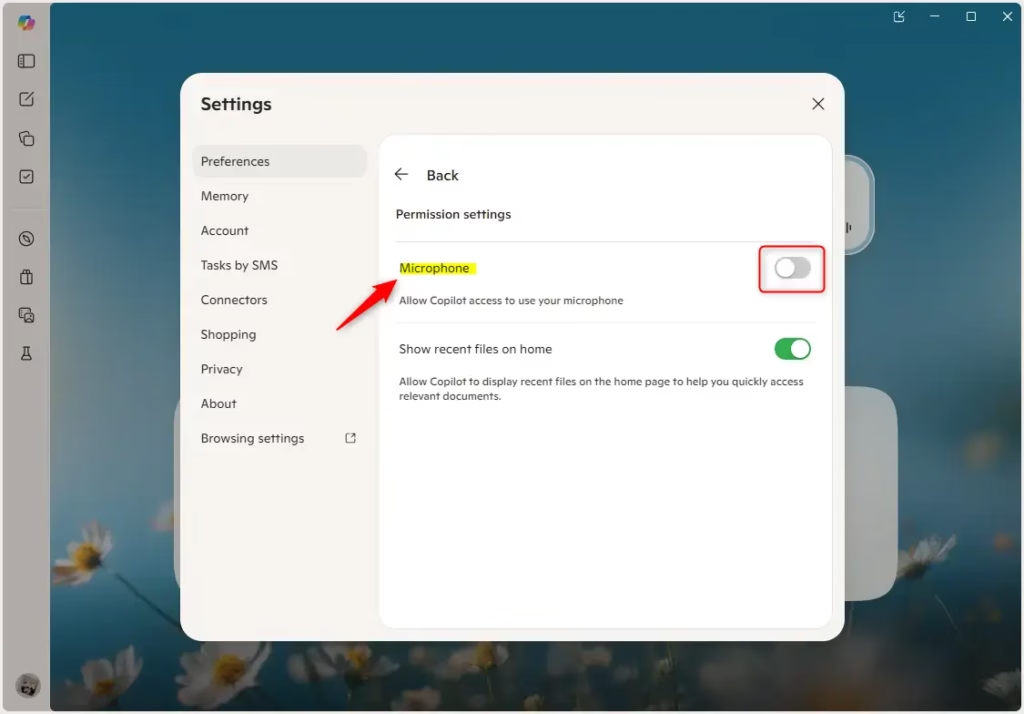
- If you turned on microphone access, click or tap Yes to confirm.
Option Two: Use Windows Settings
You can also control microphone access from Windows Settings.
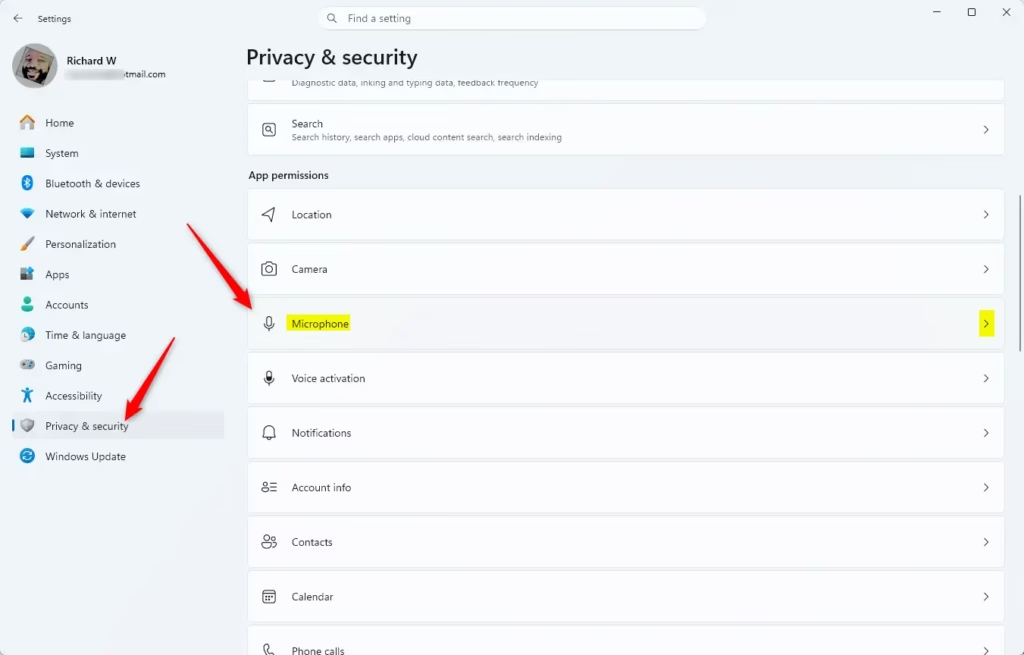
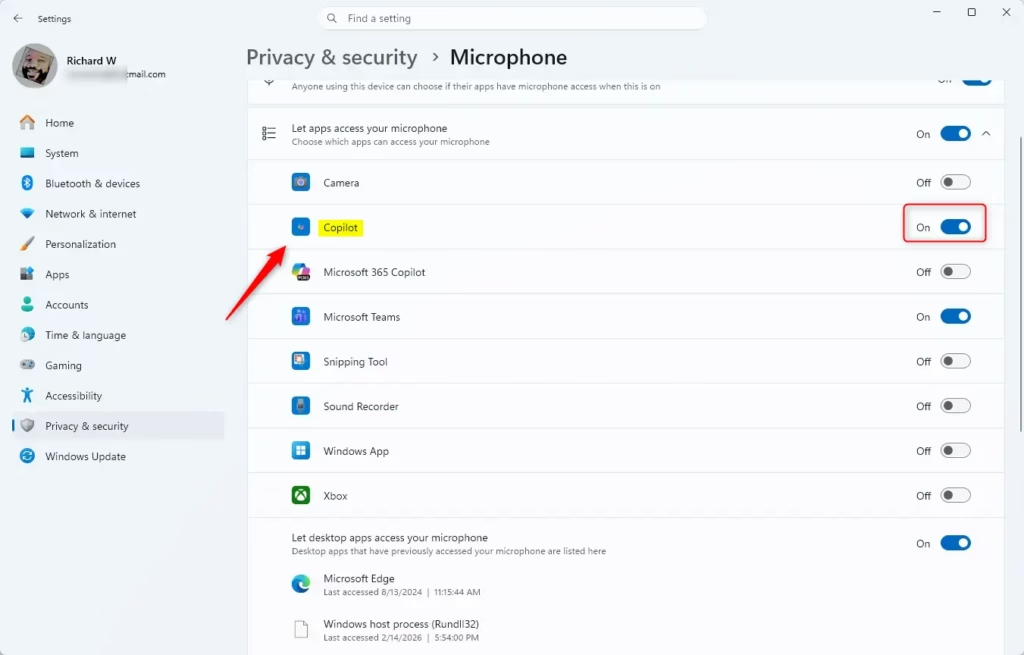
- Open Settings and go to Privacy & security > Microphone.
- Find Copilot in the list of apps.
- Turn the toggle on or off to allow or block microphone access.
Summary
You now know two ways to control whether Copilot can use your microphone. You can change this setting anytime in Copilot Settings or Windows Settings. When you turn on microphone access, Copilot can listen to voice commands. When you turn it off, Copilot cannot hear you. Choose whatever works best for your needs.


Leave a Reply