How to Enable or Disable Browse with Copilot in Microsoft Edge on Windows 11

This guide explains how to turn the “Browse with Copilot” feature on or off in Microsoft Edge.
Browse with Copilot is an AI feature in Microsoft Edge that helps you perform tasks on websites. It can click, type, and navigate pages for you. It is designed to save time by automating simple actions like filling out forms or finding information.
Why use it?
You use it to let AI handle repetitive web tasks. It acts as a digital assistant inside your browser.
What happens when done?
Once enabled, you can prompt Copilot to interact with your active webpage. If disabled, the AI loses its ability to perform actions on your behalf.
Prerequisites
To use this feature, you need a modern version of Microsoft Edge installed on Windows 11. Note that some features are limited to Microsoft 365 Premium subscribers. Windows 11 Home and Pro users can both access these settings, but enterprise environments may restrict them via group policies.
Turn On or Off Browse with Copilot for Current User
1. Open Microsoft Edge.
2. Click the Settings and more (Alt+F) 3-dots menu and select Settings.

3. Click Copilot and AI in the left pane, then select Browse with Copilot.
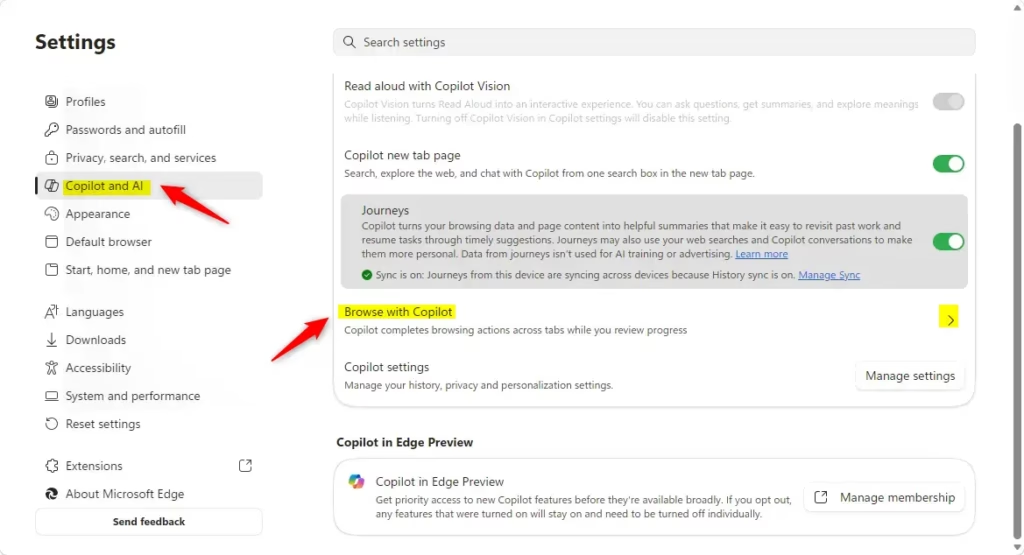
4. Toggle Enable Browse with Copilot to On or Off.
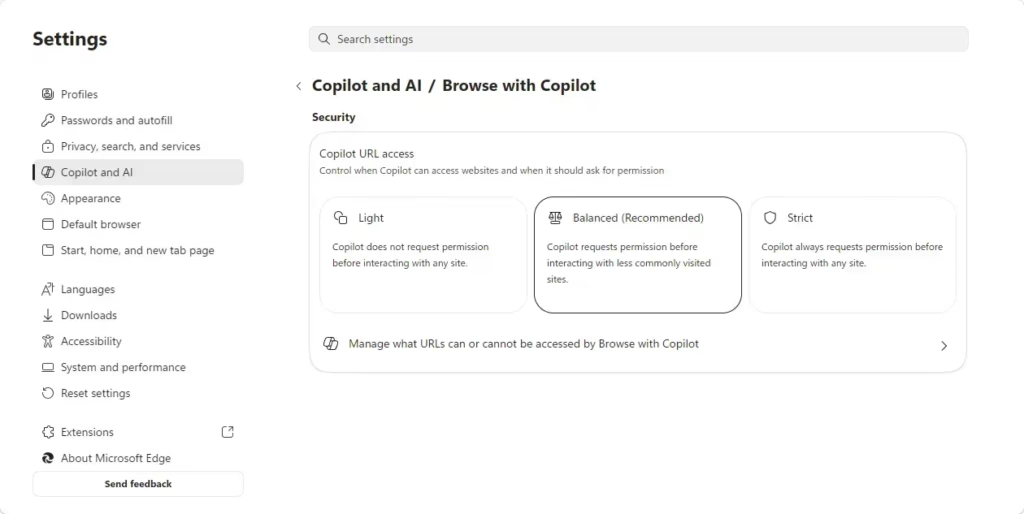
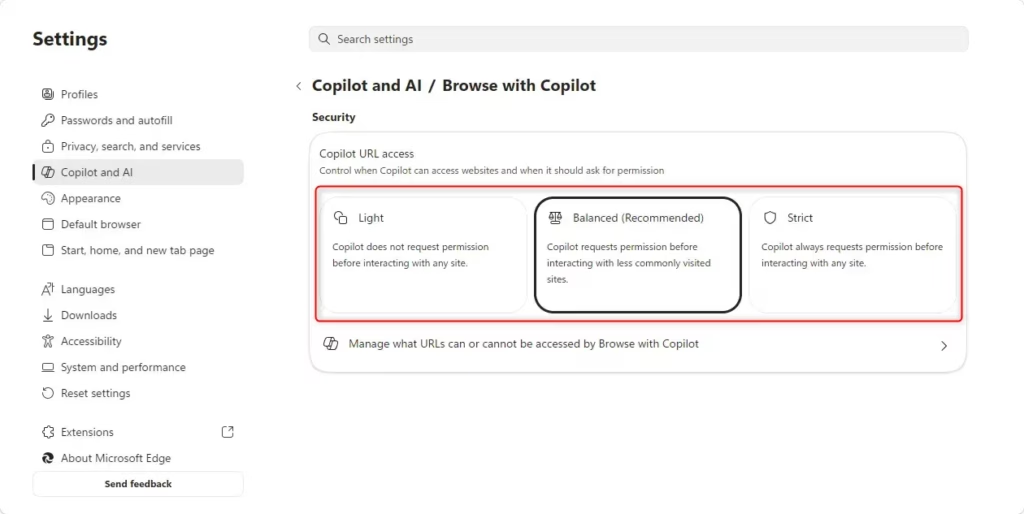
5. Choose your preferred permission level: Light, Balanced, or Strict.
Enable or Disable for All Users (Administrator Required)
Note: This requires Administrator privileges. You can use the Registry Editor to apply this setting for everyone on the computer.
1. Press Win + R, type regedit, and press Enter.
2. Navigate to: HKEY_LOCAL_MACHINE\SOFTWARE\Policies\Microsoft\Edge
3. If the Edge key does not exist, right-click Microsoft, select New > Key, and name it Edge.
4. Right-click in the right pane, select New > DWORD (32-bit) Value, and name it AllowBrowsingWithCopilot.
5. Double-click the value. Set it to 1 to enable or 0 to disable.
Privacy and Security Implications
Using AI in your browser involves data sharing. Copilot takes screenshots of your active tabs to understand the page. While these are not used for training, they are stored in your history. Always monitor the AI’s actions on sensitive sites like banking portals.
Summary
You can manage Browse with Copilot through the Edge settings menu for individual users or via the Registry Editor for all users. While the feature offers convenience, it is important to understand the privacy risks regarding screenshots and site access. Always use the Strict permission level if you are concerned about security on sensitive websites.” }
Does disabling Copilot in Edge affect Copilot in Windows 11?
No. Disabling Browse with Copilot within the Microsoft Edge browser settings is independent of the main Copilot feature integrated into the Windows 11 taskbar. Your Windows-wide AI assistant will continue to function normally even if you restrict its ability to perform actions inside your browser tabs.
Is it safe to edit the Windows Registry to disable Copilot?
Yes, it is safe if you follow the steps correctly. Editing the registry is a standard way to manage enterprise policies. However, always be careful when changing registry values. Incorrect changes can cause system issues, so ensure you are modifying the correct path under HKEY_LOCAL_MACHINE\SOFTWARE\Policies\Microsoft\Edge.
Will disabling Copilot impact my Microsoft account sync settings?
No. Disabling the Browse with Copilot feature does not affect your Microsoft account sync settings. Your bookmarks, passwords, and browser history will continue to sync across your devices as usual. This setting only controls the AI’s permission to interact with and perform actions on the webpages you visit.
Was this guide helpful?

About the Author
Richard
Tech Writer, IT Professional
Richard, a writer for Geek Rewind, is a tech enthusiast who loves breaking down complex IT topics into simple, easy-to-understand ideas. With years of hands-on experience in system administration and enterprise IT operations, he’s developed a knack for offering practical tips and solutions. Richard aims to make technology more accessible and actionable. He's deeply committed to the Geek Rewind community, always ready to answer questions and engage in discussions.

[…] How to Enable or Disable Browse with… […]