How to Enable Generative AI Access in Windows 11

For the Current User Only:
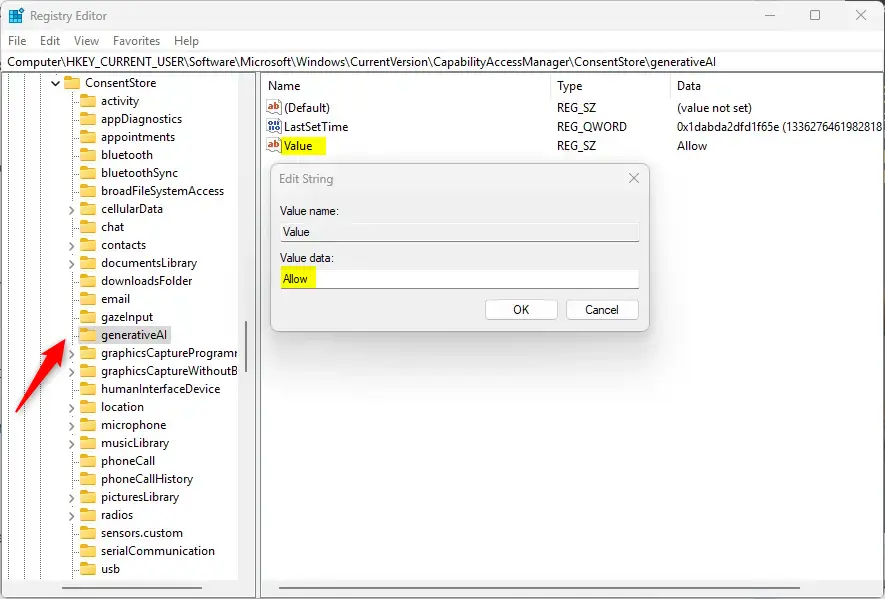
You can change generative AI access for just your user account in Windows 11 by editing the Registry Editor.- Open the Registry Editor as administrator. Search for “regedit” on the Start menu.
- Navigate to this location:
Computer\HKEY_CURRENT_USER\Software\Microsoft\Windows\CurrentVersion\CapabilityAccessManager\ConsentStore\generativeAI - In the right pane, double-click the “Value” string to open it.
- Type
Allowto turn on AI access. TypeDenyto turn it off. - If you don’t see “Value”, right-click in the blank area and create a new String Value. Name it “Value” and enter
AlloworDeny.
For All Users:
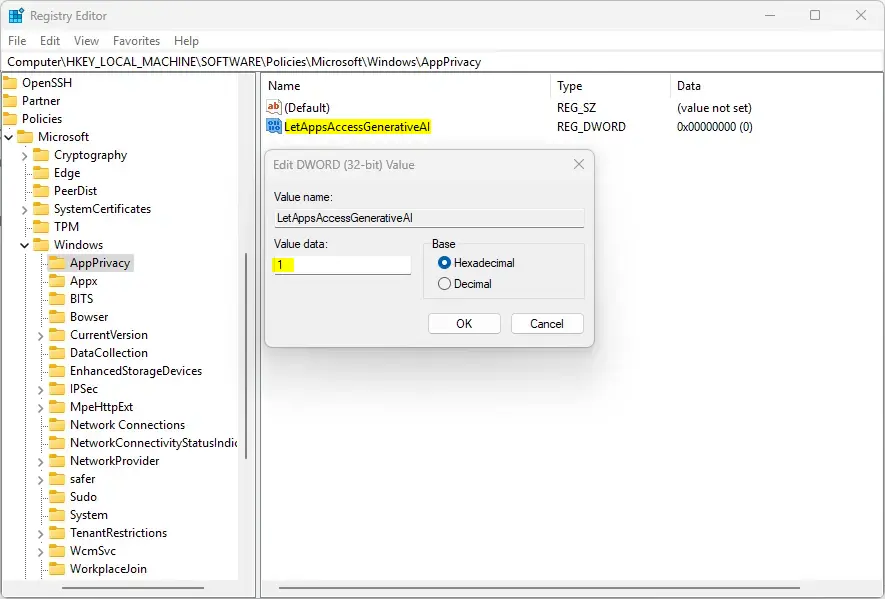
To control generative AI access for everyone on your Windows 11 computer, you can make changes in the Registry Editor.- In the Registry Editor, navigate to this location:
Computer\HKEY_LOCAL_MACHINE\SOFTWARE\Policies\Microsoft\Windows\AppPrivacy - In the right pane, double-click “LetAppsAccessGenerativeAI” (DWORD 32-bit Value).
- Type
1to enable AI access. Type2to disable it . - If you don’t see “LetAppsAccessGenerativeAI”, right-click in the blank area and create a new DWORD (32-bit) Value. Name it “LetAppsAccessGenerativeAI” and enter
1or2.
- Save your changes and restart your computer.
Summary
Windows 11 gives you options to manage generative AI access for your apps, using the Settings app, Local Group Policy Editor, or Registry Editor.
- Settings App: The easiest method. Control AI access for individual apps.
- Local Group Policy Editor: Control AI access for all users at once. Requires admin access.
- Registry Editor: Direct control over AI settings. Requires admin access.
Choose the method that best suits your preferences. All three options enable you to toggle AI features on or off according to your requirements.
Will 🪟 Windows 11 allow AI apps to access?
Windows 11 will allow AI apps to access your personal files or folders using File Explorer integration.
Is 🪟 Windows 11 compatible with AI?
Windows 11 comes with several built-in AI-powered features such as the Snipping Tool, voice access, and smart recommendations in File Explorer and the Start menu. These AI tools are designed to enhance your productivity and creativity without requiring additional downloads.
This article shows you how to turn on or off app access to Generative AI in Windows 11.
Open Settings, navigate to Privacy & security, then Generative AI. Toggle the main switch to On or Off to control access for all apps, or manage individual app permissions below.
What is App Access to Generative AI?
App access to generative AI lets your Windows apps use artificial intelligence to help with tasks like creating images or writing content.
Starting with Windows 11 build 26236 (Canary), Microsoft added a new Generative AI section to the Privacy & security settings. This lets you control which apps can use AI features.
Why Would You Want to Control This?
You might want to turn this on or off depending on your needs. Some users prefer AI features enabled, while others want to disable them for privacy or performance reasons.
Method 1Use the Settings App
The Settings app is the easiest way to control generative AI access for individual apps on your Windows 11 PC.
Once enabled, apps can tap into generative AI features. Let’s start with the Settings app.
- Open the Settings app. Click the Start menu and select Settings. Or press Windows key + I.
- Click Privacy & security on the left side.
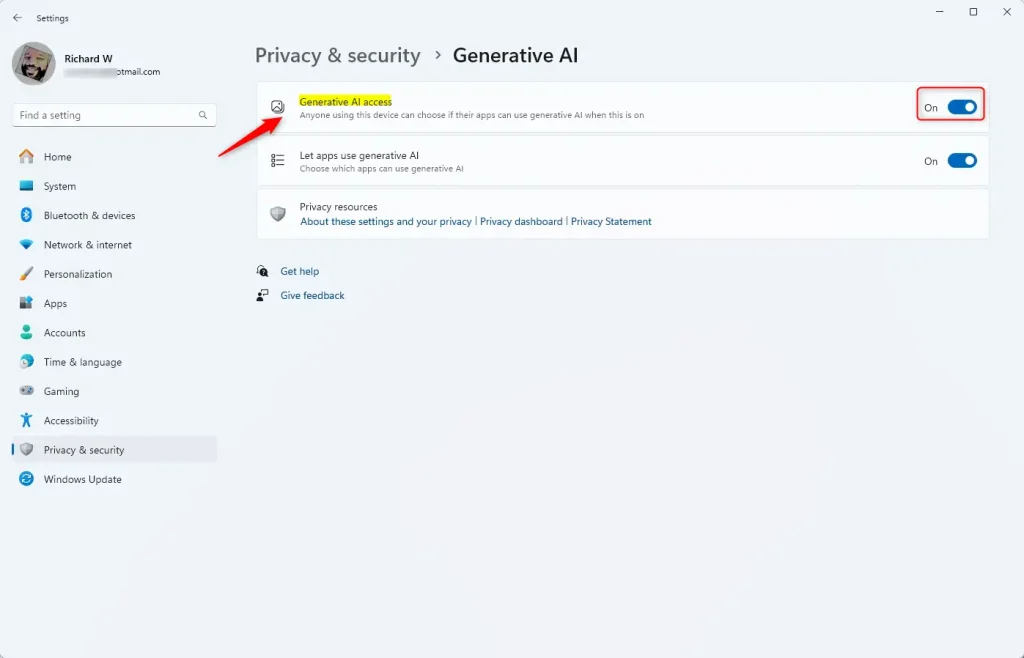
- Find and click the Generative AI tile on the right to expand it.
- Click the “Generative AI access” tile. Toggle the switch to turn it On or Off for all users.
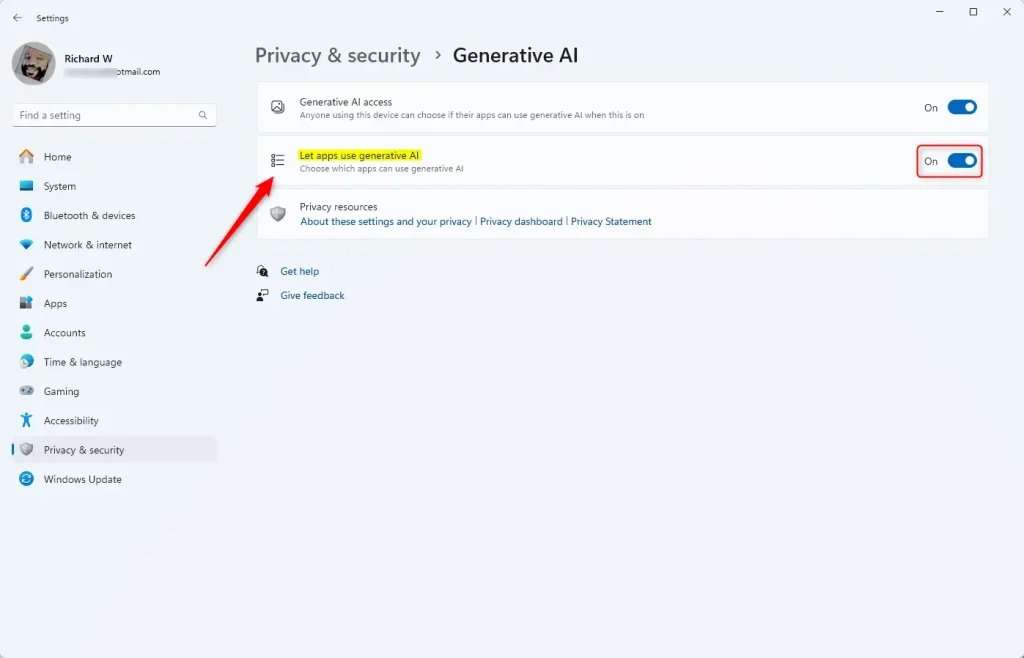
- Click “Let app use generative AI” to choose which apps can use AI. You can turn individual apps on or off here.
- Close the Settings app when finished.
Method 2Use the Local Group Policy Editor
Using the Local Group Policy Editor lets you turn generative AI access on or off for all users on your Windows 11 computer at once.
You can force allow or force deny AI access across your entire system.
⚠️ Admin privileges required
- Open the Local Group Policy Editor. Search for “Edit group policy” on the Start menu.
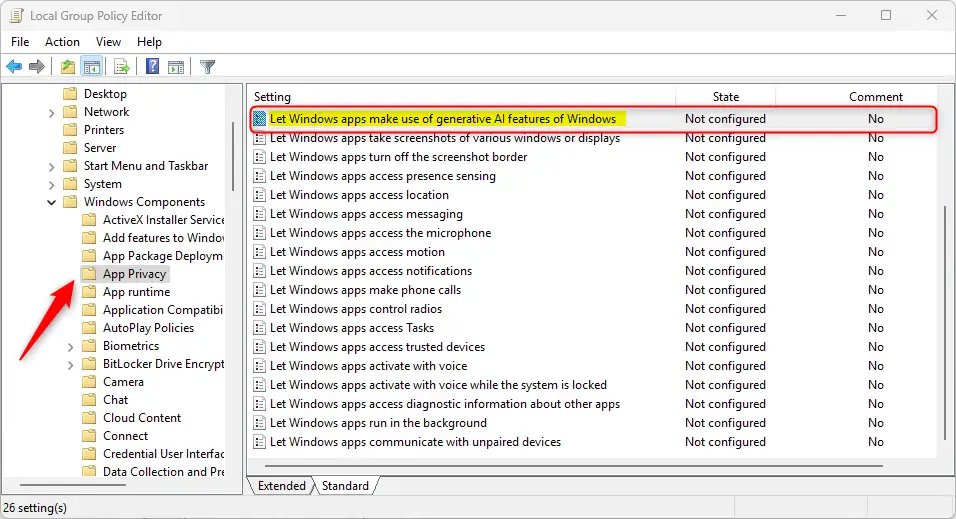
- Navigate to these folders: Computer Configuration → Administrative Templates → Windows Components → App Privacy
- In the right pane, find and double-click “Let Windows apps make use of generative AI features of Windows”.
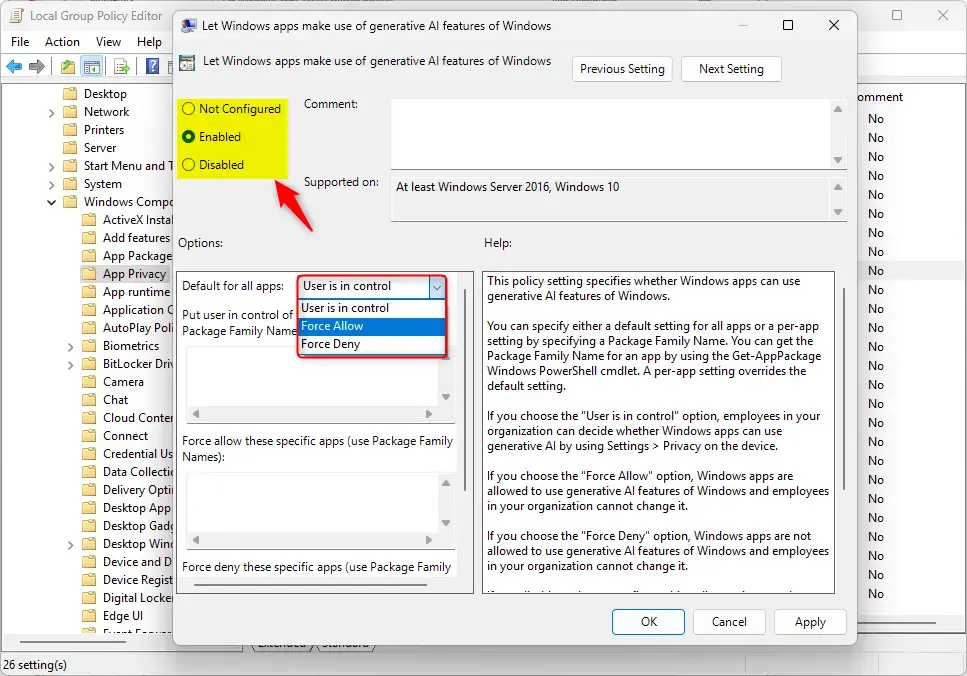
- Choose one of these options:
- Not Configured (default) – Users decide if apps can use AI.
- Enabled – Choose one of these:
- Force Allow – Apps can use AI. Users cannot change this.
- Force Deny – Apps cannot use AI. Users cannot change this.
- Disabled – Users decide if apps can use AI.
- Click OK to save. You may need to restart your computer.
Method 3Use the Windows Registry Editor
Why use this method: This method provides direct control over AI settings within Windows itself.
You can configure whether apps have access to AI features by modifying specific registry values.
⚠️ Admin privileges required
For the Current User Only:
You can change generative AI access for just your user account in Windows 11 by editing the Registry Editor.- Open the Registry Editor as administrator. Search for “regedit” on the Start menu.
- Navigate to this location:
Computer\HKEY_CURRENT_USER\Software\Microsoft\Windows\CurrentVersion\CapabilityAccessManager\ConsentStore\generativeAI - In the right pane, double-click the “Value” string to open it.
- Type
Allowto turn on AI access. TypeDenyto turn it off. - If you don’t see “Value”, right-click in the blank area and create a new String Value. Name it “Value” and enter
AlloworDeny.
For All Users:
To control generative AI access for everyone on your Windows 11 computer, you can make changes in the Registry Editor.- In the Registry Editor, navigate to this location:
Computer\HKEY_LOCAL_MACHINE\SOFTWARE\Policies\Microsoft\Windows\AppPrivacy - In the right pane, double-click “LetAppsAccessGenerativeAI” (DWORD 32-bit Value).
- Type
1to enable AI access. Type2to disable it . - If you don’t see “LetAppsAccessGenerativeAI”, right-click in the blank area and create a new DWORD (32-bit) Value. Name it “LetAppsAccessGenerativeAI” and enter
1or2.
- Save your changes and restart your computer.
Summary
Windows 11 gives you options to manage generative AI access for your apps, using the Settings app, Local Group Policy Editor, or Registry Editor.
- Settings App: The easiest method. Control AI access for individual apps.
- Local Group Policy Editor: Control AI access for all users at once. Requires admin access.
- Registry Editor: Direct control over AI settings. Requires admin access.
Choose the method that best suits your preferences. All three options enable you to toggle AI features on or off according to your requirements.
Will 🪟 Windows 11 allow AI apps to access?
Windows 11 will allow AI apps to access your personal files or folders using File Explorer integration.
Is 🪟 Windows 11 compatible with AI?
Windows 11 comes with several built-in AI-powered features such as the Snipping Tool, voice access, and smart recommendations in File Explorer and the Start menu. These AI tools are designed to enhance your productivity and creativity without requiring additional downloads.
Was this guide helpful?

About the Author
Richard
Tech Writer, IT Professional
Richard, a writer for Geek Rewind, is a tech enthusiast who loves breaking down complex IT topics into simple, easy-to-understand ideas. With years of hands-on experience in system administration and enterprise IT operations, he’s developed a knack for offering practical tips and solutions. Richard aims to make technology more accessible and actionable. He's deeply committed to the Geek Rewind community, always ready to answer questions and engage in discussions.


No comments yet — be the first to share your thoughts!