How to Open Favorites in New Tabs in Microsoft Edge

Want to keep your current webpage open while browsing your favorite links in Microsoft Edge? Here’s how to set your favorites to always open in new tabs.
Navigate to Settings > Appearance. Under Customize toolbar, toggle “Always open favorites in new tab” on or off. This setting controls whether favorite links open in a new tab or the current window.
Why This Matters
Microsoft Edge lets you save your favorite websites so you can get to them quickly, and you can choose to show or hide the favorites bar where these links appear.
You can choose to show or hide the favorites bar in Edge. When the favorites bar is visible, all your favorite websites appear there. You can organize and edit them whenever you like.
By default, clicking a favorite link opens in the same Edge window, which can take you away from your current page. Fortunately, starting with Microsoft Edge version 110, you can change this behavior to open favorites in new tabs.
What Happens When Done
When you enable this feature, clicking any favorite link opens it in a new tab. Your current page stays open in the background. When you disable it, favorites open in the same window, just like before.
How to Enable or Disable This Feature
Starting with Microsoft Edge version 110, you can turn this feature on or off.
Note: This feature is rolling out to users. It should be available to everyone once Edge version 110 is fully released.
Step 1Open Edge Settings
First, open Microsoft Edge. Click the Settings and More button (the 3 dots in the top right corner). You can also press Alt + F on your keyboard. Then, select Settings from the menu.
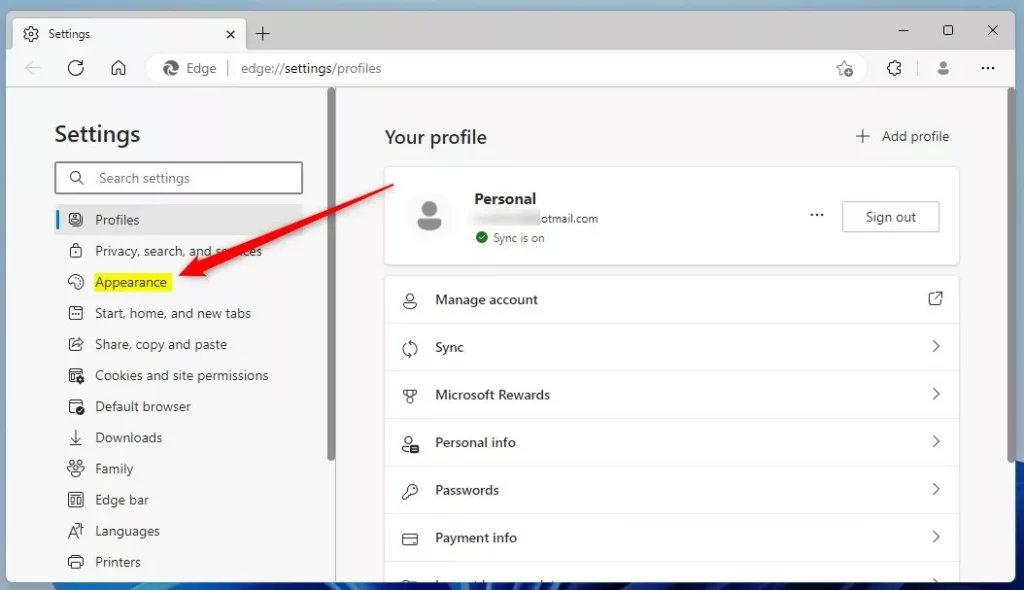
Step 2Go to the Appearance Section
On the Settings page, click Appearance on the left side.
Step 3Toggle the Feature On or Off
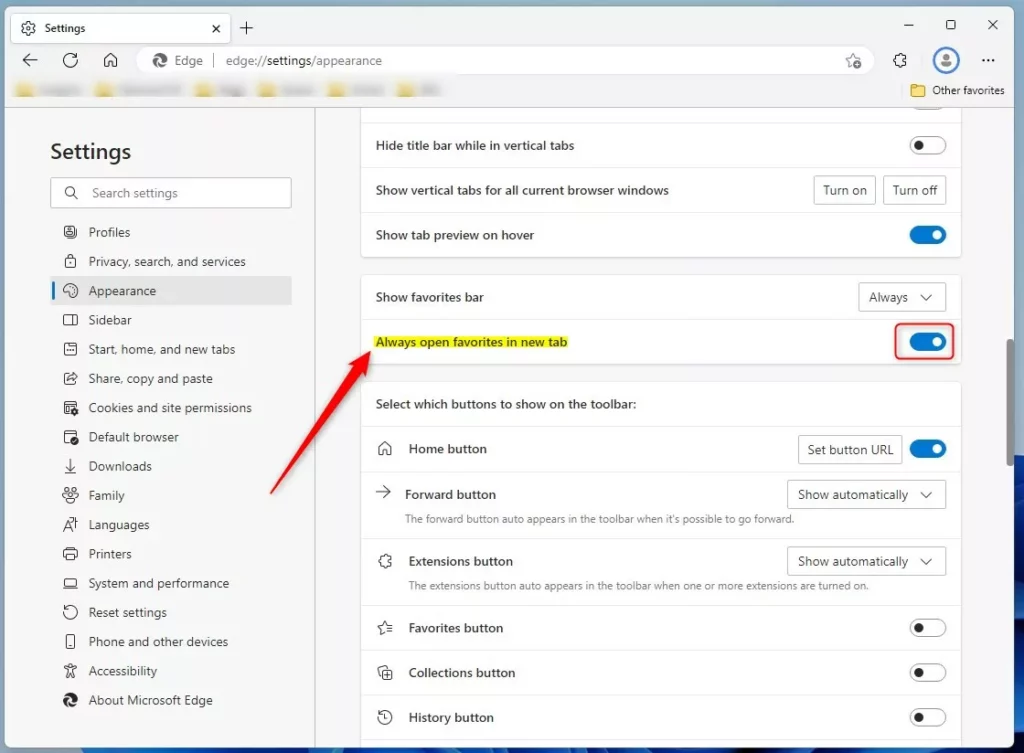
On the Settings > Appearance page, look for Customize toolbar. Find the option that says “Always open favorites in new tab.”
To turn it on, flip the switch to the ‘On’ position. To turn it off, flip it to ‘Off’.
That’s all you need to do!
Summary
You can easily control whether your favorite links open in new tabs or the same window in Microsoft Edge by changing one setting.
Was this guide helpful?

About the Author
Richard
Tech Writer, IT Professional
Richard, a writer for Geek Rewind, is a tech enthusiast who loves breaking down complex IT topics into simple, easy-to-understand ideas. With years of hands-on experience in system administration and enterprise IT operations, he’s developed a knack for offering practical tips and solutions. Richard aims to make technology more accessible and actionable. He's deeply committed to the Geek Rewind community, always ready to answer questions and engage in discussions.




No comments yet — be the first to share your thoughts!