

This post shows students and new users how to turn Internet Explorer compatibility mode on or off the Microsoft Edge browser in Windows 11.
Microsoft has decided to discontinue both Internet Explorer and the legacy Edge browsers in Windows. Some sites built to work with Internet Explorer may not work properly in the new Microsoft Edge. For this reason, Microsoft has released a feature in the new Edge that allows users to reload legacy sites in incompatible Internet Explorer mode.
The new Microsoft Edge browser has adopted the Chromium open-source project code base, offering better web compatibility and performance over the legacy Edge.
Microsoft Edge browser is cross-platform and supports all Windows, macOS, and Linux systems. If you’re using Edge and want to learn how to reload IE mode in Microsoft Edge, the steps below should show you how.
By default, most websites are built on modern standards and compatible with the new Edge. The new Edge browser will be the default web browser in Windows 11. If there’s a need for an older website built to support IE, then users will have to turn on IE mode in the new Edge. Using this compatibility mode, one can continue using legacy sites without needing a third-party tool or plugin.
To get started with enabling IE mode in Edge, follow the steps below:
How to enable IE mode in Edge
By default, Microsoft Edge is the newest default browser in Windows for all sites and web portals. If a legacy website or web portal needs Internet Explorer to work, you can enable IE-compatible mode in Edge to view the site, and the steps below show you how to do that.
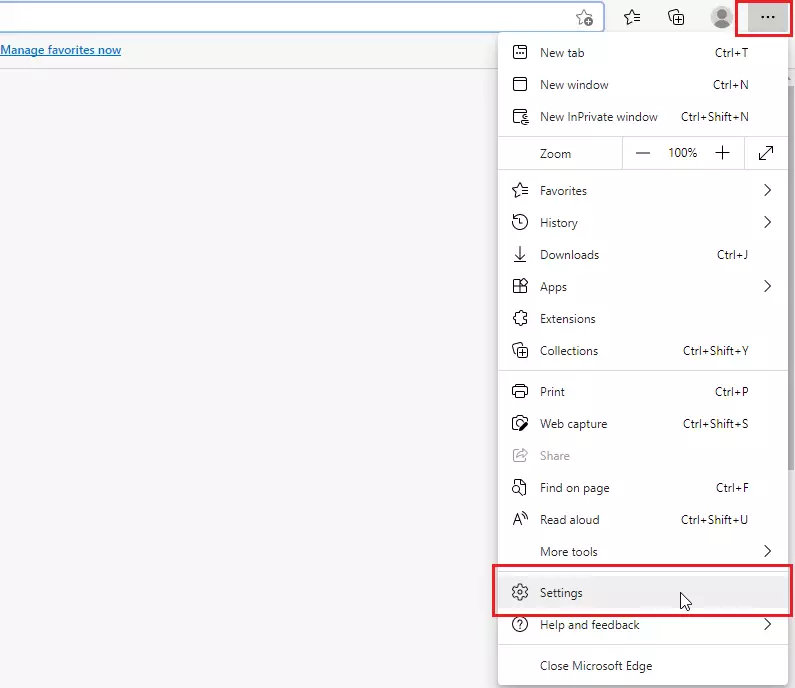
To enable IE mode, open the new Microsoft Edge and go to Settings and more > Settings.
When the Settings page opens, go to the Default browser. As highlighted below, Internet Explorer compatibility is selected to Allow all sites to be reloaded in Internet Explorer mode.
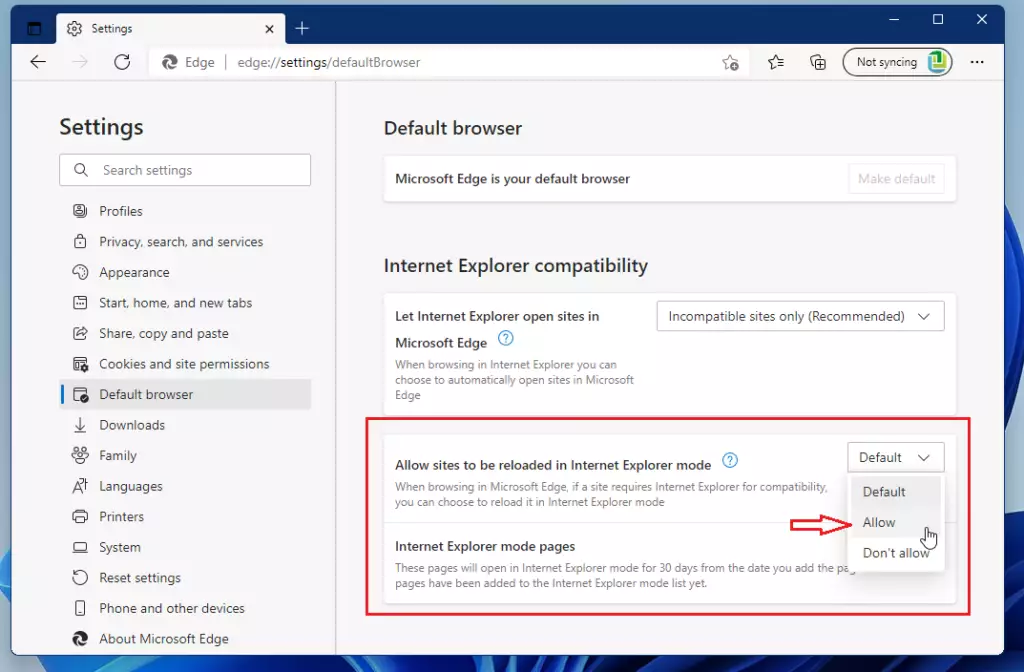
Or you can simply type the URL below in Edge browser to go directly to the Default browser settings.
edge://settings/defaultBrowser
When you select Allow, you’ll be prompted to reload Edge for the changes to apply. Click the Restart button.
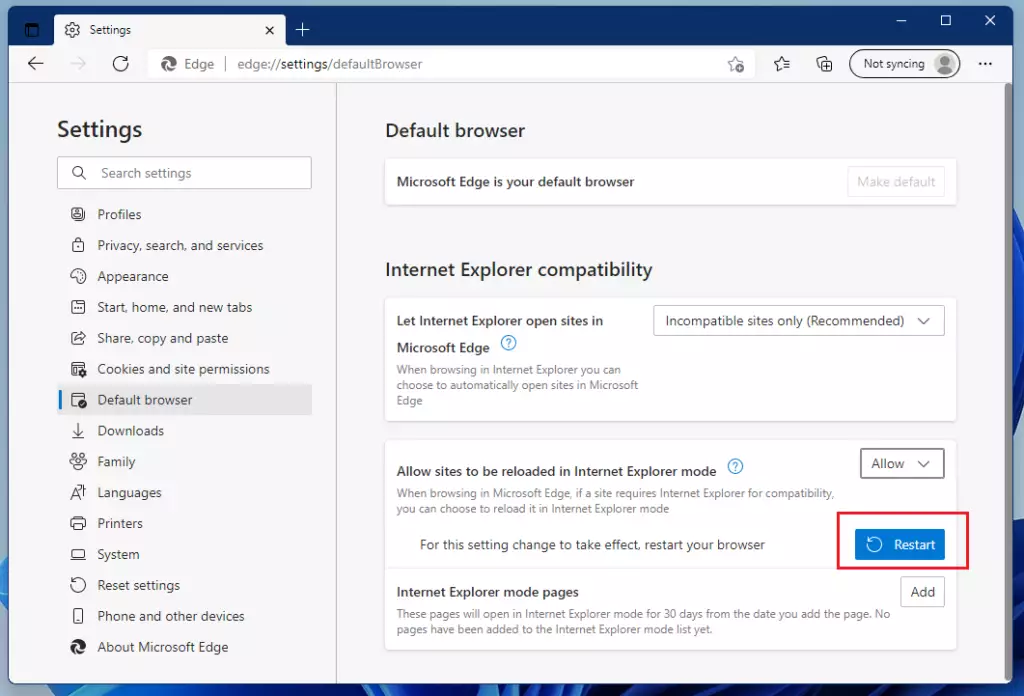
When browsing in Microsoft Edge, if a site requires Internet Explorer for compatibility, you can reload it in Internet Explorer mode.
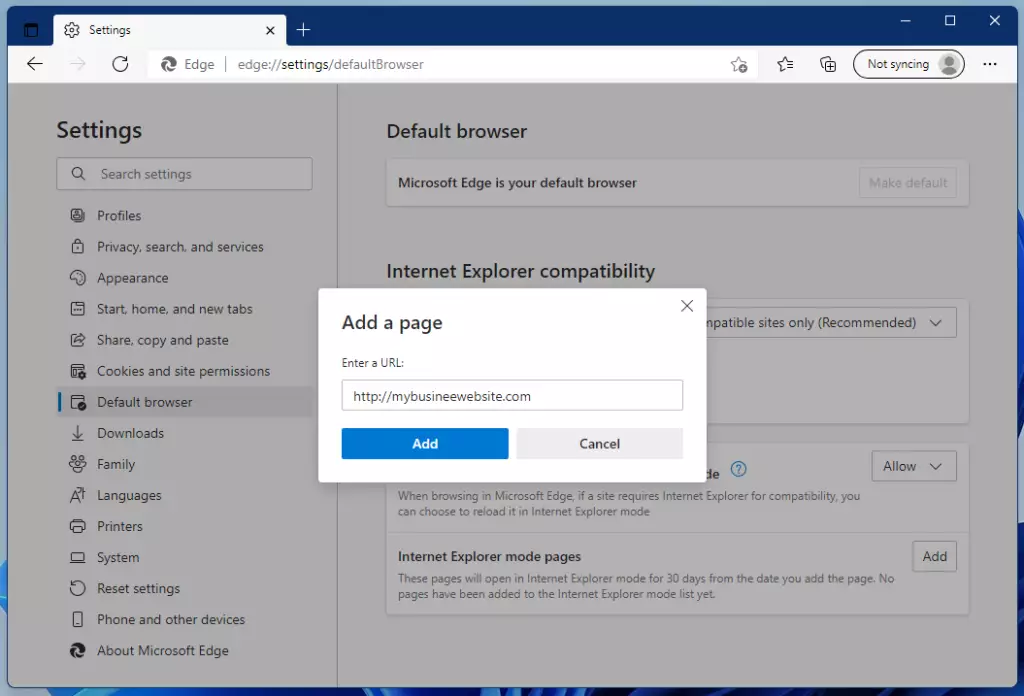
You can also manually add pages built on IE standards to load in IE compatible for more than 30 days automatically. Click the Add button to add a site or page to load in IE mode by default.
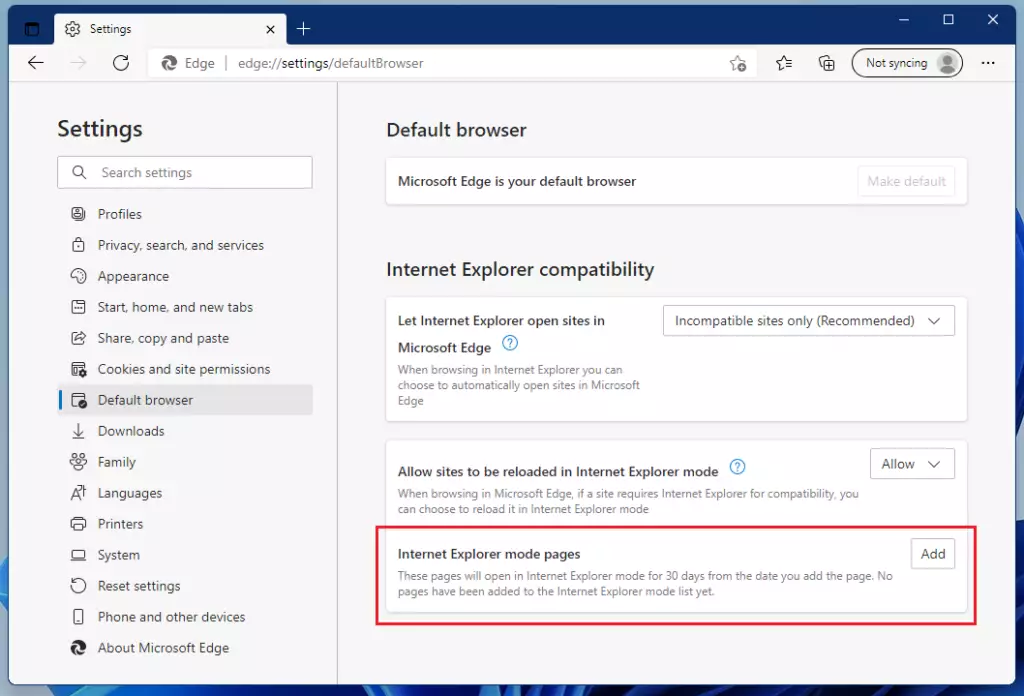
Type the site URL or link you want to load by default in IE mode. This will only last for 30 days?
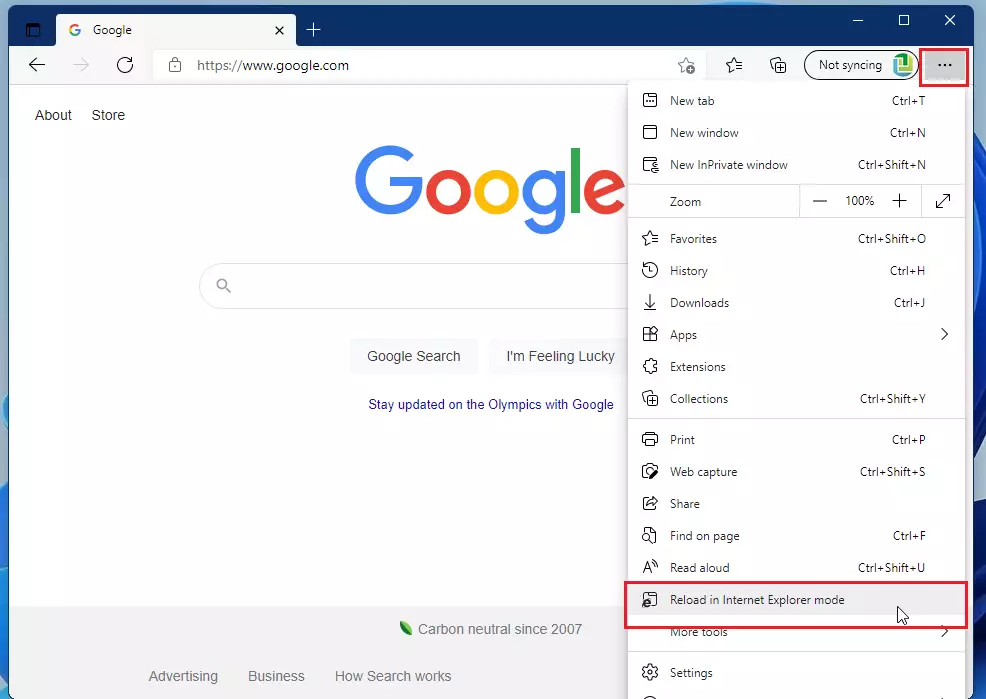
When you want to reload a page in IE mode, select the three dots at the top right of the toolbar and scroll down to Reload in Internet Explorer mode.
That should do it!
Conclusion:
- Enabling Internet Explorer mode in Microsoft Edge allows users to access legacy websites that may not function correctly in modern browsers.
- Microsoft Edge is designed to support a wide range of platforms, making it versatile for various users.
- The process to enable IE mode is straightforward, requiring only a few steps in the settings menu.
- Users can manually add specific sites to reload in IE mode for better convenience automatically.
- By following these steps, students and new users can effectively utilize legacy sites without additional tools or plugins.



Leave a Reply Cancel reply