How to Enable HDR in Windows 11

You enable HDR in Windows 11 to experience brighter colors and enhanced detail on your compatible display, making games, videos, and apps look more vibrant.
HDR, or High Dynamic Range, is a display technology that significantly expands the range of both contrast and color on your screen compared to standard displays. This means you’ll see deeper blacks, brighter whites, and a much wider spectrum of colors.
For HDR to work, both your Windows 11 PC and your monitor must support it. Most modern monitors and graphics cards offer this feature, with specific requirements often detailed by the hardware manufacturer.
How to Turn on Auto HDR in 🪟 Windows 11
Windows 11 has a feature called Auto HDR that turns on automatically if your screen supports it. Follow these easy steps:
- Press
Windows key + Ion your keyboard to open Settings. Or click the Start button, then select Settings.
- In Settings, click on System, then choose Display from the right side.
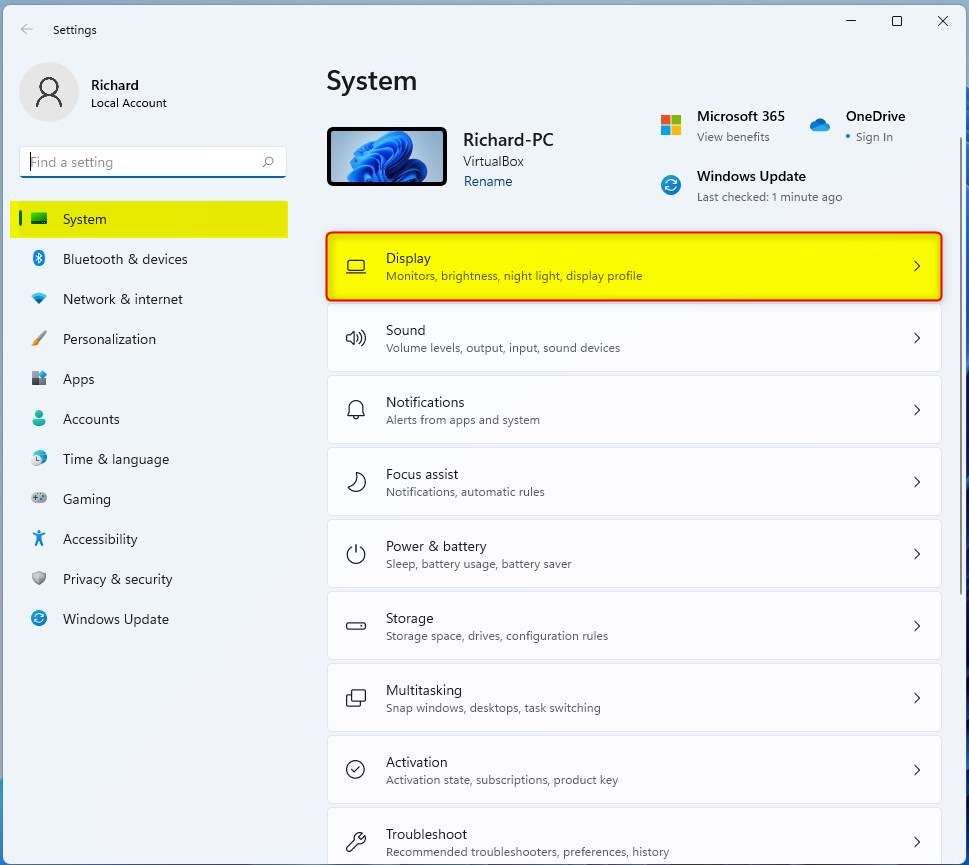
- Look for the option called Use HDR or just HDR and click on it.
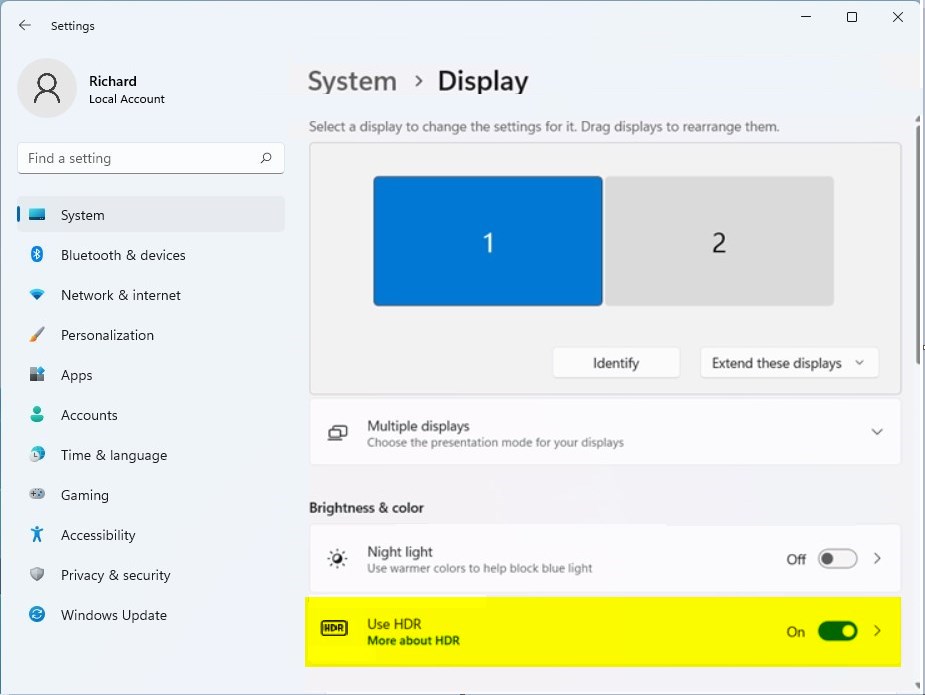
- Find the Auto HDR switch and turn it On.
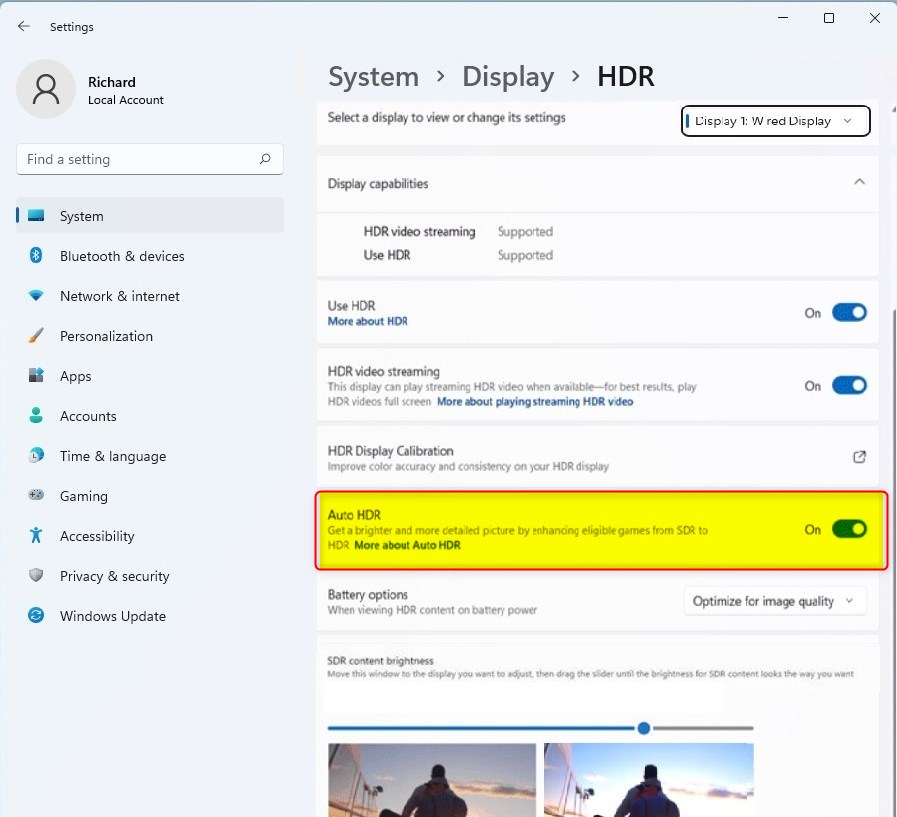
That’s it! Windows will now automatically use HDR when it makes sense, like when playing games or watching videos that support it.
How to Turn off HDR in 🪟 Windows 11
If HDR doesn’t look right or you want to turn it off, follow these steps:
- Go to Start > Settings > System > Display.
- Click on the HDR or Use HDR setting.
- Turn off both Playing streaming HDR video and Use HDR.
Now HDR will be disabled and your screen will go back to normal colors.
Summary
- HDR makes colors and images on your screen look brighter and more detailed.
- Auto HDR lets Windows turn HDR on automatically when it helps your experience.
- You can easily turn HDR on or off in the Display settings.
- Turning HDR off is just as simple if you want to switch back.
- Knowing how to use HDR helps you get the best picture quality from your PC.
For more tips about Windows 11 settings, visit the official Microsoft support page: Microsoft Windows Support.
Frequently Asked Questions
What is HDR?
Why use HDR?
Was this guide helpful?

About the Author
Richard
Tech Writer, IT Professional
Richard, a writer for Geek Rewind, is a tech enthusiast who loves breaking down complex IT topics into simple, easy-to-understand ideas. With years of hands-on experience in system administration and enterprise IT operations, he’s developed a knack for offering practical tips and solutions. Richard aims to make technology more accessible and actionable. He's deeply committed to the Geek Rewind community, always ready to answer questions and engage in discussions.



No comments yet — be the first to share your thoughts!