
Notepad is a simple text editor that comes built into Windows. It lets you create, edit, and view plain text files.
When you use Notepad on Windows, you can personalize it to open files in new tabs, turn on dark mode, change the font, open Notepad from previous sessions, enable spell check, turn rewrite on or off, and more.
If you’ve used Notepad recently, you may have noticed the “Copilot” menu next to your Microsoft account profile. Why use Copilot in Notepad? It gives you AI features powered by Microsoft. You can use “Rewrite” to rephrase your text and “Summarize” to make text shorter or change its tone.
How to Turn Copilot On or Off in Notepad
You can easily enable or disable the Copilot AI feature in Notepad. Here’s how.
Step 1: Open Notepad
First, open the Notepad app.
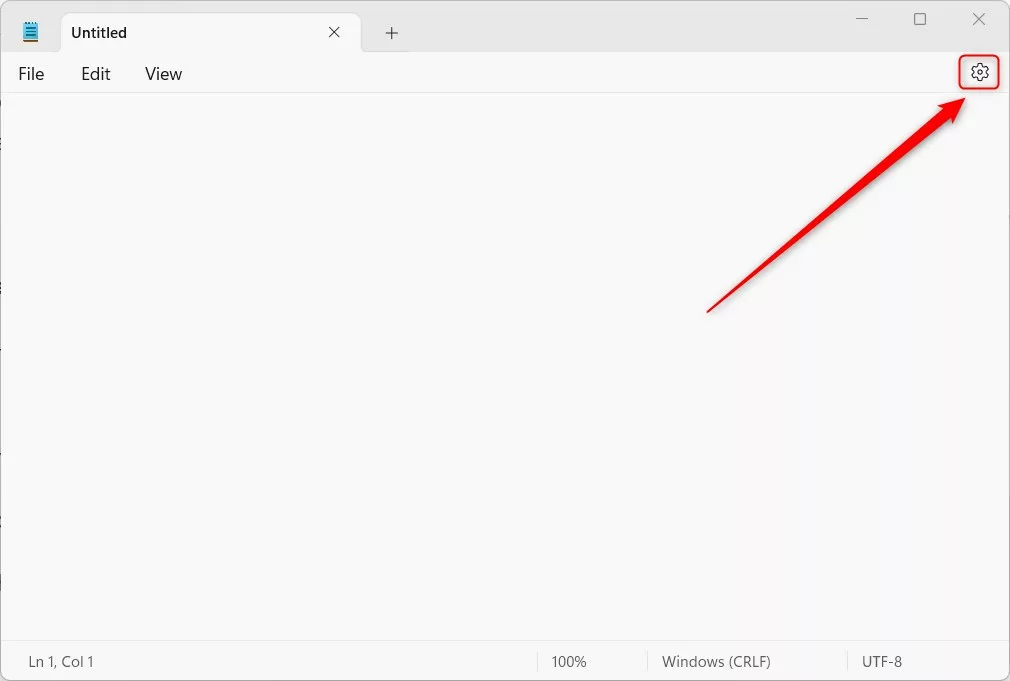
Step 2: Click Settings
When the app opens, click the Settings (gear) button at the top right.
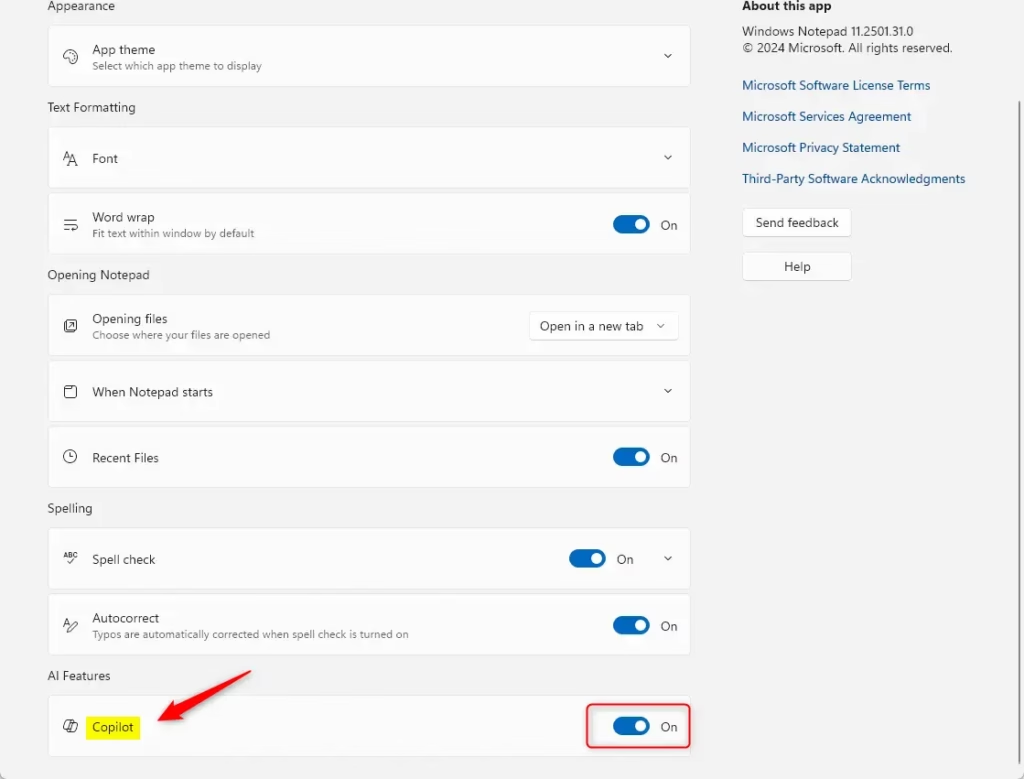
Step 3: Toggle Copilot On or Off
Look for the AI Features section. Toggle the Copilot button to turn the feature on or off. What happens? Copilot will either become available or disappear from your Notepad.
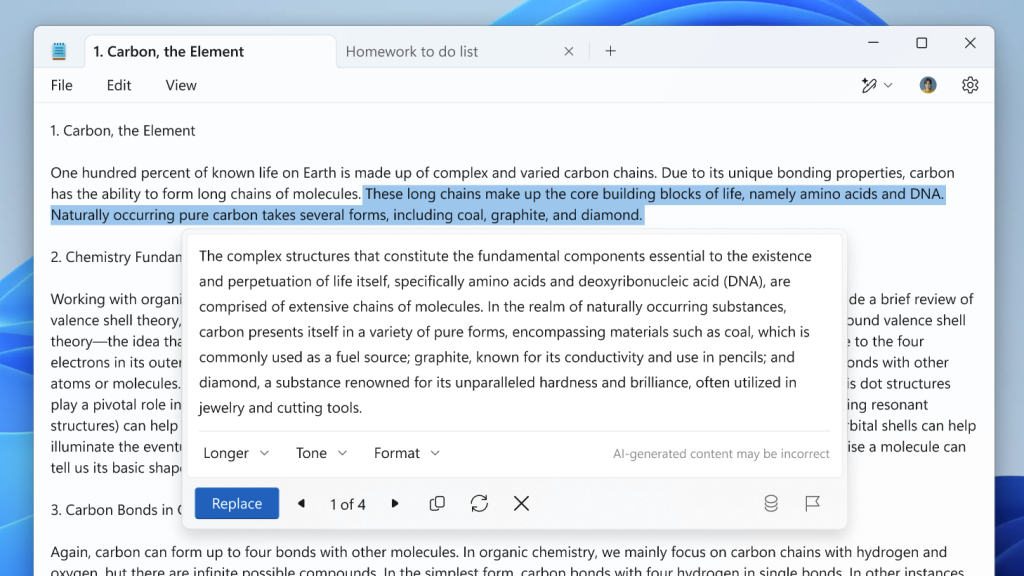
Step 4: Use the Rewrite Feature (Optional)
To use Copilot’s rewrite feature, select the text you want to rewrite. Then right-click and choose Rewrite, select Rewrite from the menu bar, or use the Ctrl + I keyboard shortcut.
That’s it! You’ve successfully enabled or disabled Copilot in Notepad.
Summary
- What is Copilot? It’s an AI feature in Notepad that helps you rewrite and summarize text.
- How do you turn it on? Open Notepad, click Settings, and toggle Copilot in the AI Features section.
- How do you use it? Select text, right-click, and choose Rewrite, or use
Ctrl + I. - Can you turn it off? Yes. Use the same Settings toggle to disable it anytime.
- Why use it? Copilot helps improve your writing by rephrasing and condensing text quickly.



Leave a Reply Cancel reply