How to Edit Hosts File with PowerToys on Windows 11

You edit your Windows 11 hosts file using PowerToys to map domain names to IP addresses, effectively bypassing standard DNS lookups.
The hosts file is a local text file Windows consults before querying external DNS servers, allowing you to manually assign IP addresses to hostnames.
PowerToys’ Hosts File Editor provides a much simpler, graphical way to manage these entries, eliminating the need to navigate system folders or edit plain text directly.
This is incredibly handy for developers testing local environments or anyone needing to block specific websites quickly. PowerToys version 0.65 brought notable enhancements to this utility, making it even more accessible.
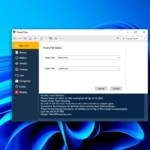
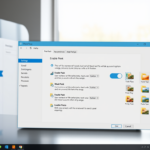
Open PowerToys, navigate to Hosts File Editor, and enable it. Click “Launch Host File Editor” and then “New entry” to add an IP address and domain. Ensure “Launch as administrator” is enabled in PowerToys settings for saving changes.
Why use the Hosts File Editor?
Your computer’s hosts file acts like a private phonebook, linking website names to their specific internet addresses.
What happens when you finish?
Once you save an entry, your computer immediately updates its network behavior. Your browser will then use your custom mapping instead of asking the public DNS. This means you can redirect traffic instantly without waiting for global DNS propagation.
How to Install PowerToys
To get started, download the installer from the official Microsoft PowerToys website. Run the installer and follow the on-screen prompts. Once finished, you will have a suite of tools to manage your Windows system more effectively.
How to Use the Hosts File Editor
The Hosts File Editor in PowerToys makes it simple to manage your computer’s hosts file, letting you control website access and IP addresses directly.
[Requires Admin Privileges] You must enable Launch as administrator in the settings. This is crucial because the hosts file is a protected Windows system file. Without administrator rights, you won’t be able to save any changes.
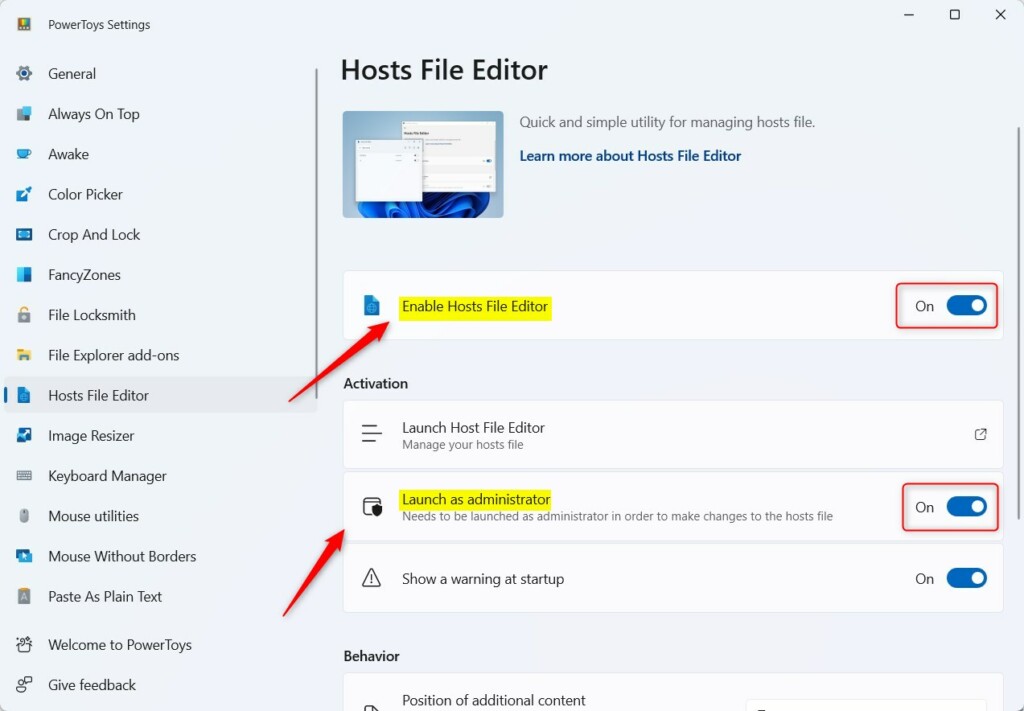
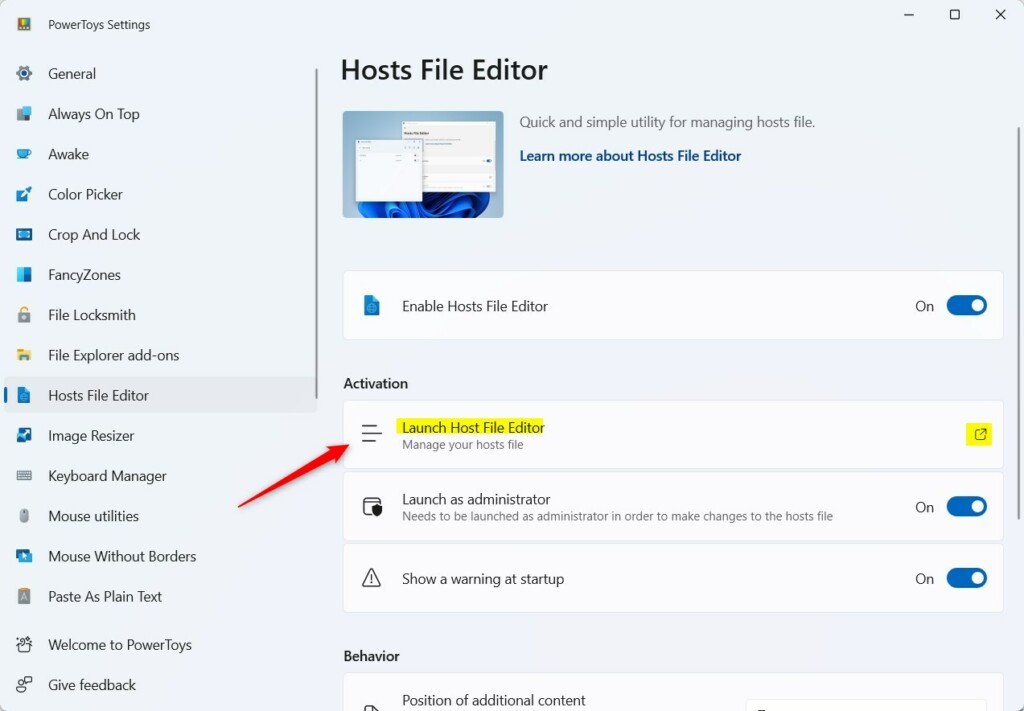
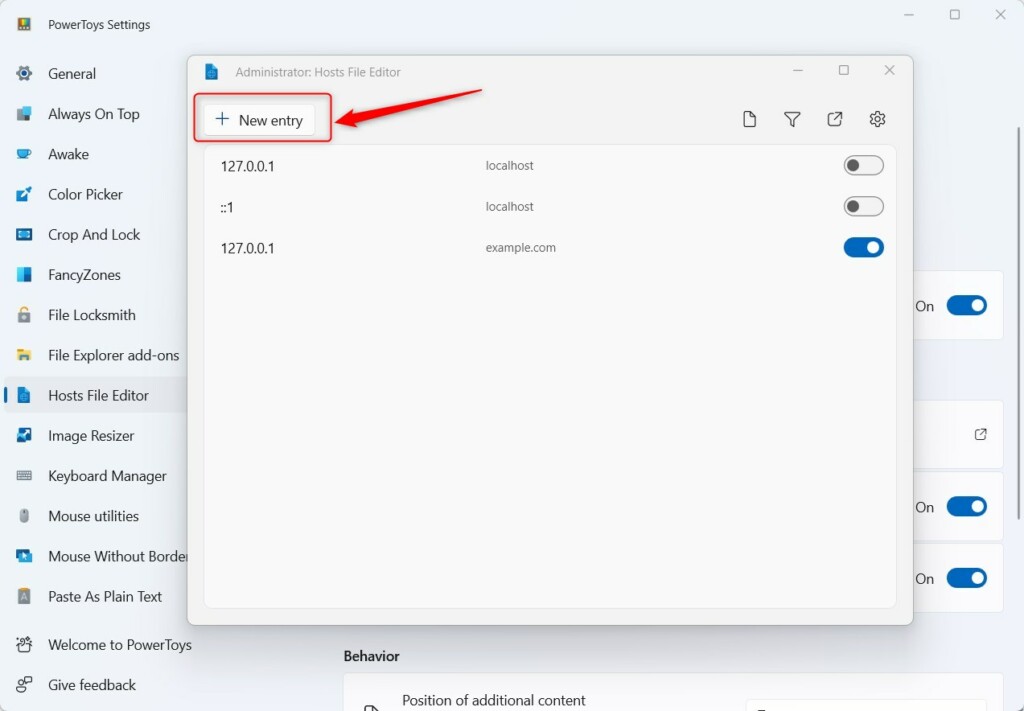
After enabling, click Launch Host File Editor. To add a new entry, click the New entry button.
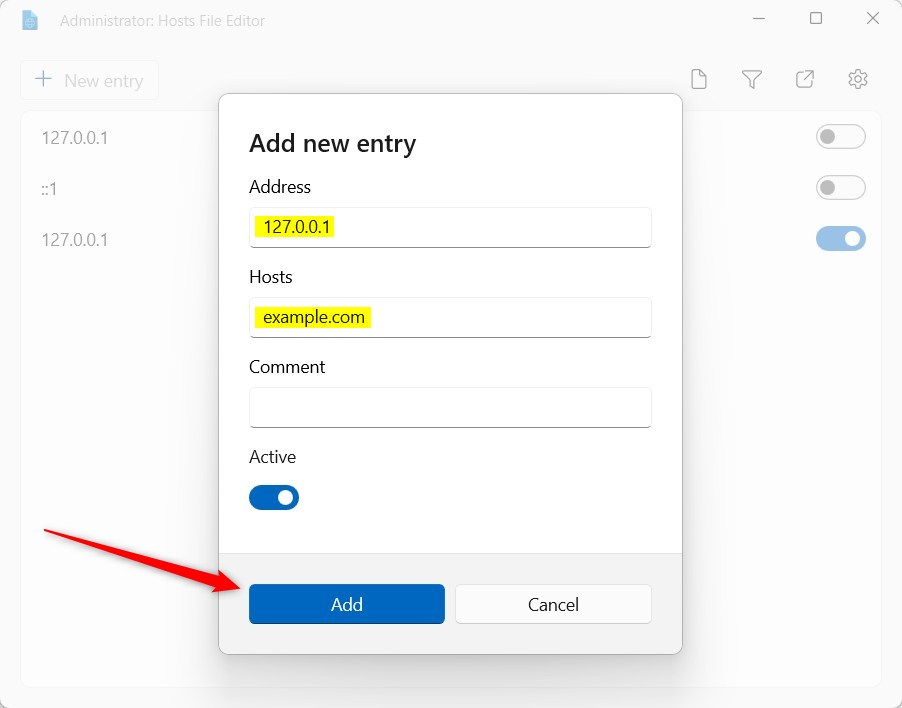
Enter the IP address, such as 127.0.0.1 (the loopback address), and the domain name you wish to map. Click Add to save your changes.
Pro-tip: Always back up your original file before making changes. You can copy the file from 📁C:\Windows\System32\drivers\etc\hosts to a safe folder on your desktop as a precaution.
Troubleshooting and Permissions
If you cannot save changes, ensure you have enabled the Launch as administrator setting. If the file is locked by another program, close your browser and try again. If you make a mistake, you can delete the entry in the PowerToys interface to undo the changes.
Summary
The PowerToys Hosts File Editor simplifies the process of managing domain mappings. By using this tool, you avoid risky manual edits to system files. It is the safest way to handle local development environments, block domains, or redirect traffic on your Windows 11 machine.
Does PowerToys Hosts File Editor require admin rights?
Yes, the tool requires administrative privileges. Because the hosts file is a sensitive system file, Windows restricts access to it. Enabling the “Launch as administrator” option in PowerToys allows the application to modify the file safely without you needing to manually edit system permissions.
Can I use the Hosts File Editor to block websites?
Yes, you can block websites by mapping a domain name to the loopback address 127.0.0.1. When your computer tries to connect to that domain, it will be redirected to your own machine instead of the internet, effectively blocking the site from loading in your browser.
What is the difference between editing the hosts file manually vs using PowerToys?
Manual editing requires opening a text editor as an administrator and navigating to 📁C:\Windows\System32\drivers\etc, which is prone to syntax errors. PowerToys provides a graphical interface that validates your entries, prevents accidental formatting mistakes, and makes it much easier to toggle or delete specific mappings.
Was this guide helpful?

About the Author
Richard
Tech Writer, IT Professional
Richard, a writer for Geek Rewind, is a tech enthusiast who loves breaking down complex IT topics into simple, easy-to-understand ideas. With years of hands-on experience in system administration and enterprise IT operations, he’s developed a knack for offering practical tips and solutions. Richard aims to make technology more accessible and actionable. He's deeply committed to the Geek Rewind community, always ready to answer questions and engage in discussions.


No comments yet — be the first to share your thoughts!