

This article explains docking or undocking the Copilot window on Windows 11.
Copilot in Windows is a generative AI assistance that allows users to interact with the chatbot using natural language to change system settings and work across multiple applications.
For computers that have Copilot added, a new Copilot button will appear on the Taskbar. Clicking the button or using the keyboard shortcut (Windows key + C) will appear as a flyout interface.
When Copilot is installed on Windows, you can enable or disable it, open Copilot when Windows starts, Pin or Unpin the Copilot side panel, Resize the Copilot side panel, delete chat history in Copilot, create a desktop shortcut, and more.
Starting with build 26080 of Windows 11, Microsoft is deploying an updated Copilot experience within Windows. This enhancement introduces the option to toggle between the traditional “docked” mode, where Copilot is affixed to the side of your desktop, and an app mode that allows Copilot to function as a standard application window.
Dock or undock Copilot on Windows
As mentioned, users can now undock the Copilot app in Windows, similar to regular applications available on Windows desktops.
Here’s how to do it.
First, open Copilot or press the keyboard shortcut Windows key + C.
Next, click the Settings and more button (three dots) on Copilot and select Dock to dock or undock the Copilot window.
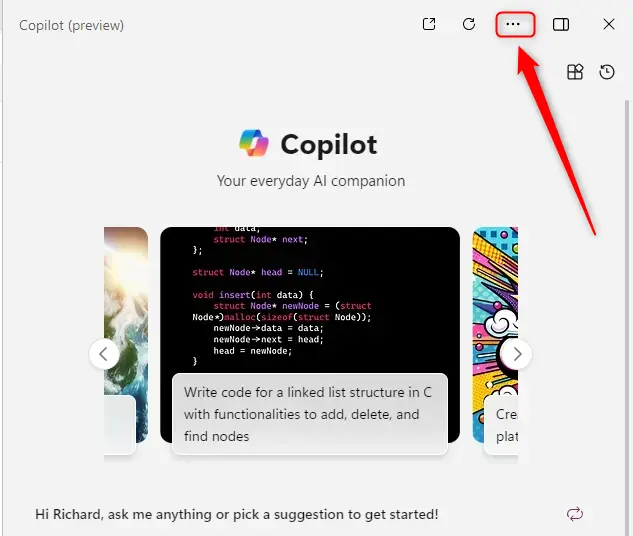
The Copilot window should look similar to the screen below when undocked.
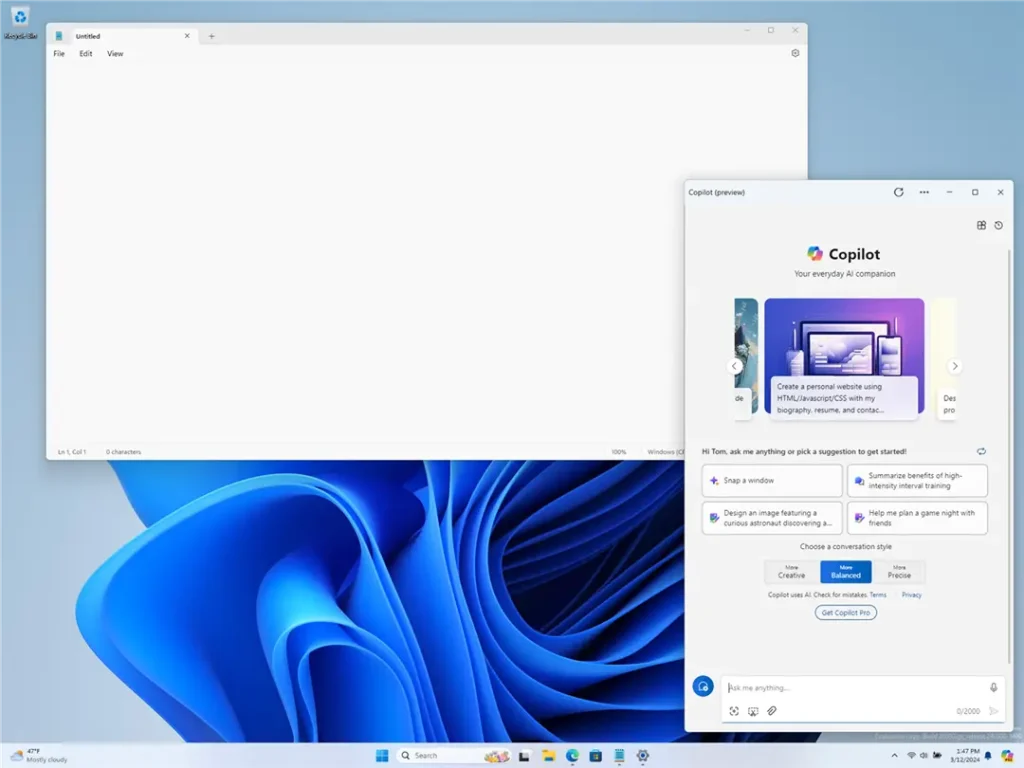
That should do it!
Conclusion:
- The Copilot in Windows 11 is a generative AI assistance that allows users to interact with the chatbot using natural language to change system settings and work across multiple applications.
- With the introduction of build 26080 of Windows 11, users can now toggle between the traditional “docked” mode and an app mode, offering greater flexibility and control over the Copilot window.
- To dock or undock the Copilot window, users can open Copilot or use the keyboard shortcut Windows key + C, click the Settings and more button, and select Dock.
- This enhancement allows users to manage the Copilot window according to their preferences, making it more adaptable to their workflow and desktop setup.

Leave a Reply Cancel reply