Windows 11 shows you alerts and messages called notifications. These help you know what’s happening on your computer. But sometimes, they can be distracting or annoying. Don’t worry — you can easily turn them off!
Why You Might Want to Turn Off Notifications
- Notifications can interrupt you while working or studying.
- Some notifications might not be important to you.
- They can display private information you don’t want others to see.
Turning off notifications can help you focus and keep your information private.
What Kind of Notifications Does Windows 11 Show?
- Notifications on the lock screen.
- Reminders and calls on the lock screen.
- Windows update messages and tips.
- Alerts from apps and other features.
How to Turn Off All Notifications
Follow these simple steps to stop all notifications:
Open Settings:
Click the Start menu (Windows icon) at the bottom left, then click Settings.
Or press Windows key + I to open Settings directly.
Go to System Notifications:
In Settings, click System on the left side.
Then click Notifications on the right.
Turn Off Notifications:
At the top, you will see a switch that says Notifications. Click it to turn it Off.
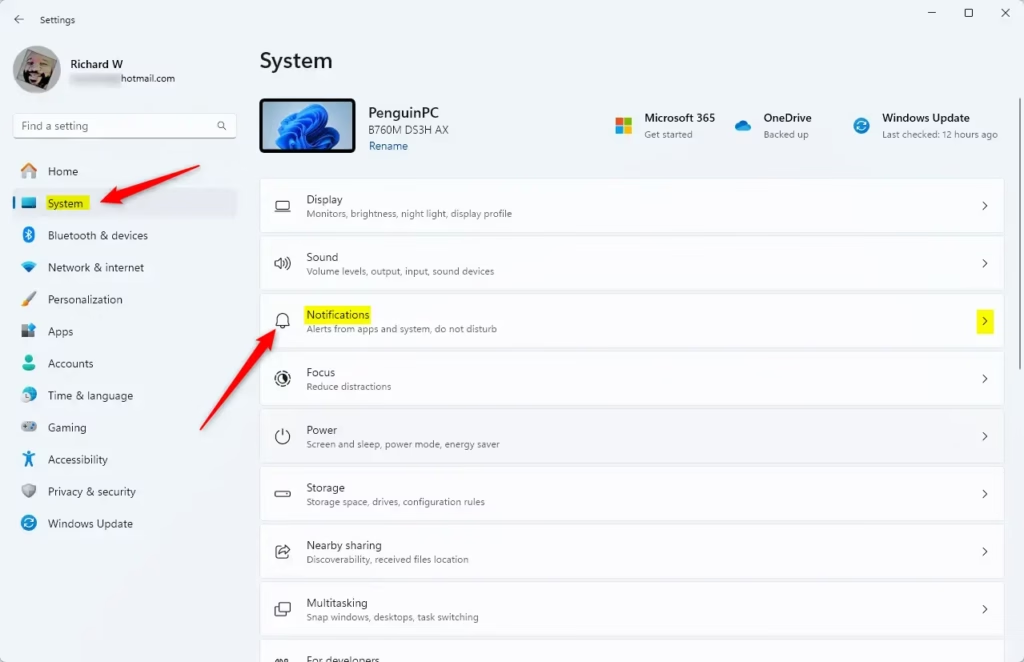
Now, you won’t get any pop-up notifications on your screen.
Want to Stay Focused Without Turning Off Everything?
Windows 11 has a feature called Focus that helps you block distractions but still lets important alerts come through.
- Open Settings and go to System > Notifications again.
- Find the Focus section and click it to open.
- Click Start a focus session to temporarily stop most notifications.
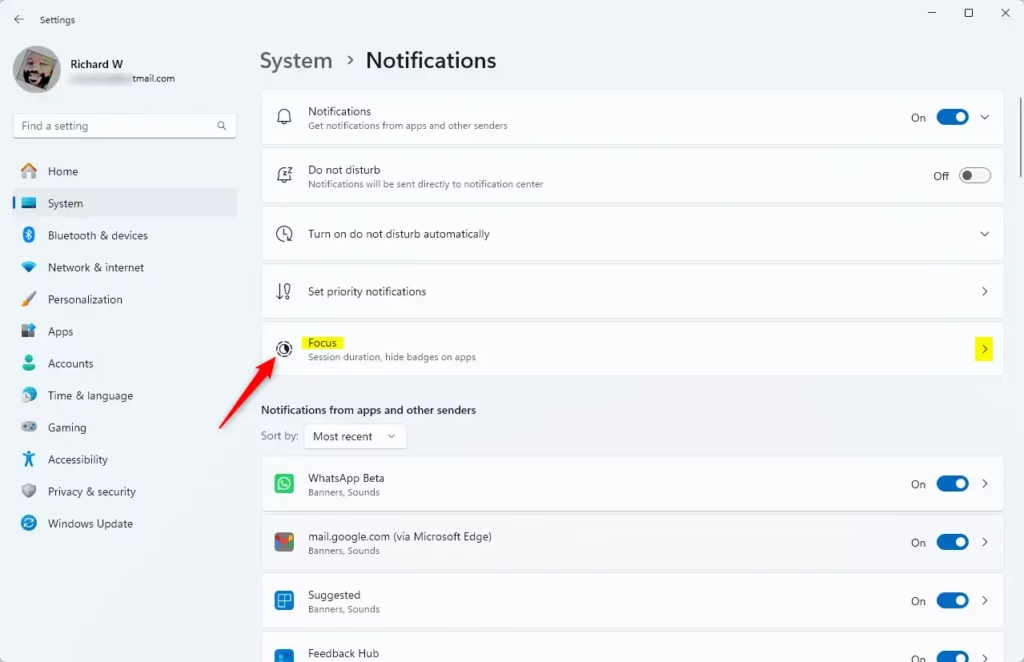
This way, you can work without distractions but still get important messages.
Summary
- Notifications can be helpful but sometimes distracting.
- You can turn off all notifications easily in Windows Settings.
- If you don’t want to miss important alerts, try using the Focus feature.
- Focus sessions help you concentrate by pausing most notifications temporarily.
By managing your notifications, you can work or play on your PC without interruptions.
Helpful Links:

Leave a Reply Cancel reply