

Your Windows 11 computer starts many programs automatically when you turn it on. Some of these apps you use all the time, so it makes sense. But others you might not need right away, and having too many apps start up can make your computer slower to start.
By turning off apps you don’t need to start automatically, your PC can start faster and work better.
See Which Apps Start Automatically
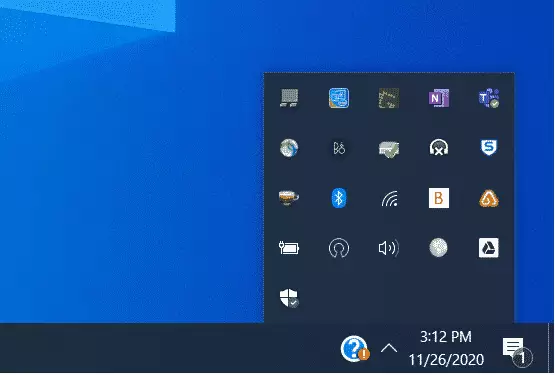
Look at the little icons near the clock on your taskbar (bottom-right corner). These show some apps running in the background.
If you don’t see all icons, click the ^ (up arrow) button to “Show hidden icons.”
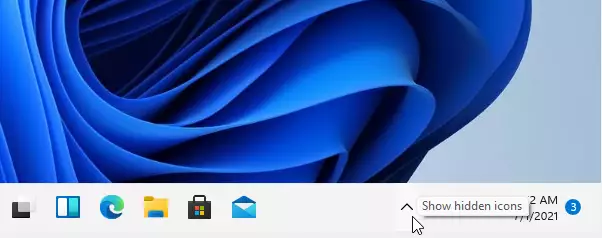
These are some programs that start automatically, but there might be others you don’t see here.
How to Turn Off Startup Apps You Don’t Need
Follow these simple steps to stop apps from starting automatically:
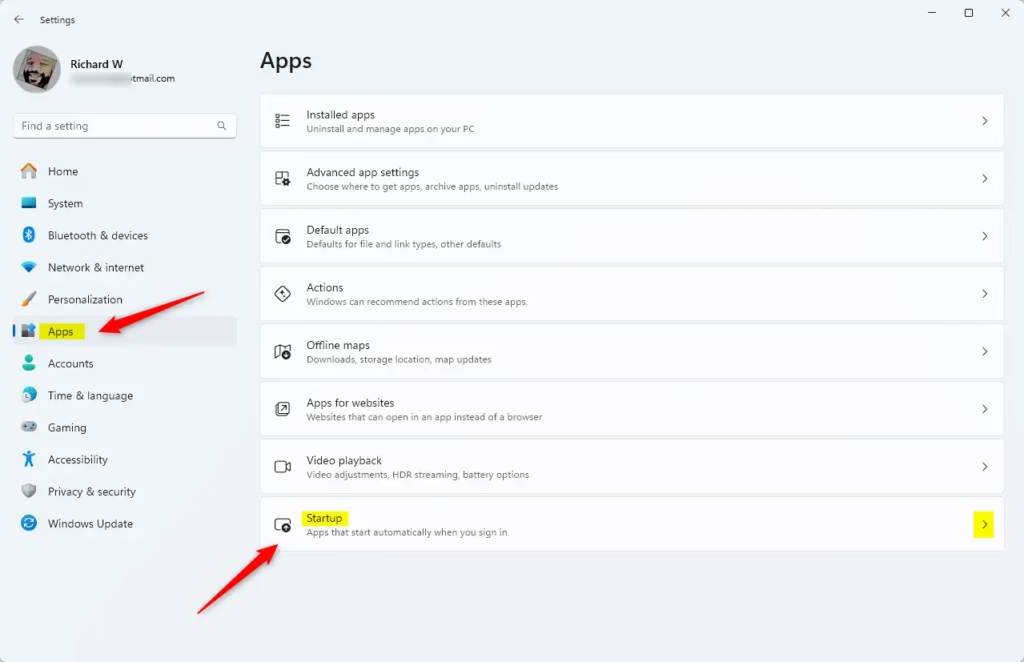
- Open Settings: Click the Start menu (Windows icon at bottom-left), then click Settings.
Or press Windows key + I on your keyboard to open Settings quickly. - In the Settings window, click on Apps in the left menu.
- Now, click Startup on the right side.
- You’ll see a list of apps that start automatically. Find apps you don’t need right away and switch their toggle to Off.
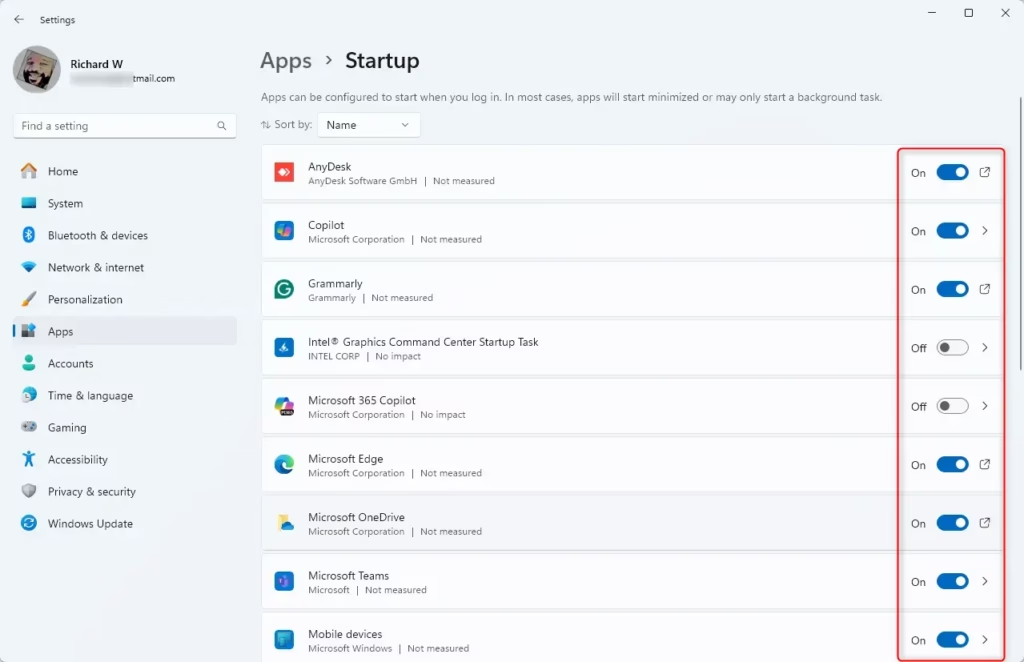
That’s it! Next time you start your computer, those apps won’t open automatically, and your PC will start faster.
Why Do This?
- Turning off unneeded startup apps helps your computer start quicker.
- It can make your computer feel faster and more responsive.
- You save system resources, so your apps and games run better.
- You stay in control of what runs on your PC.
Remember: Some programs are important to keep on startup (like antivirus software). Only turn off apps you recognize and don’t need right away.
For more tips on keeping Windows 11 running smoothly, check out this guide to resetting the Settings app.

Leave a Reply Cancel reply