

This article explains how to disable Google Chrome from asking to be the default browser in Windows 11.
Google Chrome is a cross-platform web browser developed by Google. It and Microsoft Edge share the same codebase. However, Microsoft Edge is the default browser in Windows 11.
If you want to keep it that way, you can prevent Google Chrome from always asking to be the default browser in Windows 11.
Disabling the “Set as default” prompt by Google Chrome will disable Google Chrome from checking if it’s the default browser. This will also disable the “Default browser” setting in Chrome Settings.
Prevent Google Chrome from asking to be the default browser
As mentioned, users can prevent Google Chrome from asking to be the default browser in Windows 11.
Here’s how to do it.
First, open the Windows Registry editor as administrator.
Then, navigate to the registry key below.
ComputerHKEY_CURRENT_USERSoftwarePoliciesGoogleChrome
Next, double-click the DefaultBrowserSettingEnabled (REG_DWORD) name on the Chrome key’s right pane to open it.
Then, type 0 to disable Google Chrome, prompting you to switch your default browser for the current user.
If you do not see the “DefaultBrowserSettingEnabled” item, right-click a blank area and create a new REG_DWORD (32-bit) registry item.
Then, type the name “DefaultBrowserSettingEnabled” and enter 0 to disable the feature for the current user.
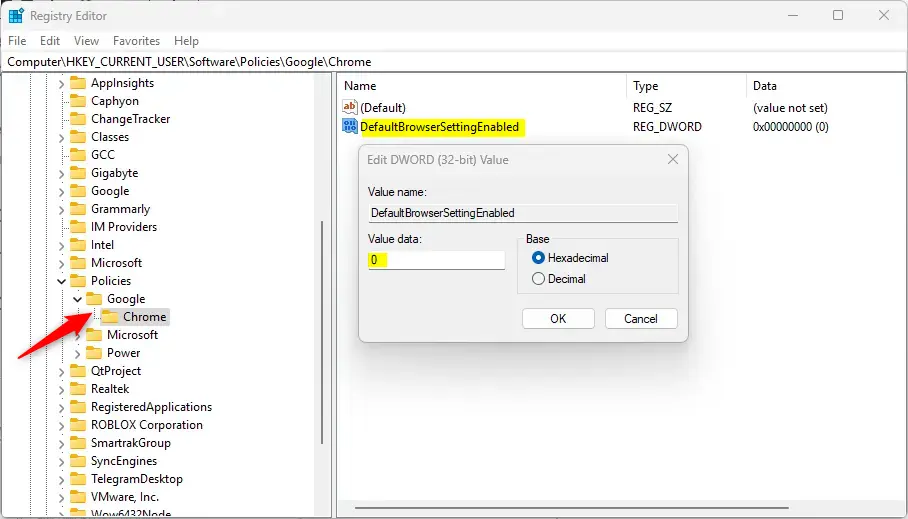
To restore the default behavior and continue to allow Google Chrome prompts to switch the default browser, delete the “DefaultBrowserSettingEnabled” item created.
If you want to apply this policy to all computer users, use the Registry key below.
ComputerHKEY_LOCAL_MACHINESOFTWAREPoliciesGoogleChrome
You may have to reboot your computer to apply the changes.
That should do it!
Reference:
Conclusion:
- Disabling Google Chrome’s “Set as default” prompt prevents it from checking if it’s the default browser
- To disable the prompt, use the Windows Registry Editor to navigate to the corresponding registry key and set the value to 0
- To revert to the default behavior, delete the “DefaultBrowserSettingEnabled” item created
- The policy can be applied to all computer users via the HKEY_LOCAL_MACHINESOFTWAREPoliciesGoogleChrome Registry key
- Rebooting the computer may be necessary to apply the changes



Leave a Reply Cancel reply