

This article explains how to deny write access to removable drives not protected by BitLocker in Windows 11.
BitLocker helps protect computer data so only authorized users can access it. New files created on a BitLocker-enabled drive will also be protected.
Users can protect external, fixed, and operating system drives using BitLocker. When you enable BitLocker to protect the OS drive, it automatically unlocks the drive at startup using a TPM chip.
You can use the Deny write access to removable drives not protected by BitLocker policy setting to configure whether BitLocker protection is required for a device to write data to a removable data drive.
When this policy is enabled, all removable data drives that are not BitLocker-protected are mounted as read-only, and drive protected by BitLocker will be mounted with read and write access.
Deny write access to removable drives not protected by BitLocker
As mentioned above, users can configure a policy setting in Windows to configure whether BitLocker protection is required for a device to write data to a removable data drive.
Here’s how to do it.
First, open the Local Group Policy Editor (gpedit.msc). (Search for “Edit group policy”) on the Start menu.
Then, navigate the folders below:
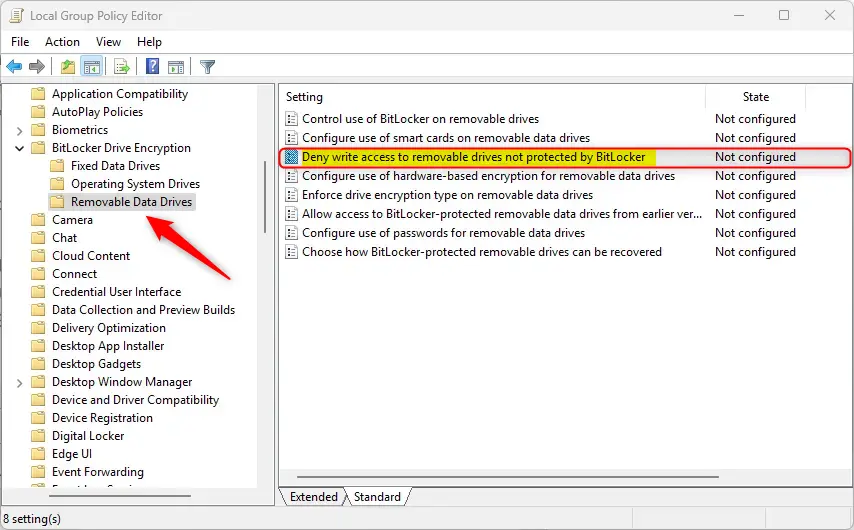
Computer Configuration -> Administrative Templates -> Windows Components -> BitLocker Drive Encryption -> Removable Data Drives
In the BitLocker Drive Encryption details pane on the right, locate and double-click the “Deny write access to removable drives not protected by BitLocker” settings.
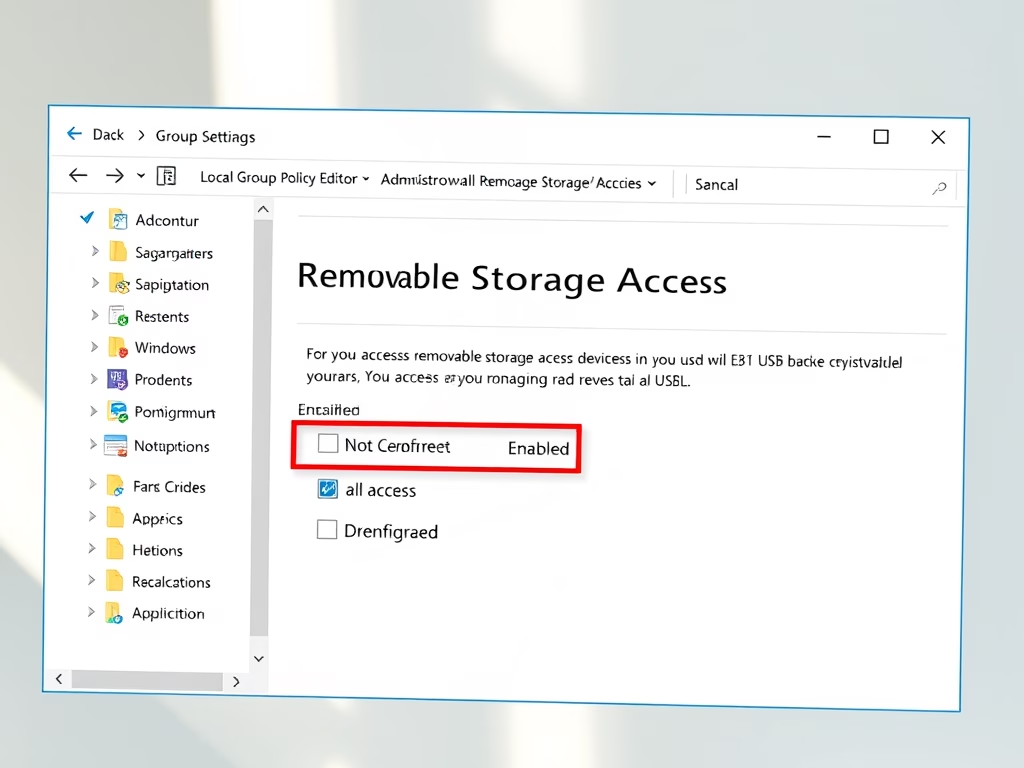
On the “Deny write access to removable drives not protected by BitLocker” window, set the option to Not Configure, Enabled, or Disabled.
- Not Configured (default) – Same as Disabled.
- Enabled – all removable data drives that are not BitLocker-protected will be mounted as read-only.
- Disabled – all removable data drives on the computer will be mounted with read and write access.
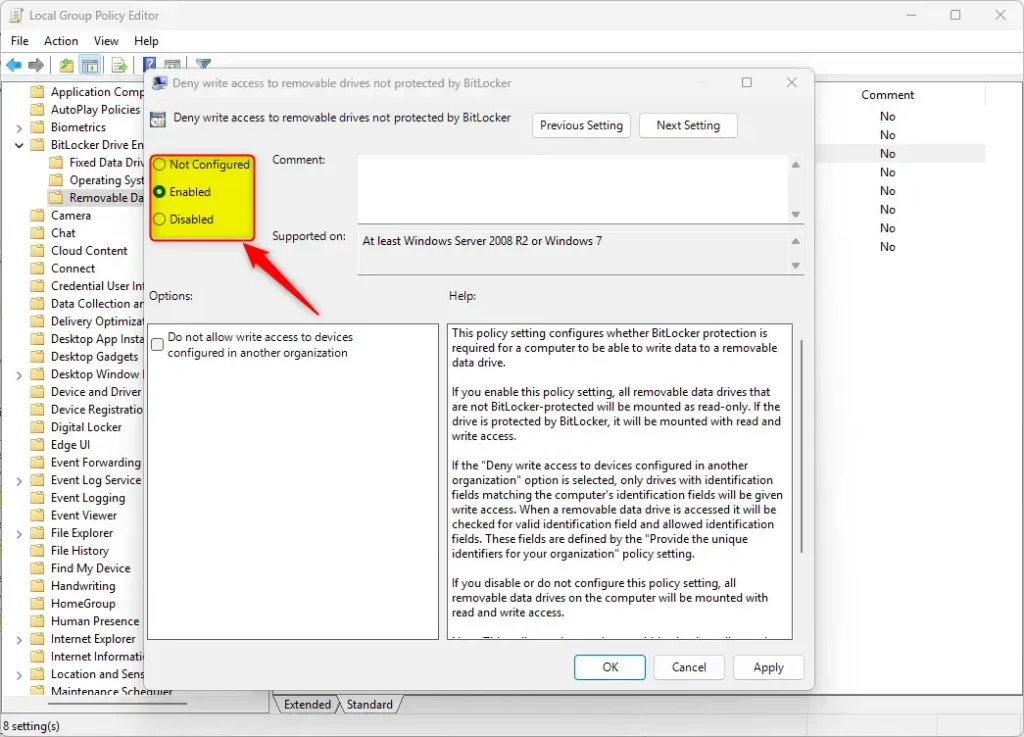
When enabled, you can further configure the policy under Options to select “Do not allow write access to devices configured in another organization.”
If the “Deny write access to devices configured in another organization” option is selected, only drives with identification fields matching the computer’s identification fields will be given write access. When a removable data drive is accessed it will be checked for valid identification field and allowed identification fields. These fields are defined by the “Provide the unique identifiers for your organization” policy setting.
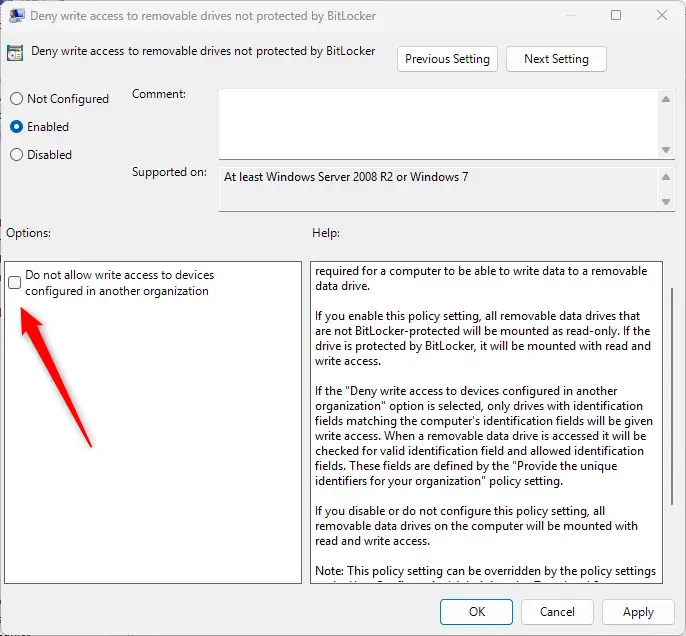
Click OK to save your changes. You may have to reboot your device for the settings to apply.
Allow or deny write access to removable drives not protected by BitLocker using the Windows Registry Editor
Yet another way to configure the policy to deny write access to drive not protected by BitLocker is to use the Windows Registry editor.
First, open the Windows Registry and navigate to the folder key path below.
ComputerHKEY_LOCAL_MACHINESOFTWAREPoliciesMicrosoftFVE
Next, double-click these two (REG_DWORD) names on the FVE key’s right pane to open it.
RDVDenyCrossOrg
Then, enter a value 0
Next, navigate to the registry key below.
ComputerHKEY_LOCAL_MACHINESYSTEMCurrentControlSetPoliciesMicrosoftFVE
Then, double-click these two (REG_DWORD) names on the FVE key’s right pane to open it.
RDVDenyWriteAccess
Then, enter a value 1
If you do not see the two items, right-click a blank area and create a new DWORD (32-bit) registry item for both.
Then, enter a value 01 for “RDVDenyWriteAccess” to deny access to drives not encrypted by BitLocker.
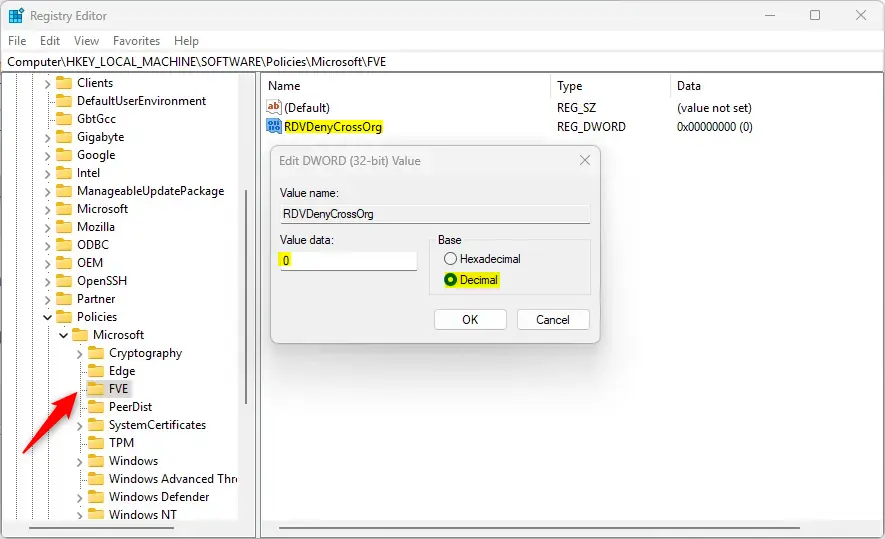
To enable the option “Do not allow write access to devices configured in another organization,” change the values for both “RDVDenyCrossOrg” and “RDVDenyWriteAccess” to 1.
To restore the default behavior and continue to use removeable drives not encrypted, delete both items created above.
RDVDenyCrossOrg
RDVDenyWriteAccess
Save your changes and restart your computer.
That should do it!
Conclusion:
- Implementing the “Deny write access to removable drives not protected by BitLocker” policy setting in Windows 11 ensures that only BitLocker-protected devices can write data to removable drives, enhancing data security.
- The policy can be easily configured through the Local Group Policy Editor, allowing users to set the desired level of access for removable data drives.
- Alternatively, users can utilize the Windows Registry Editor to deny write access to drives not protected by BitLocker, offering an additional method for implementing this security measure.
- Following these steps, users can effectively strengthen their data protection measures and ensure that only authorized devices can write to removable drives in a BitLocker environment.
Leave a Reply Cancel reply