How to Delete PC Backups in Dropbox on Windows 11

This guide explains how to remove computer backups from Dropbox on Windows 11. Dropbox is a service that saves your files to the internet. This keeps your data safe and allows you to access it from anywhere. However, over time, old backups can clutter your cloud storage.
Why delete a backup?
You might want to delete a backup if you are no longer using a specific computer. It is also a great way to free up storage space. Finally, if you think your account is not safe, deleting old backups helps protect your information.
What happens when you are done?
When you delete a backup, the files are removed from the cloud. However, your actual files and folders will stay safely on your computer. You will no longer see these files in your Dropbox account online.
How to delete a PC backup via the Desktop App
Follow these steps to remove a device from your Dropbox backup list:
- Open the Dropbox window from the bottom right corner of your taskbar.

- Click the Settings (gear icon) and select Preferences.

- Go to the Backups tab. Click the Manage backups button under the “This PC” section.

- If you have already set this up, select My PC (GenericName) under the Sync and backups tab.

- This opens your browser. Find the tile that says Delete your My PC (GenericName) backup.
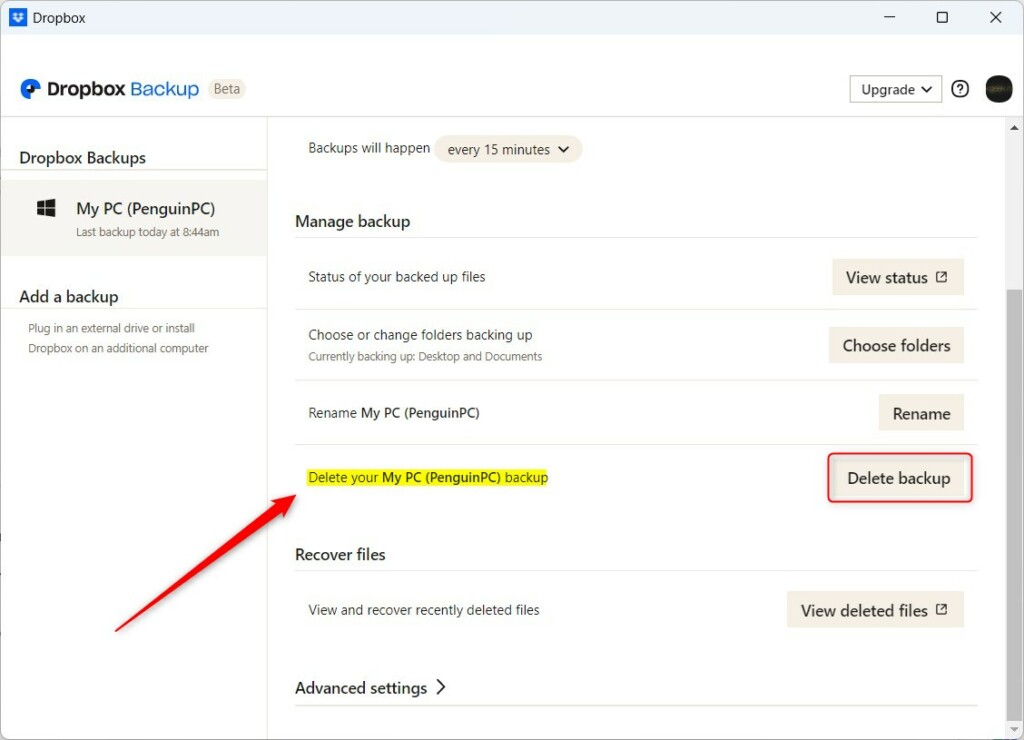
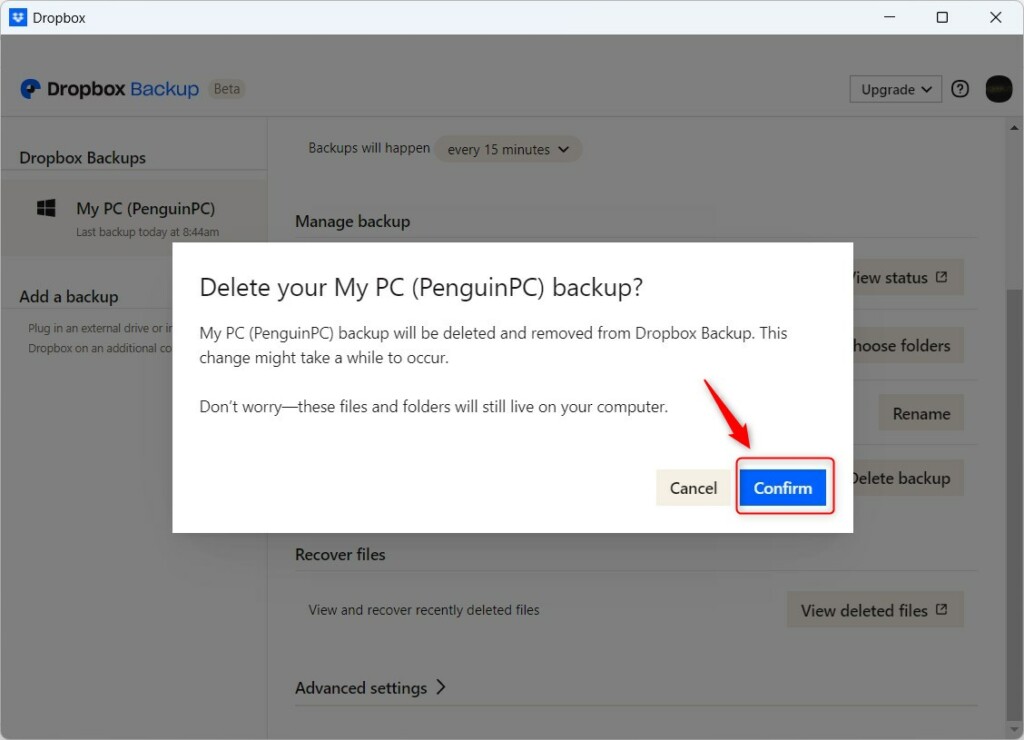
- Click the Delete backup button. A window will pop up. Click Confirm to finish. Note: This process may require admin privileges if your system settings restrict application changes.
Managing Backups via the Web Interface
If you no longer have access to the computer, you can manage backups directly through the Dropbox website. Log in to your account at dropbox.com, go to your account settings, and select the Backups tab. From here, you can view all linked devices and remove those that are no longer in use to reclaim your storage quota.
Troubleshooting the ‘Unlinked Device’ Loop
Sometimes, a device remains in your list even after you have unlinked it. This often happens due to cached data. To fix this, ensure you have fully signed out of the Dropbox desktop app. You may need to clear your local cache located at C:\Users\GenericUser\AppData\Local\Dropbox. Note: Accessing these folders may require admin privileges.
Summary
You can easily manage your storage by removing old computer backups from Dropbox. This process deletes the copies stored online but keeps all your original files on your computer. For more detailed information, visit the official Dropbox Help Center. Always double-check before confirming to ensure you are removing the correct device.
Why can’t I see my backup files in ‘All Files’?
Backup files are stored in a special section of your account separate from your main file list. You can find them by navigating to the ‘Backups’ tab in your Dropbox account settings. They are not regular files, so they do not appear in your standard ‘All Files’ view.
How do I find which device is taking up my storage?
You can identify which device is consuming your storage by visiting the ‘Backups’ page in your Dropbox account settings. This page lists all computers currently syncing data to your account, along with the amount of space each backup is using, helping you decide which ones to remove.
Was this guide helpful?

About the Author
Richard
Tech Writer, IT Professional
Richard, a writer for Geek Rewind, is a tech enthusiast who loves breaking down complex IT topics into simple, easy-to-understand ideas. With years of hands-on experience in system administration and enterprise IT operations, he’s developed a knack for offering practical tips and solutions. Richard aims to make technology more accessible and actionable. He's deeply committed to the Geek Rewind community, always ready to answer questions and engage in discussions.

No comments yet — be the first to share your thoughts!