If you use Windows Terminal on Windows 11, you might want to change how the scrollbar looks or works. This guide will show you how to show or hide the scrollbar to make your Terminal easier to use.
What is Windows Terminal?
Windows Terminal is a modern app you use to type commands on your computer. It can open Command Prompt, PowerShell, or even Linux commands with WSL (Windows Subsystem for Linux). If you’d like to learn more about these, here are some helpful links:
You can customize many things in Windows Terminal, like the language, window size, which profile opens first, and even how the Terminal starts. This guide focuses on changing the scrollbar — the bar on the side that helps you move through long text.
Why Change the Scrollbar?
The scrollbar is important when you see lots of text in the Terminal. Sometimes, you might want it always visible, only when you move your mouse near it, or completely hidden to have a cleaner look. Changing this can make the Terminal more comfortable for you.
How to Change Scrollbar Visibility in Windows Terminal
- Open Windows Terminal
Click theStart menu(the Windows icon), typeTerminal, and click on Windows Terminal from the list.
 Opening the Windows Terminal app
 - Open the Settings
In the Terminal window, look at the top bar and click the small down arrow next to the plus (+) tab button. Then click Settings, or pressCtrl + ,on your keyboard.

Opening Windows Terminal Settings - Go to Defaults > Appearance
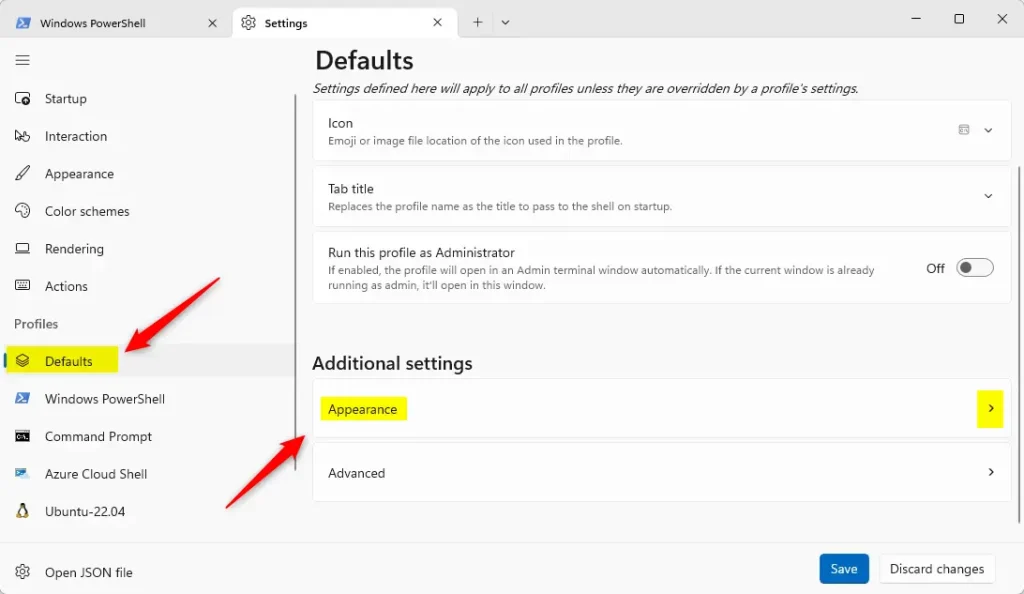
On the left side of the Settings window, click Defaults under Profiles.
Then, on the right side, click the Appearance section to open it.
- Change Scrollbar Visibility
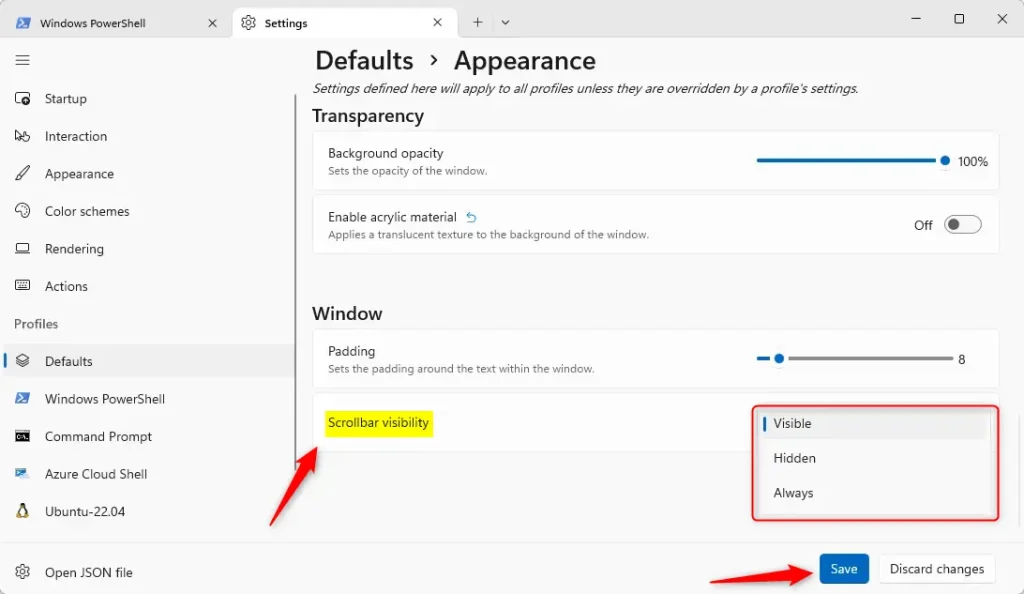
Scroll down to find the Scrollbar visibility option under the Window section.
Click the dropdown menu and choose one of these:- Visible (default): Scrollbar appears when you move the mouse near the edge.
- Hidden: Scrollbar is completely hidden.
- Always: Scrollbar is always visible.
- Save Your Changes
After selecting your preferred scrollbar setting, click the Save button at the bottom right of the Settings window.
That’s it! Your Windows Terminal scrollbar will now work the way you want.
Summary
- You can change how the scrollbar shows up in Windows Terminal to make it easier for you to read and scroll through long text.
- Choose whether the scrollbar is always visible, only shows up when you hover, or stays hidden.
- This simple setting can improve how comfortable you feel working in the Terminal.
If you have questions or want to share your experience, feel free to leave a comment below!
Leave a Reply Cancel reply