How to Create your Website on Google Cloud Server

You create your website on a Google Cloud server by installing a Content Management System (CMS) onto your configured server environment.
A CMS is software that simplifies building and managing website content, enabling you to create a dynamic site even without extensive coding skills.
This tutorial focuses on connecting your existing Google Cloud components: Ubuntu Linux, Apache or Nginx, PHP, and MySQL/MariaDB, allowing you to install a popular CMS.
Install a Content Management System (CMS) like WordPress, Drupal, or Joomla on your configured Google Cloud server. Connect to your server via SSH from the Google Cloud Console, then use your server’s IP address or hostname in a browser to manage your website.
How to connect to Google Cloud servers
Connecting to your Google Cloud server, which is like a virtual computer, is easy right from your web browser using the Google Cloud Console.
SSH from the browser supports the following:
- Web browsers
- The latest version of Google Chrome
- Firefox
- Microsoft Edge
- Microsoft Internet Explorer 11 and later
- Safari 8 and later. Note that Safari in private browser mode is not supported.
- Virtual machine configurations
- All Linux VM images are natively available in Google Cloud.
No additional software or browser extensions are needed. Log in to the Google Cloud Console and navigate to Menu > Compute Engine > VM instances.
In the list of virtual machine instances, click SSH in the row of the instance that you want to connect to.
Alternatively, you can open an SSH connection to an instance by clicking its name and SSH from the instance details page.
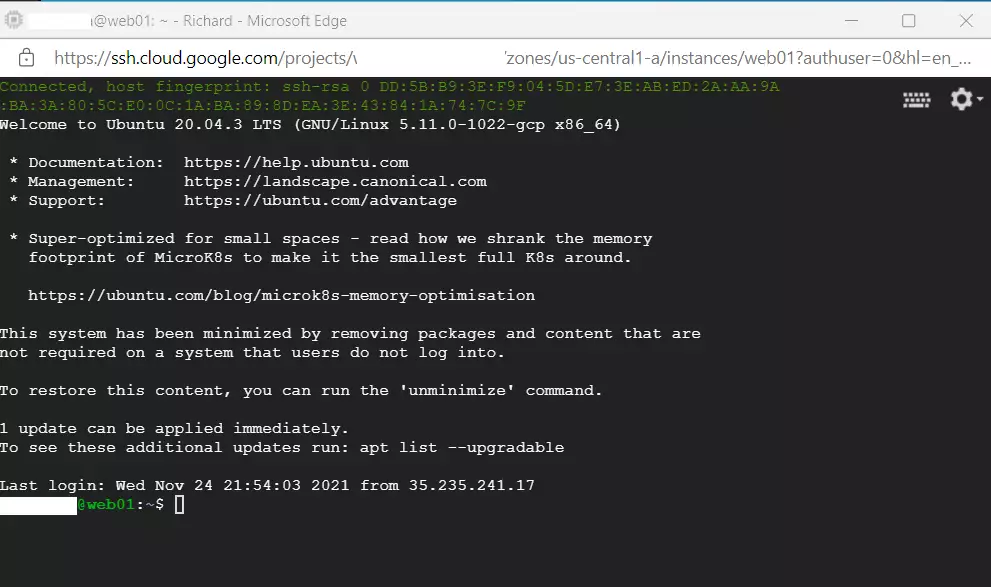
An SSH terminal window with the Ubuntu Linux instance created in the series’s second post will open.
You should now be able to run commands in Ubuntu Linux created on the Google Cloud server.
How to create websites on Google Cloud Servers
Once you’ve got the right software set up, creating your website on a Google Cloud server is much like doing it on your own computer.
Once you installed all required packages, your website can be set up directly from your browser by browsing the server hostname or IP address.
Detailed posts and help to create websites on Ubuntu Linux with Apache or Nginx are linked below. Click on any of them to learn more about installing and managing CMS on Ubuntu Linux.
How to install WordPress on Ubuntu Linux with Apache
How to install WordPress on Ubuntu Linux with Nginx
How to install Drupal on Ubuntu Linux with Apache
How to install Drupal on Ubuntu Linux with Nginx
How to install Joomla on Ubuntu with Apache
How to install Joomla on Ubuntu with Nginx
Each link above will show you all the steps we performed in our previous posts to get here. You also will learn how to secure your website with free Let’s Encrypt SSL certificates.
That should do it!
Conclusion:
In summary, creating a website on Google Cloud servers running Ubuntu Linux can be a detailed process if you follow the necessary steps. Here are the key points to remember:
- Domain Name: Ensure your domain name is properly registered and pointed to your Google Cloud server.
- Google Cloud Setup: Set up your Google Cloud server with Ubuntu Linux, installing necessary software and packages.
- Choose a CMS: Select a popular content management system (CMS) like WordPress, Drupal, or Joomla to help create your website.
- Connection via SSH: Use SSH from the Google Cloud Console to connect to your server easily without additional software.
- Website Management: After installation, manage your website directly through the browser using the server’s IP address or hostname.
- Security: Don’t forget to secure your website with free Let’s Encrypt SSL certificates to enhance security.
With these steps, you’ll be well-equipped to build and manage a beautiful, functional website online!
Can I create a free website through Google?
Google Sites are free to build, host, and maintain with a Google or Gmail account. There are no web hosting fees. If, however, you are using Google Sites in conjunction with Google Workspace, the cost is rolled into the user license fee of all plans.
Is Google Cloud good for hosting websites?
Unlike normal web hosting, Google Cloud is more flexible and can grow with your needs. It also keeps your website online all the time, so there are no issues with it going down. For businesses that want safe and reliable hosting, web hosting in Google Cloud is a good choice.
Was this guide helpful?

About the Author
Richard
Tech Writer, IT Professional
Richard, a writer for Geek Rewind, is a tech enthusiast who loves breaking down complex IT topics into simple, easy-to-understand ideas. With years of hands-on experience in system administration and enterprise IT operations, he’s developed a knack for offering practical tips and solutions. Richard aims to make technology more accessible and actionable. He's deeply committed to the Geek Rewind community, always ready to answer questions and engage in discussions.




No comments yet — be the first to share your thoughts!