Create a Bootable USB in Ubuntu Linux

You create a bootable USB in Ubuntu Linux using the Startup Disk Creator tool.
A bootable USB, or startup disk, allows you to install or repair an operating system from a portable drive.
Ubuntu’s built-in Startup Disk Creator makes this straightforward, even for beginners.
Ensure your USB drive has at least 2GB of space; this process will also erase all existing data, so back up anything vital first.
You will need an ISO image file, which is a disk image of the Ubuntu version you intend to put onto the USB.
Open Startup Disk Creator from the Activities search bar. Select your Ubuntu ISO file and the target USB drive, then click “Make Startup Disk” and confirm to create the bootable drive.
How to create a startup disk in Ubuntu Linux
You can easily create a bootable USB drive in Ubuntu Linux using the Startup Disk Creator tool, which is perfect for making a startup disk from an Ubuntu ISO file.
It’s assumed that you have downloaded an Ubuntu ISO image.
To create a startup disk from an Ubuntu ISO image.
Open Startup Disk Creator via the Activities search bar and launch the app.
If the ISO image is in your Download folder and it’s the only one there, Startup Disk Creator will likely select it automatically. Otherwise, choose the correct ISO image you want to use.
If your computer has only one USB drive plugged in, Startup Disk Creator should select it automatically. If you have multiple, choose the correct one from the list.
Click Make Startup Disk.
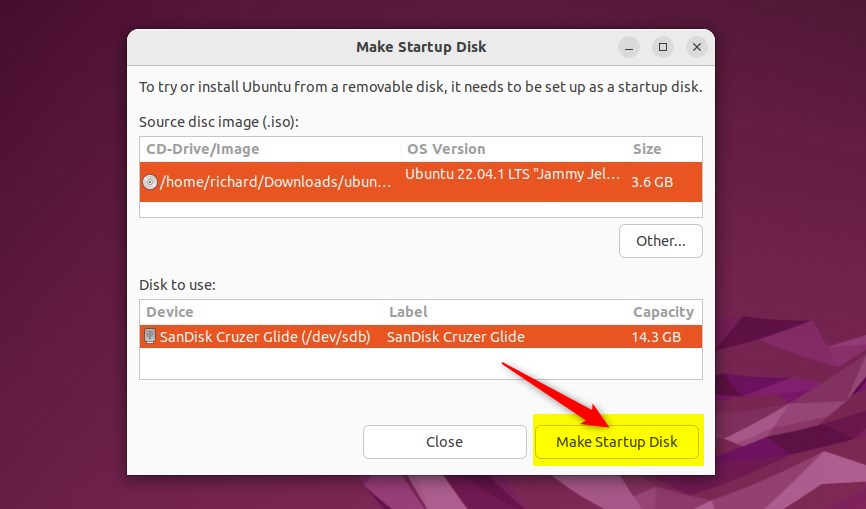
Click Yes to confirm. The process should take ten minutes or less.
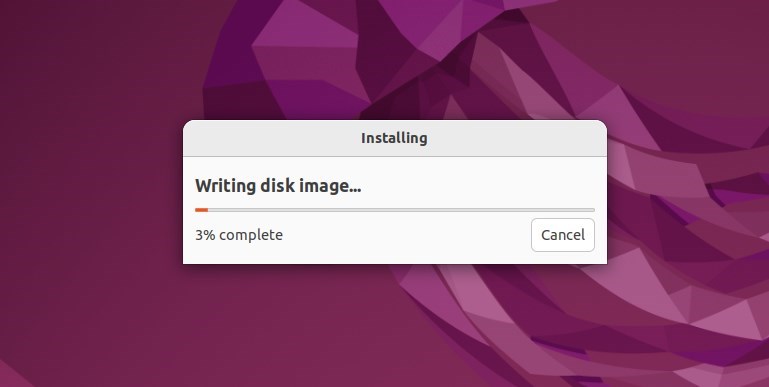
When the “Installation Complete” window opens, click Quit.
When you’re done, grab the USB flash drive and boot the computer you want to install Ubuntu on from the drive. If the computer boots properly, Ubuntu Linux should be installed on the computer.
That should do it!
Conclusion:
- Creating a startup disk in Ubuntu Linux is essential for system recovery and installation.
- Ensure the USB flash drive has sufficient storage capacity and no valuable data before creating a startup disk.
- The Startup Disk Creator tool simplifies creating a bootable disk from an Ubuntu ISO image.
- After following the steps, users can boot their computers from the startup disk to install or repair Ubuntu Linux.
Can I use Rufus to make a bootable USB for Ubuntu?
Drive rufus will detect it instantly. Make sure it's at least 8 gigabyte or more and has no important files since everything will be erased. Now under boot selection.
How do I create a bootable USB stick in Linux?
In Linux Mint Right-click the ISO file and select Make Bootable USB Stick, or launch Menu ‣ Accessories ‣ USB Image Writer. Select your USB device and click Write.
Was this guide helpful?

About the Author
Richard
Tech Writer, IT Professional
Richard, a writer for Geek Rewind, is a tech enthusiast who loves breaking down complex IT topics into simple, easy-to-understand ideas. With years of hands-on experience in system administration and enterprise IT operations, he’s developed a knack for offering practical tips and solutions. Richard aims to make technology more accessible and actionable. He's deeply committed to the Geek Rewind community, always ready to answer questions and engage in discussions.




No comments yet — be the first to share your thoughts!