
This tutorial shows you how to pick which hand you write with. This changes where menus open on your Windows 11 screen.
Why Would You Do This?
If you have a touch screen or use a pen on a tablet, this setting helps you. It moves menus so your hand doesn’t cover them while you work.
What Happens When You Change This?
If you choose right hand, menus open to the left of your pointer. This keeps them out of the way.
If you choose left hand, menus open to the right of your pointer.
If a menu opens near the edge of your screen and there’s no room, Windows automatically flips it to the other side.
Learn how to use a tablet pen with Windows for drawing, note-taking, and navigation. Discover pairing, settings, and productivity tips for an enhanced digital experience. Use a pen with Windows – Microsoft Support
Option One: Use Settings
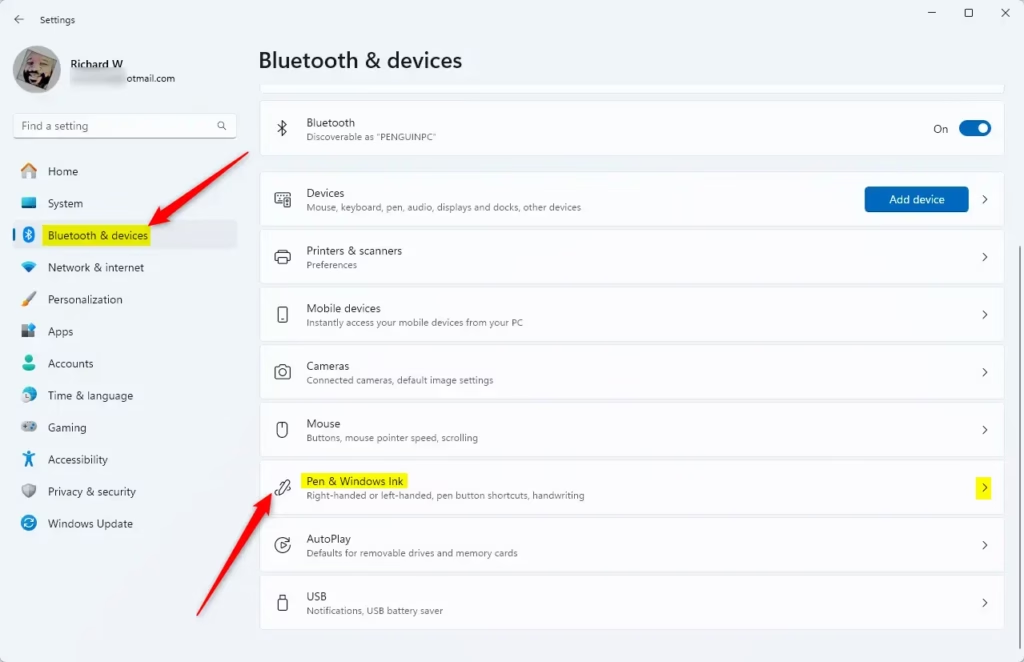
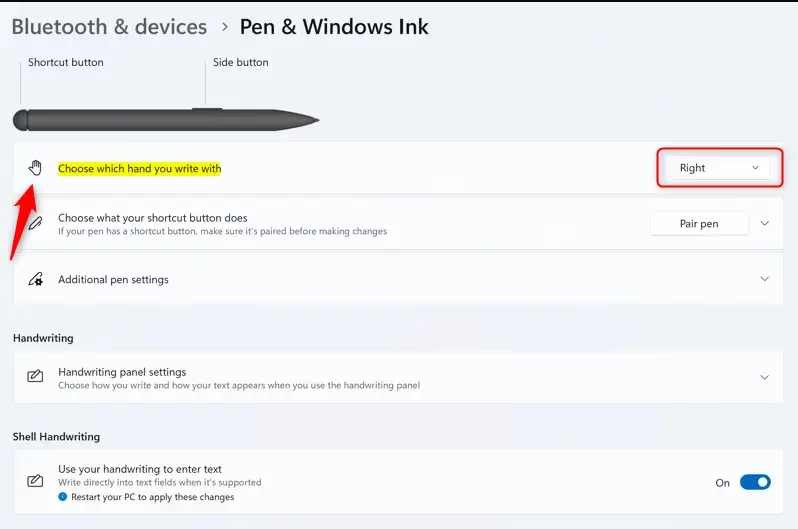
To change your writing hand in Windows 11 Settings, press Win+I to open Settings, navigate to Bluetooth & devices, select Pen & Windows Ink, then choose your preferred hand from the dropdown menu labeled ‘Choose which hand you write with.’
- Open Settings by pressing
Win+I. - Click on Bluetooth & devices on the left side.
- Click on Pen & Windows Ink on the right side. Open Pen & Windows Ink settings
- Find the drop menu that says Choose which hand you write with.
- Select either Left or Right.
- Close Settings when you’re done.
Option Two: Use Registry Editor
Windows 11 pen hand settings can be changed via Registry Editor using command-line entries: set MenuDropAlignment to 0 for left-hand mode or 1 for right-hand mode, requiring administrator privileges in Windows Terminal to execute the appropriate reg add command.
Open Windows Terminal and run one of the commands below.
For left hand:
reg add "HKCU\Software\Microsoft\Windows NT\CurrentVersion\Windows" /v MenuDropAlignment /t REG_SZ /d 0 /f
For right hand:
reg add "HKCU\Software\Microsoft\Windows NT\CurrentVersion\Windows" /v MenuDropAlignment /t REG_SZ /d 1 /f
Summary
Choosing your writing hand in Windows 11 moves menu drop-downs so they don’t get blocked by your hand when using a pen or touch screen. You can change this in Settings under Pen & Windows Ink, or use Registry Editor if you prefer command lines. Either way, your menus will open on the side that works best for you.


Leave a Reply