How to Check Your Windows 11 Version

You can check your Windows 11 version by looking at the ‘About your PC’ settings or using the winver command.
Knowing your Windows 11 version is crucial for ensuring compatibility with software and understanding which features you have. Windows 11 currently offers several editions, including Home, Pro, and Enterprise, each with distinct capabilities.
For instance, the build number, like 22H2, indicates the specific feature update your system is running. You’ll typically find this information easily accessible within your PC’s system settings.
Open Settings, navigate to System, then About, and look for “Windows specifications” to find your version. Alternatively, press Windows key + R, type “winver,” and press Enter to see your version and build number.
Why Check Your Windows Version?
Knowing your Windows version helps you install new programs and fix problems. Some software only works with certain Windows versions. Checking your version takes just a few minutes.
Method 1Use the “About Windows” Screen
This is the quickest way to see your Windows version.
- Press the Windows key and the R key at the same time. A box called “Run” will open on your screen.
- Type
winverin the box. - Press Enter.
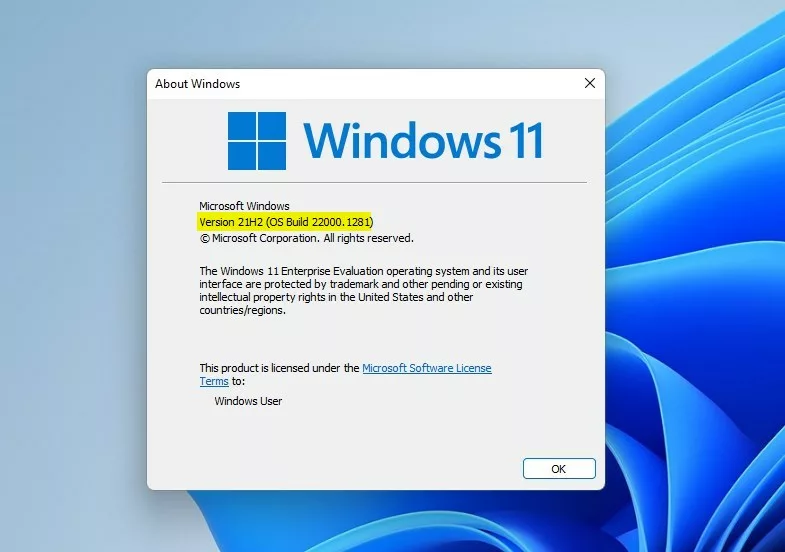
A window called “About Windows” will pop up. It shows your Windows version and build number.
Method 2Find Windows Version Using Settings
You can also find your Windows version through the Settings app. This method is easy and uses familiar tools.
- Click the Start button (Windows icon) at the bottom-left corner of your screen.
- Click the Settings icon (looks like a gear). Or press Windows key + I to open Settings right away.

Now in Settings:
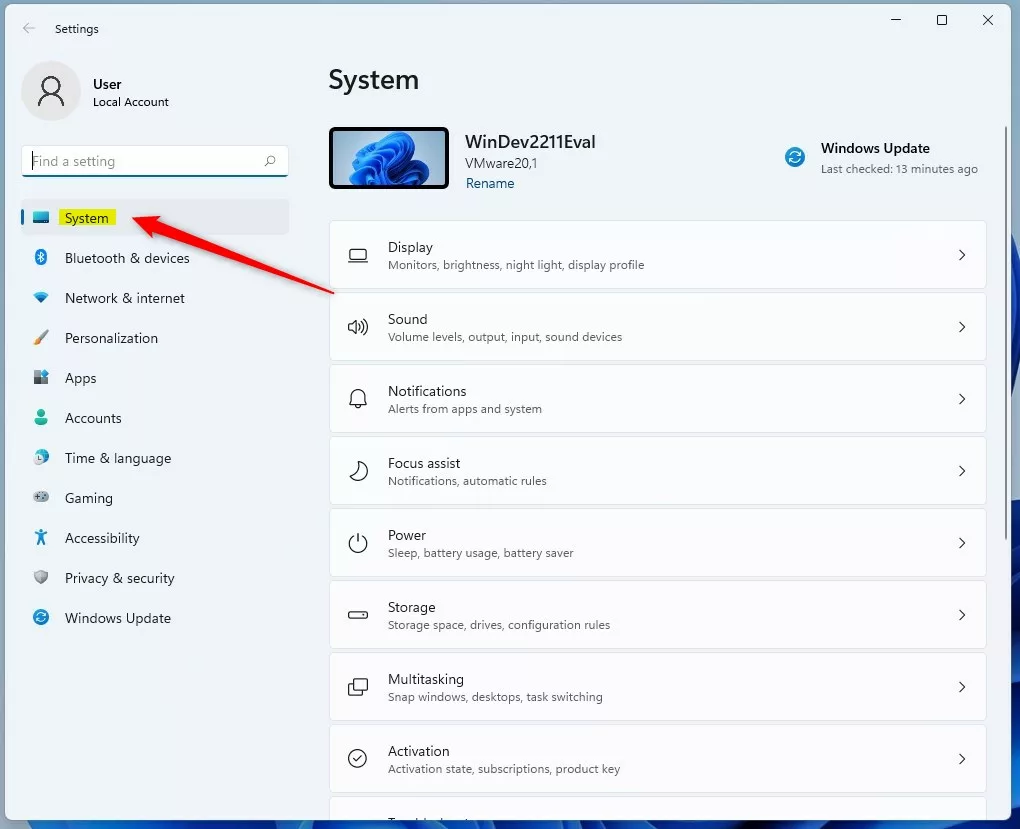
- Click System on the left side menu.
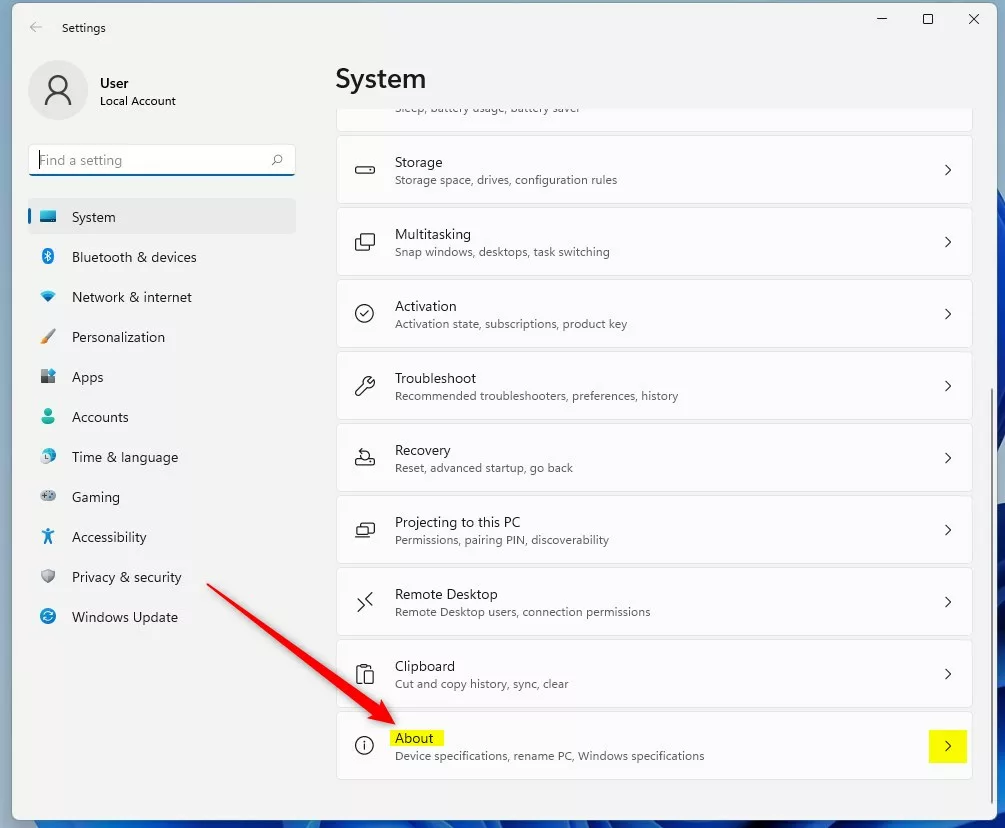
- Scroll down and click About at the bottom of the right side pane.
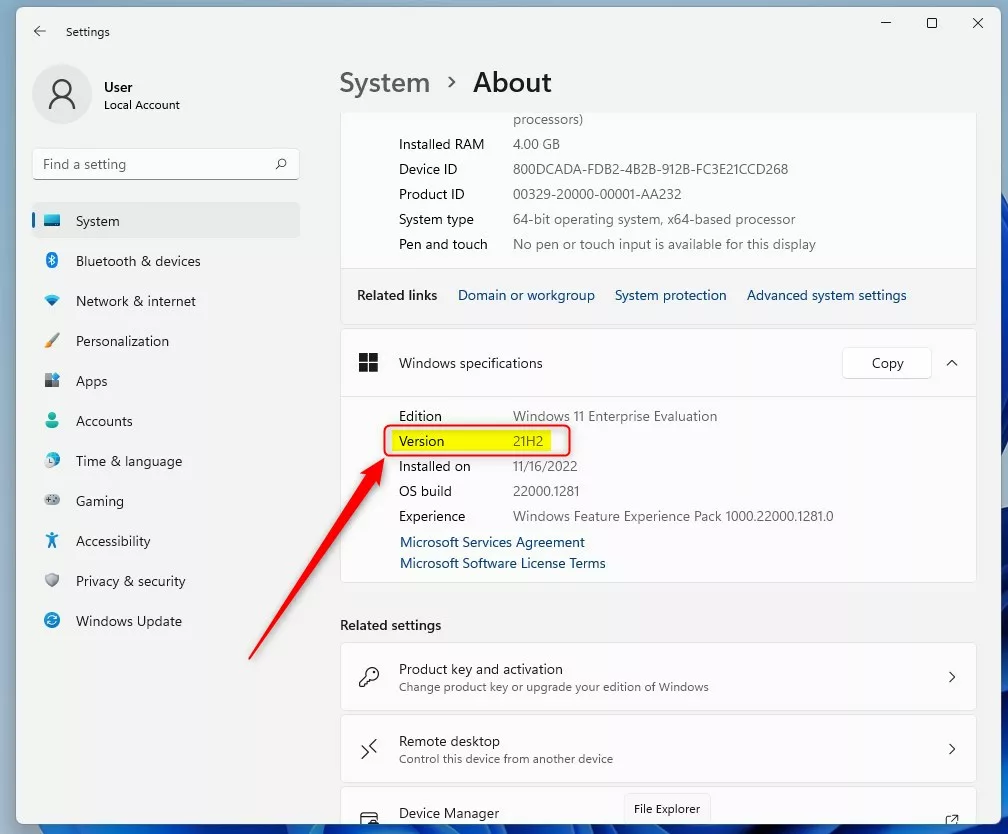
Look under Windows specifications. You will see the Version number listed there.
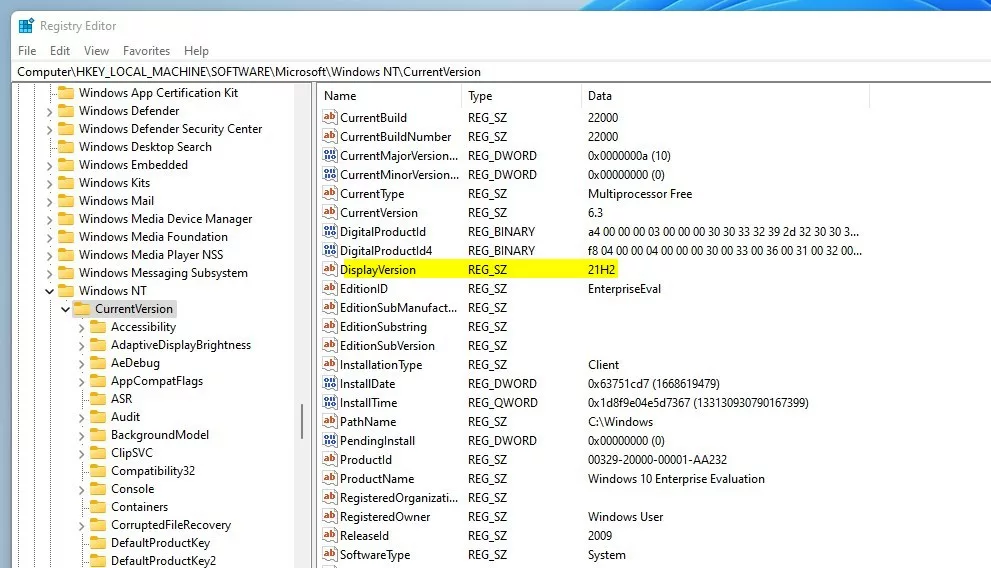
Method 3Check Windows Version Using Registry Editor (Advanced)
This method is for users who feel comfortable with a more technical tool called the Registry Editor.
- [ADMIN REQUIRED] Open the Registry Editor by pressing Windows key + R, typing
regedit, and pressing Enter. (If you want a guide on opening Registry Editor, see this tutorial.) - In Registry Editor, follow this path:
HKEY_LOCAL_MACHINE\SOFTWARE\Microsoft\Windows NT\CurrentVersion - Look for DisplayVersion on the right side. This shows your Windows 11 version.
Summary
You now know three ways to check your Windows 11 version:
- The
winvercommand is the fastest and easiest for most users. - The Settings app is simple and user-friendly.
- Registry Editor is for advanced users who want more detailed information.
Knowing your Windows version helps you install the right software and keep your PC updated. For more info about Windows 11 updates, visit Microsoft’s official Windows 11 release info page.
If you have questions or want to share your experience, feel free to leave feedback!
How can I check my 🪟 Windows 11 version?
Use the following steps to check the Windows 11 version. Run Command: Press Windows key + R (⊞ Win+R), and type winver. About Windows has: Version and OS Build information.
Was this guide helpful?

About the Author
Richard
Tech Writer, IT Professional
Richard, a writer for Geek Rewind, is a tech enthusiast who loves breaking down complex IT topics into simple, easy-to-understand ideas. With years of hands-on experience in system administration and enterprise IT operations, he’s developed a knack for offering practical tips and solutions. Richard aims to make technology more accessible and actionable. He's deeply committed to the Geek Rewind community, always ready to answer questions and engage in discussions.



No comments yet — be the first to share your thoughts!