How to Check Your Microsoft Defender Antivirus Signature Version in Windows 11

Ever wonder if your antivirus has the latest threat definitions? Here’s how to check your Microsoft Defender Antivirus signature version in Windows 11.
Microsoft Defender Antivirus is Windows 11’s free, built-in security. It actively protects your PC from malware.
Signature versions, also called definition updates, hold the latest info Defender needs to identify and block emerging threats. Checking this regularly makes sure your antivirus protection stays current.
For instance, as of early 2024, a recent signature version is crucial for defending against rapidly evolving ransomware strains.
Open Windows Security, navigate to Virus & threat protection, and then click Protection updates. Your current Security intelligence version is displayed there. Alternatively, use the command Get-MpComputerStatus | select AntivirusSignatureVersion in Windows Terminal.
Method 1Check Signature Version in Windows Security
- Click the Start button and type Windows Security, then open the app.
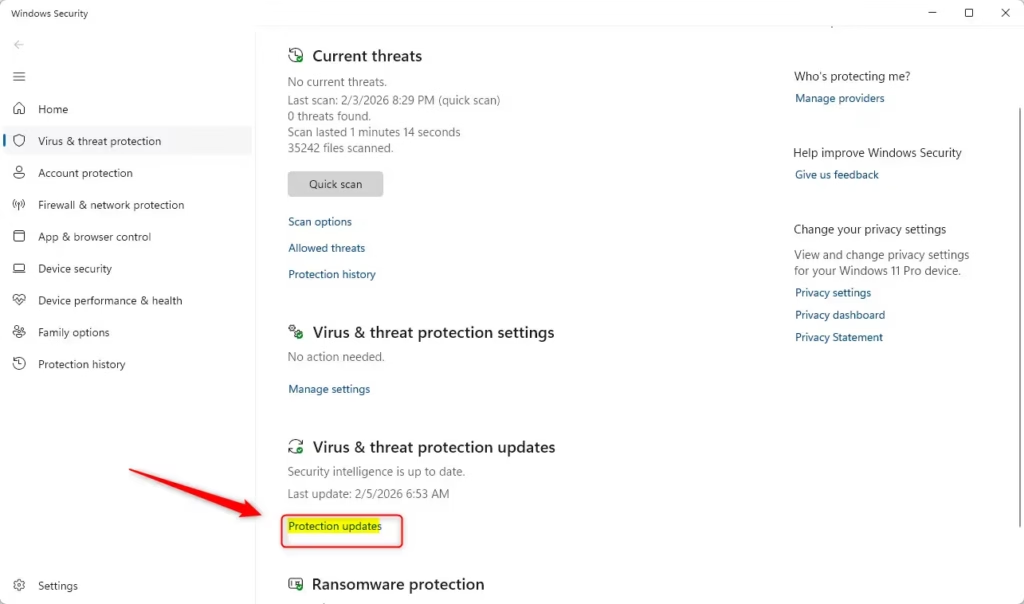
- In Windows Security, click on Virus & threat protection.
- Look for the section called Virus & threat protection updates, then click Protection updates.
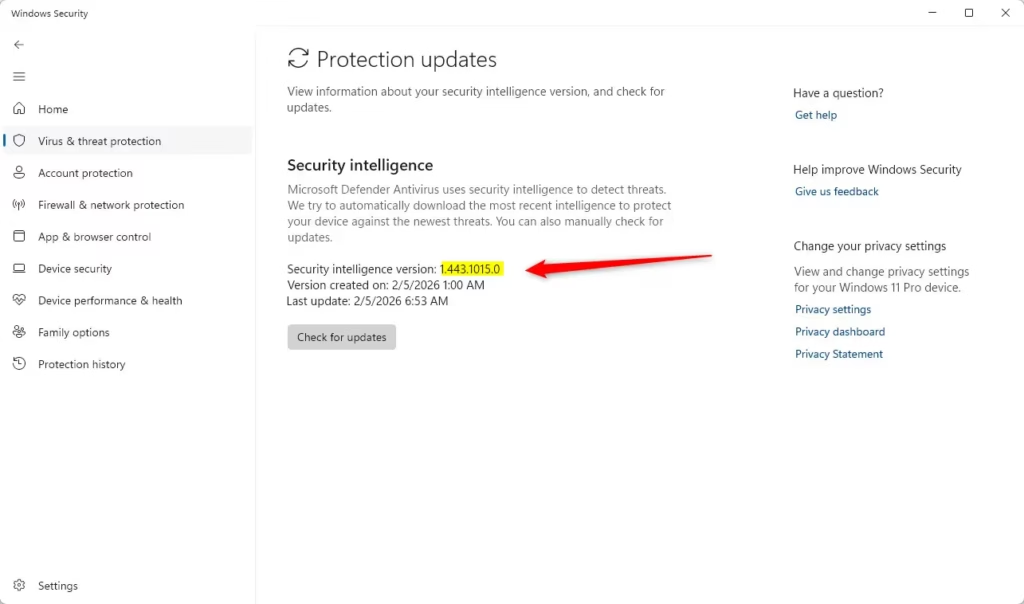
- You will see your current Security intelligence version (this is the signature version).
You can easily check your Microsoft Defender signature version using the Windows Security app by opening it from the Start menu.
Method 2Check Signature Version Using Command Prompt or PowerShell
- Right-click the Start button and choose Windows Terminal (or open Command Prompt or PowerShell).
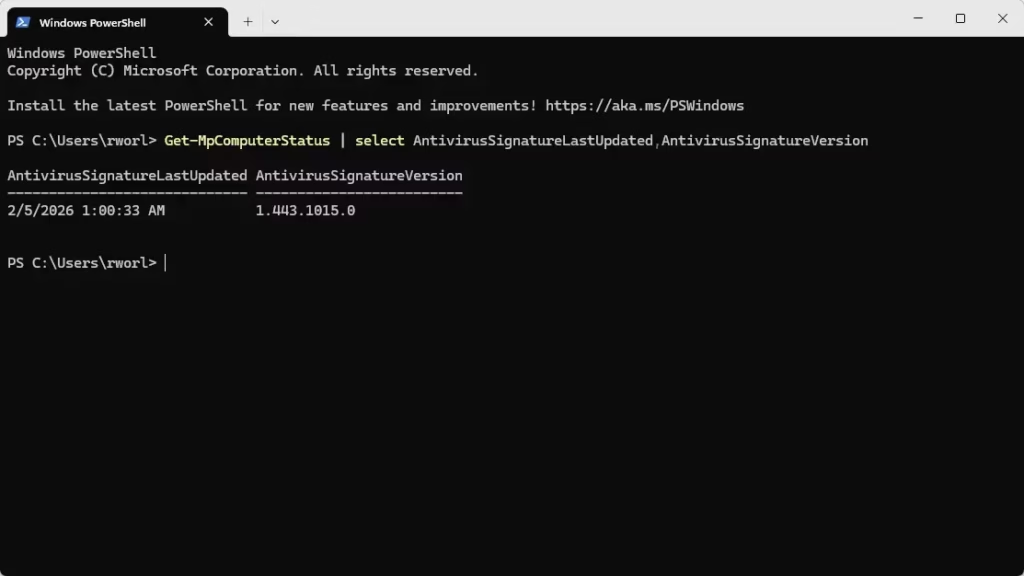
- Copy and paste the command below, then press Enter:
If you prefer using commands, you can find your Microsoft Defender signature version by opening Windows Terminal, Command Prompt, or PowerShell.powershell -command "Get-MpComputerStatus | select AntivirusSignatureLastUpdated,AntivirusSignatureVersion"
This will show you the date your antivirus was last updated and the signature version number.
Why This Matters
- Automatic Updates: Defender updates itself automatically, but it’s good to check the version sometimes.
- Security: The signature version tells you how current your protection is.
- Easy to Check: Use the Windows Security app or a quick command—both work well!
- Stay Safe: Knowing your signature version helps you be sure your PC is protected.
Knowing your Microsoft Defender signature version is important because it confirms your PC has the latest security updates to protect against new threats.
That’s all! Now you know how to check your Microsoft Defender Antivirus signature version on Windows 11.
Is Windows Defender signature based?
Endpoint Security Windows Defender is a signature-based antimalware system. These signatures provide the definitions Windows Defender uses to identify malware on a Windows system.
Was this guide helpful?

About the Author
Richard
Tech Writer, IT Professional
Richard, a writer for Geek Rewind, is a tech enthusiast who loves breaking down complex IT topics into simple, easy-to-understand ideas. With years of hands-on experience in system administration and enterprise IT operations, he’s developed a knack for offering practical tips and solutions. Richard aims to make technology more accessible and actionable. He's deeply committed to the Geek Rewind community, always ready to answer questions and engage in discussions.




No comments yet — be the first to share your thoughts!