How to Check Bluetooth Versions on Windows 11

This guide explains how to find the Bluetooth version on your Windows 11 computer. In our previous post, we showed you how to turn on or off Bluetooth and pair Bluetooth devices. Bluetooth is a wireless tool that links your computer to devices like headphones, mice, and keyboards. Many devices require a specific Bluetooth version to work correctly. Knowing your version helps you troubleshoot connection problems.
Why check your Bluetooth version?
You should check your version if your device is acting up or not connecting. It helps you see if your hardware is outdated or if you need to look for firmware updates. Understanding your version ensures you know if your PC supports modern features like Bluetooth Low Energy (BLE).
What happens when done?
Once finished, you will have a specific LMP (Link Manager Protocol) number. You can compare this number to our chart below to see exactly which Bluetooth standard your computer uses. This helps you determine if your hardware is compatible with newer accessories.
How to check your Bluetooth version
Follow these steps to find your firmware details:
- Open the Start menu.
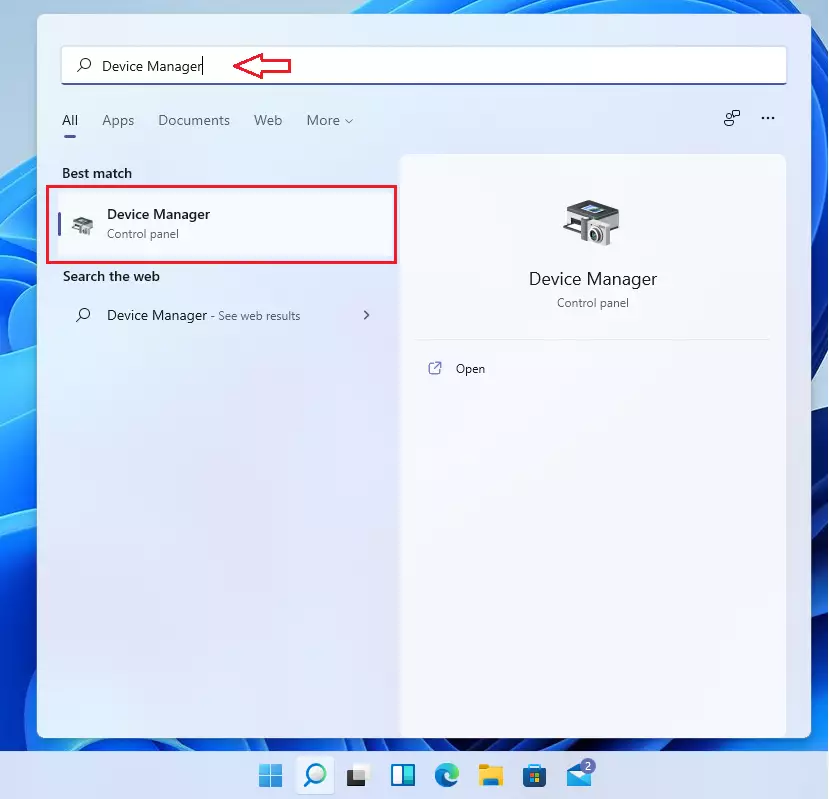
- Type
Device Managerand select it from the list. (Requires admin privileges)
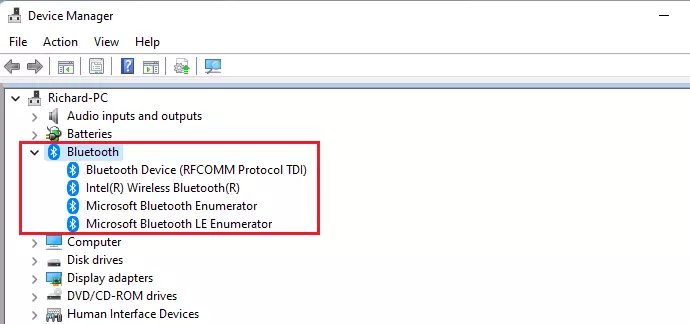
- Find the Bluetooth section and click the arrow to expand the list.
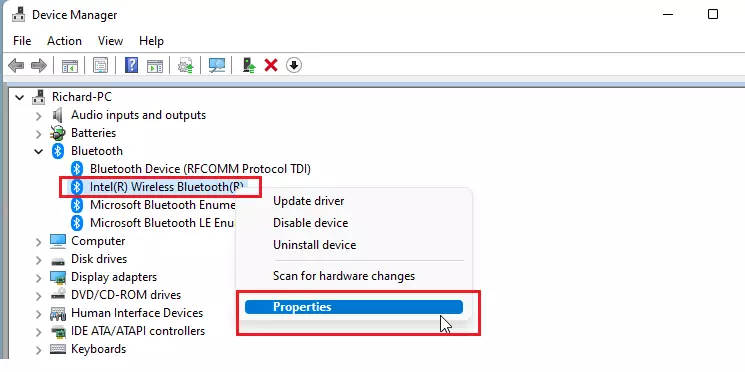
- Right-click on your Bluetooth adapter (for example, “Generic Wireless Bluetooth”) and select Properties.
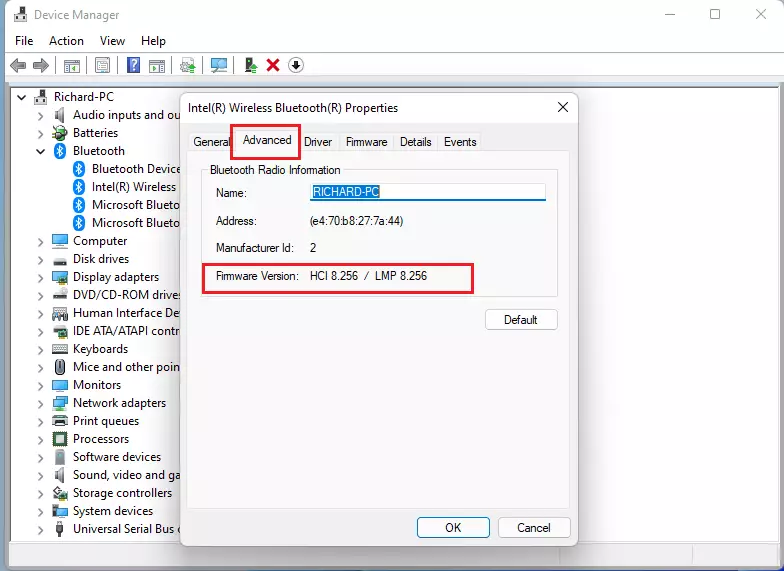
- Click the Advanced tab.
- Look for the LMP (Link Manager Protocol) listing. This number represents your firmware version.
Bluetooth Version Chart
Use this table to match your LMP number to the Bluetooth specification:
- LMP 0: Bluetooth 1.0b
- LMP 1: Bluetooth 1.1
- LMP 2: Bluetooth 1.2
- LMP 3: Bluetooth 2.0 + EDR
- LMP 4: Bluetooth 2.1 + EDR
- LMP 5: Bluetooth 3.0 + HS
- LMP 6: Bluetooth 4.0
- LMP 7: Bluetooth 4.1
- LMP 8: Bluetooth 4.2
- LMP 9: Bluetooth 5.0
- LMP 10: Bluetooth 5.1
- LMP 11: Bluetooth 5.2
For a full list of specifications, visit the official Bluetooth SIG specification list.
Troubleshooting missing Bluetooth drivers
If you cannot find the LMP version, your Bluetooth driver might be missing or corrupted. Open Device Manager, right-click your Bluetooth adapter, and select Update driver. Choose Search automatically for drivers. If that fails, visit your computer manufacturer’s website to download the latest firmware for your specific hardware model.
Summary
Checking your Bluetooth version is a simple way to ensure your hardware is up to date. By using the Device Manager, you can find your LMP number, which tells you exactly which Bluetooth features your computer supports. Keeping track of this information helps you solve connectivity issues and ensures your wireless devices run at their best.
Does my Bluetooth version affect my audio quality?
Yes, newer Bluetooth versions support better codecs and higher data rates. Versions 5.0 and higher offer improved stability and lower latency for audio devices. If you are using an older version, you might experience dropouts or lower sound quality compared to modern hardware standards.
Can I upgrade my Bluetooth version via software?
No, you cannot upgrade your Bluetooth version via software. The version is tied to your physical hardware chip. While driver updates can improve stability and fix bugs, they cannot change the underlying hardware capabilities. To get a newer version, you must replace the Bluetooth adapter or use a USB dongle.
Was this guide helpful?

About the Author
Richard
Tech Writer, IT Professional
Richard, a writer for Geek Rewind, is a tech enthusiast who loves breaking down complex IT topics into simple, easy-to-understand ideas. With years of hands-on experience in system administration and enterprise IT operations, he’s developed a knack for offering practical tips and solutions. Richard aims to make technology more accessible and actionable. He's deeply committed to the Geek Rewind community, always ready to answer questions and engage in discussions.



No comments yet — be the first to share your thoughts!