How to Change Touchpad Scroll Speed in Windows 11

Windows 11 relies on Precision Touchpad drivers to handle gestures. While Microsoft provides basic settings, granular control is often left to the hardware manufacturer. This ensures stability across different laptop brands, but it can limit your ability to customize scrolling behavior exactly how you prefer.
What happens when you change scroll speed?
Adjusting these settings modifies how many lines of text or pixels the screen moves when you slide your fingers across the touchpad. Faster speeds make navigation quicker but may feel less precise, while slower speeds offer more control for detailed work.
Change Touchpad Scroll Speed in Settings
If your laptop uses a Precision Touchpad, you can adjust the speed directly in Windows. Note that the standard Mouse settings only affect the scroll wheel on a physical mouse, not your touchpad gestures.
1. Open Settings by pressing Win + I.
2. Select Bluetooth & devices on the left, then click Touchpad.
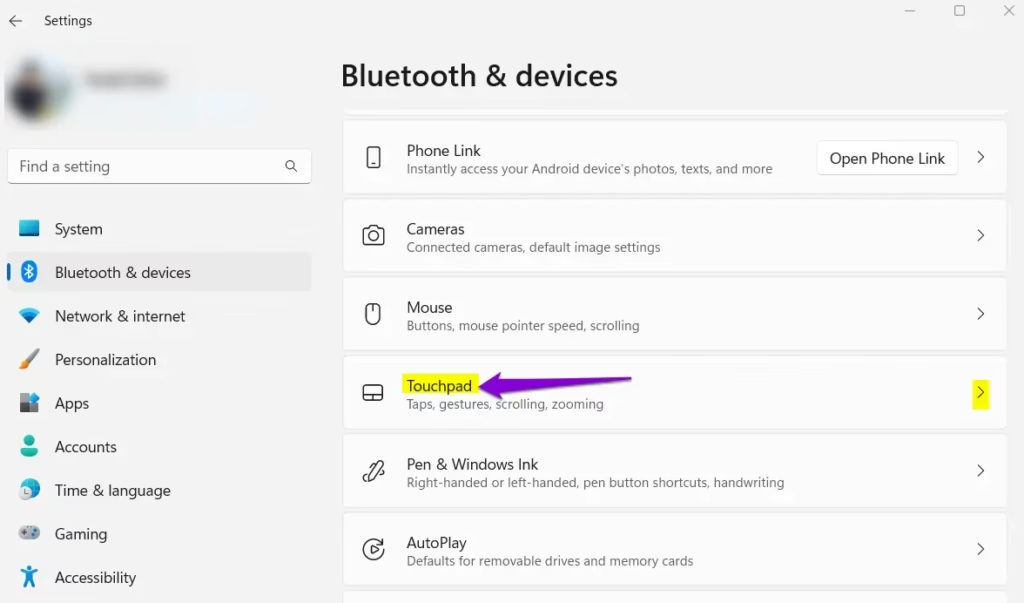
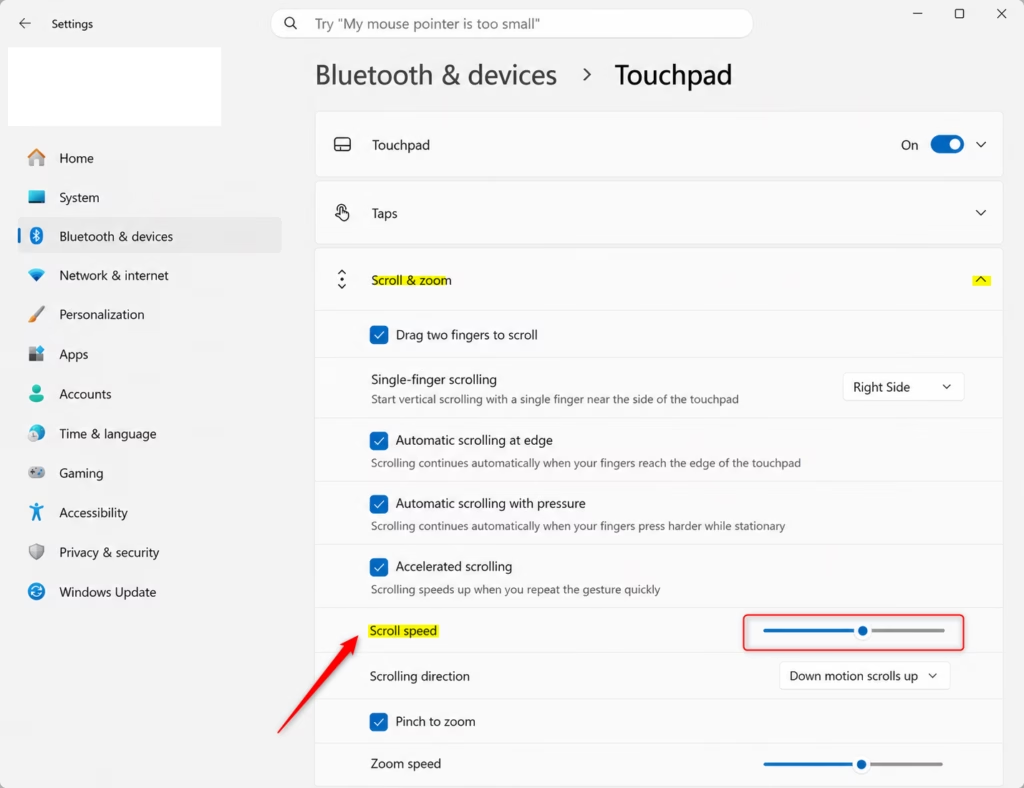
3. Click Scroll & zoom to expand the menu.
4. Move the Scroll speed slider to your preferred level. The default is 5.
Check for Driver Updates (Admin Required)
If the scroll speed feels sluggish or unresponsive, your drivers might be outdated. Updating them ensures your hardware communicates correctly with Windows 11.
1. Right-click the Start button and select Device Manager.
2. Expand Mice and other pointing devices.
3. Right-click your touchpad (e.g., HID-compliant mouse or Synaptics device) and select Update driver.
4. Choose Search automatically for drivers.
Change Touchpad Scroll Speed in Registry Editor (Admin Required)
For advanced users, the Registry allows for finer control than the standard slider. Warning: Incorrect changes can cause system issues. Always back up your registry first.
1. Press Win + R, type regedit, and press Enter.
2. Navigate to: HKEY_CURRENT_USER\Software\Microsoft\Windows\CurrentVersion\PrecisionTouchPad
3. Find PanSensitivity in the right pane and double-click it.
4. Select Decimal and enter a value between 0 and 100. Click OK.
Pro Tip: Manufacturer Control Panels
Many laptops from brands like HP, Lenovo, or Dell include custom software (e.g., Lenovo Vantage or HP Command Center). These apps often contain specific settings for scroll acceleration and touchpad sensitivity that override Windows defaults. Check your manufacturer’s app if the standard settings are not enough.
Summary
Changing your touchpad scroll speed helps you navigate Windows 11 more comfortably. While the Settings app offers a basic slider, you can achieve more precise control through the Registry or by updating your hardware drivers. Always check your laptop manufacturer’s dedicated software first, as it often provides the best experience for your specific hardware.
Does changing mouse scroll speed affect the touchpad?
No. In Windows 11, the mouse scroll speed setting specifically targets the physical scroll wheel on a mouse. Touchpad gestures are handled by separate Precision Touchpad drivers. You must adjust the touchpad-specific settings to see any change in your two-finger scrolling behavior.
Was this guide helpful?

About the Author
Richard
Tech Writer, IT Professional
Richard, a writer for Geek Rewind, is a tech enthusiast who loves breaking down complex IT topics into simple, easy-to-understand ideas. With years of hands-on experience in system administration and enterprise IT operations, he’s developed a knack for offering practical tips and solutions. Richard aims to make technology more accessible and actionable. He's deeply committed to the Geek Rewind community, always ready to answer questions and engage in discussions.

No comments yet — be the first to share your thoughts!