

Do you use a laptop with a touchpad? Windows 11 lets you use your fingers to control your screen. You can use three fingers to swipe and perform quick tasks. This guide shows you how to customize these swipes to work the way you want.
Why change your touchpad gestures?
You might find the default swipe settings annoying if you accidentally trigger them while typing. Changing them makes your laptop easier to use. You can set them to switch apps, adjust your volume, or turn them off completely if you prefer using a mouse.
What happens when you are done?
Once you finish these steps, your touchpad will respond exactly how you configured it. You will be able to perform your chosen actions instantly with a simple three-finger swipe.
To get started, open your settings. You can press the Windows key + I on your keyboard, or click Start and then Settings.

You can also type “Settings” into the search bar on your taskbar to find it.
Once the Settings window is open, follow these steps:
- Click Bluetooth & devices in the left menu.
- Select the Touchpad tile on the right side.
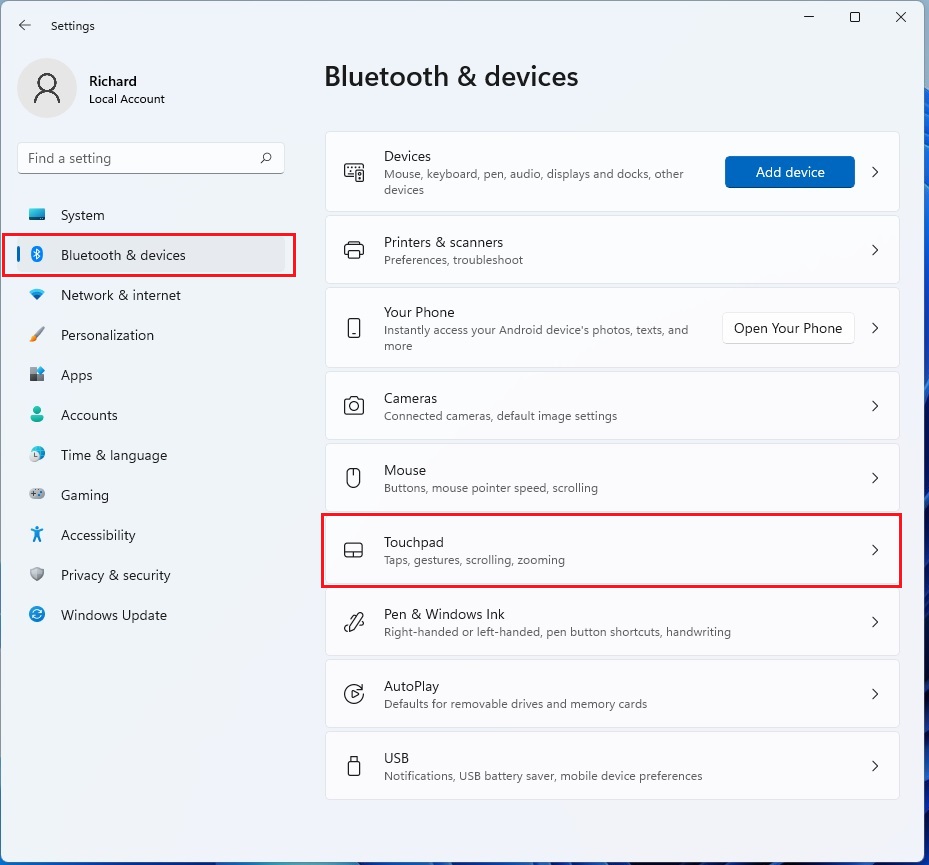
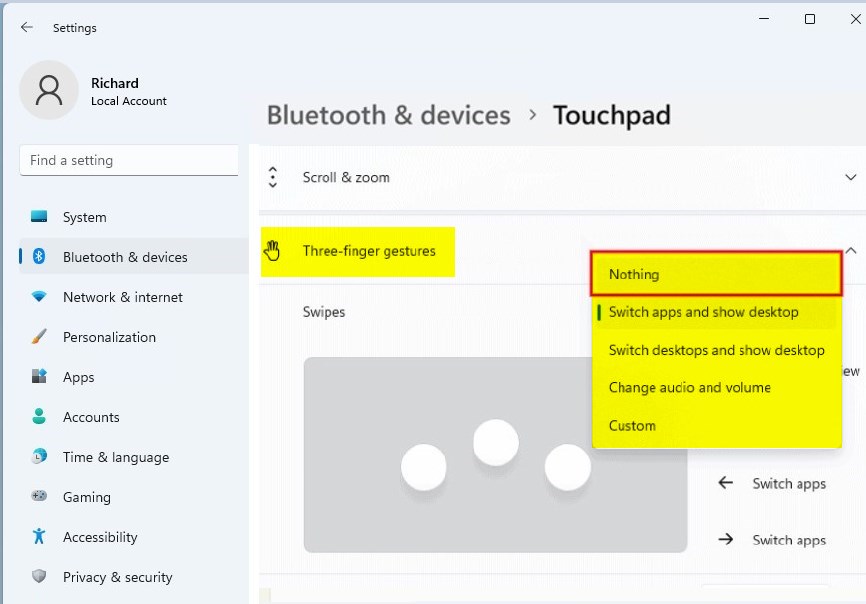
On this screen, look for the section called Gestures & interaction. Click on the Three-finger gestures tile to see your options.
Under the Swipes menu, you can choose what happens when you swipe with three fingers:
- Nothing: Turns the gesture off.
- Switch apps and show the desktop: The default setting.
- Switch desktops and show desktop: Useful if you use multiple virtual screens.
- Change audio and volume: Lets you control sound quickly.
You can also adjust other settings here, such as tapping twice and drag to multi-select item, changing touchpad cursor speed, how to change touchpad scroll directions or disable your device touchpad to change how your mouse clicks work. Note that changing system-wide input settings may require admin privileges if your account is restricted by an organization.
Summary
Customizing your touchpad makes your computer feel more personal. By visiting the Bluetooth & devices > Touchpad menu, you can easily change how three-finger swipes behave or disable them entirely to prevent accidental clicks. This simple change helps you get more work done with less effort.


Leave a Reply