How to Enable Tap Twice and Drag on Windows 11 Touchpad

This guide explains how to enable or disable the “tap twice and drag” feature on your Windows 11 touchpad. This feature lets you select multiple files or items by tapping and holding your finger down.
Why use this feature?
Using “tap twice and drag” makes it easier to organize files or highlight text without needing to click a physical mouse button. It helps you work faster while using only your laptop’s touchpad.
What happens when done?
Once enabled, you can tap your touchpad twice and keep your finger down on the second tap to drag and select items. If you disable it, the touchpad will ignore the drag gesture, which can prevent accidental selections while you are working.
If your laptop has a precision touchpad, you can customize these settings to act just like a standard mouse.
You can also adjust other settings, such as using two fingers on the touchpad to right-click or disable your device touchpad, or turning off touchpad clicks entirely.
How to change your touchpad settings
You can manage your touchpad settings through the Windows Settings app. This does not require admin privileges.
- Open the Settings app. You can press the Windows key + I on your keyboard, or click Start and select Settings.

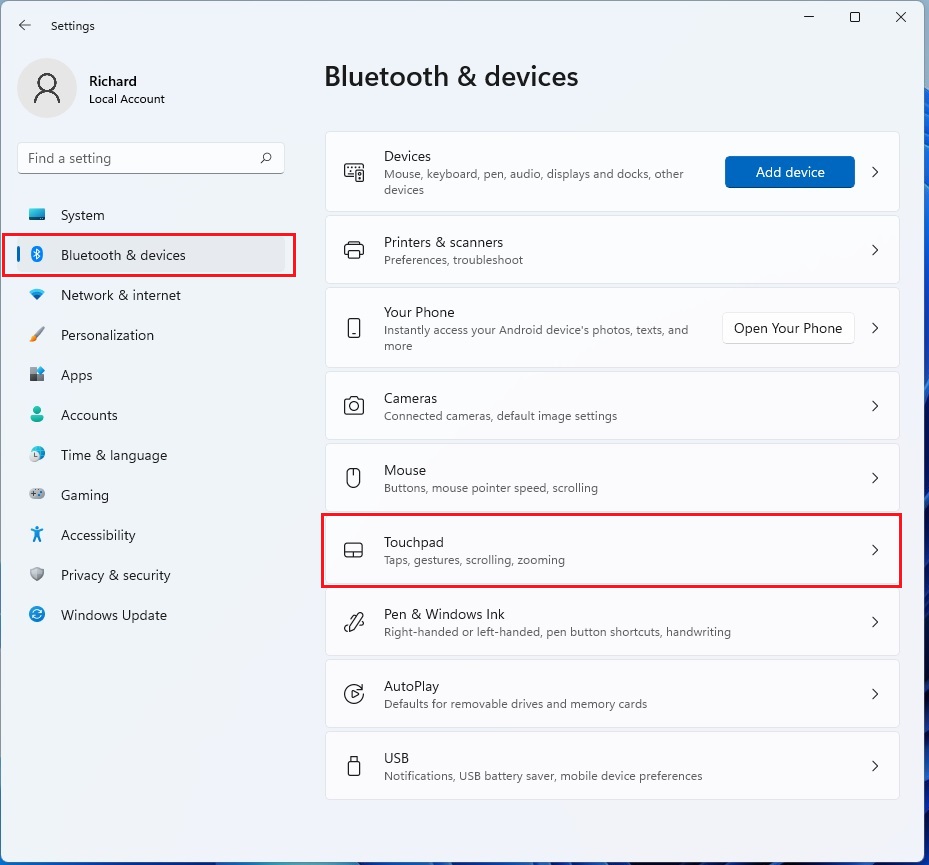
- In the Settings menu, click on Bluetooth & devices on the left side.
- Select the Touchpad tile on the right side of the screen.
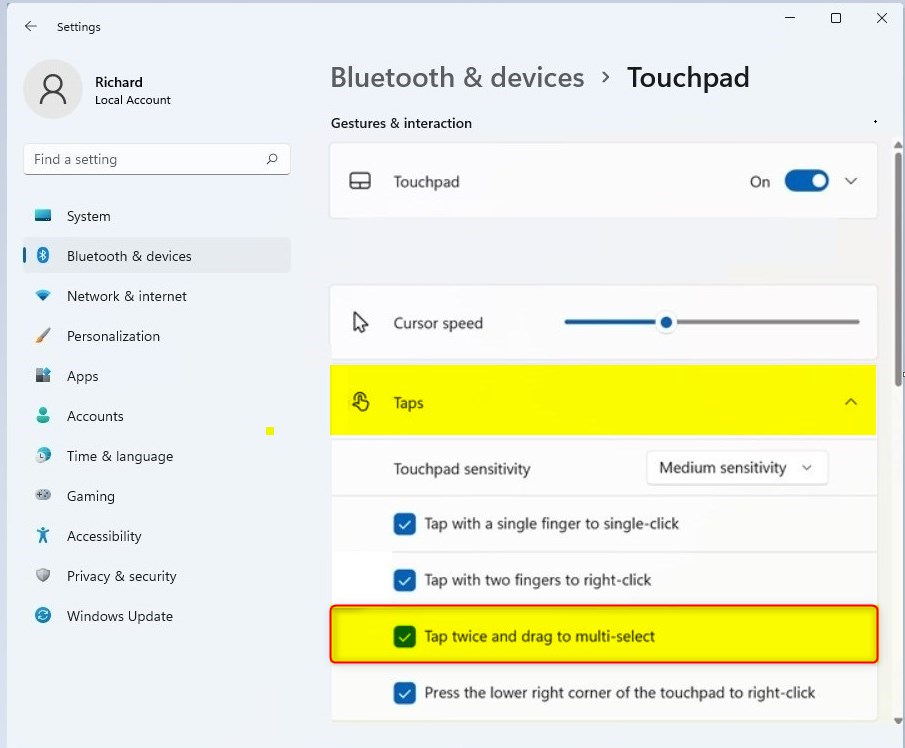
- Look for the section labeled Gestures & interaction and click on Taps to see more options.
- Find the option that says Tap twice and drag to multi-select.
- Check or uncheck the box to turn this feature on or off.
Summary
Customizing your touchpad makes your computer easier to use. You can quickly toggle the “tap twice and drag” feature by going to Settings > Bluetooth & devices > Touchpad > Taps. This allows you to choose whether you want to use the drag gesture or disable it to avoid accidental clicks.
Was this guide helpful?




Leave a Reply