

Windows 11 lets you search for things like apps, files, settings, and even quick web info (like weather or news) straight from the taskbar or Start menu.
Sometimes, when you search the web, you might see results that aren’t suitable for kids or sensitive users. Windows has a feature called SafeSearch that helps filter out adult or inappropriate content from search results.
You can set SafeSearch to Strict (blocks most bad content), Moderate (blocks some bad content), or turn it Off if you don’t want any filters.
Using SafeSearch is a great way to keep your browsing safer, especially if kids use the computer. But remember, it’s not perfect — some content might still get through.
How to Change SafeSearch Settings in Windows 11
Follow these simple steps to adjust your SafeSearch filter:
- Open Windows Settings: Click the Start button and then the gear icon, or press
Windows + Ion your keyboard.
More about opening Settings - On the left, click Privacy & security.
- On the right, find and click Search permissions.
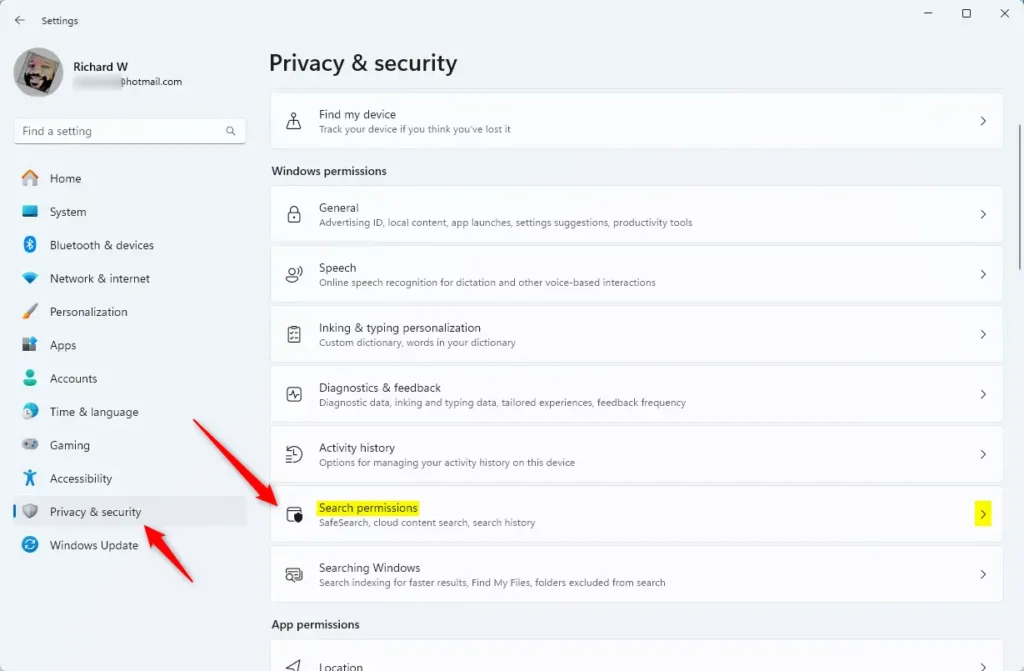
4. Now, scroll until you see the SafeSearch section.
5. Choose your SafeSearch setting:
- Strict: Blocks most adult content.
- Moderate: Blocks some adult content (default setting).
- Off: No filtering, you see all results.
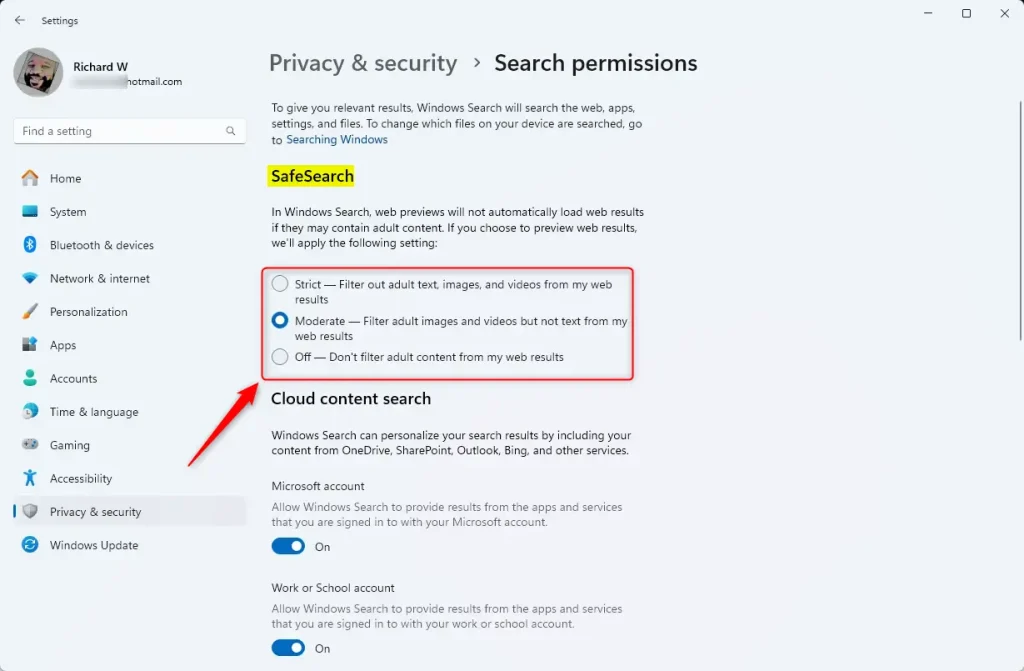
6. Close the Settings app when you’re done. Your changes are saved automatically.
Another Way: Change SafeSearch Using the Registry Editor (For Advanced Users)
If you’re comfortable using advanced tools, you can also change SafeSearch settings through the Windows Registry. Be careful — changing the Registry incorrectly can cause problems on your PC.
Here’s how:
- Open the Registry Editor by pressing
Windows + R, typingregedit, and hitting Enter.
Learn how to open Registry Editor - Navigate to this folder path:
ComputerHKEY_CURRENT_USERSOFTWAREMicrosoftWindowsCurrentVersionSearchSettings
- Look for an entry named SafeSearchMode in the right pane.
- If it’s there, double-click it. If not, right-click in the empty space, choose New > DWORD (32-bit) Value, and name it SafeSearchMode.
- Set its value according to how you want SafeSearch:
0= SafeSearch Off (no filter)1= Moderate filter2= Strict filter
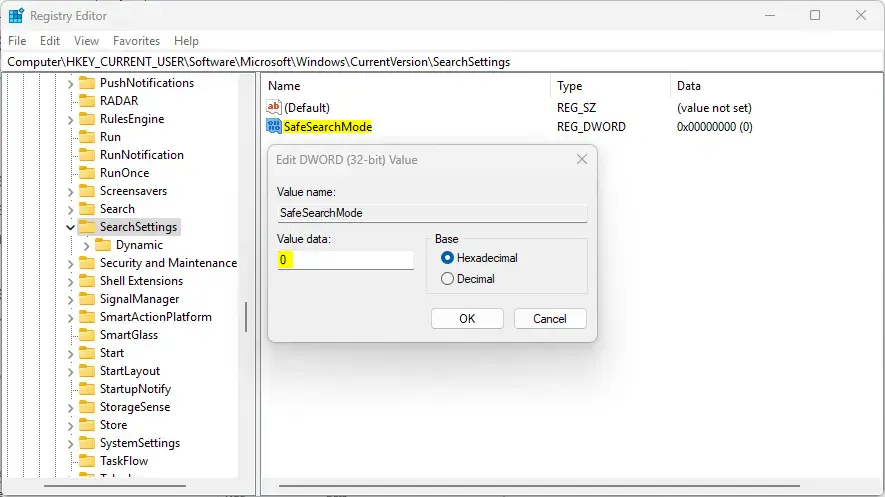
7. Click OK and close the Registry Editor.
8. Restart your computer to apply the changes.
Summary
- SafeSearch helps block inappropriate content in Windows 11 web searches.
- You can pick between Strict, Moderate, or Off depending on your needs.
- Changing SafeSearch through Settings is easy and safe for most users.
- The Registry Editor method is for advanced users who want more control.
- SafeSearch is useful for families or shared devices to keep browsing safer.
- Remember, no filter is perfect — always be careful online.
- Check and update your SafeSearch settings anytime you want.

Leave a Reply Cancel reply