
This article explains how to change the default downloads folder for the Phone Link app on Windows 11.
The Phone Link app is a feature on Windows that lets you link your phone and PC using Wi-Fi or Bluetooth and access your phone’s apps and data from your PC. It lets you browse, play, order, chat, and more using your PC’s larger screen and keyboard while your phone stays in your pocket or desk.
When you link your phone to your Windows PC, you can seamlessly share files between your PC and mobile device when connected via Phone Link and the Link to Windows app.
All the files you received on your Windows PC from your mobile devices are stored in C:Users<username>DownloadsPhone Link folder by default. You can change this location if you want.
Change the Phone Link app storage location
As mentioned, the default location for files received on your Windows PC from the Phone linked to your PC is in the Downloads folder called Phone Link.
You can change that at any time.
Here’s how to do it.
First, open the Phone Link app.
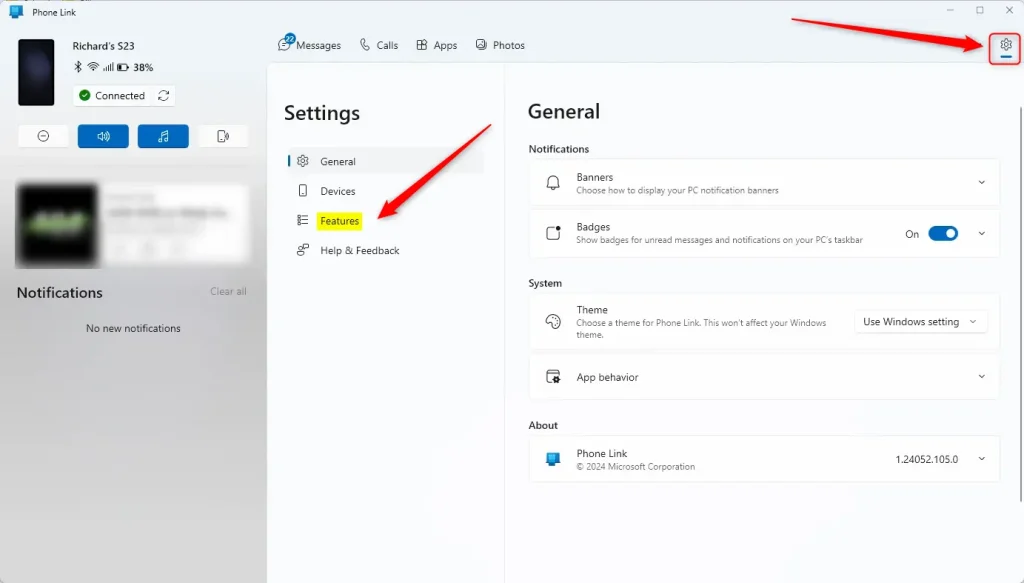
Then, choose to add your phone. If phones are connected to the Phone Link app, click the Settings button (gear) at the top right corner and select Features on the menu.
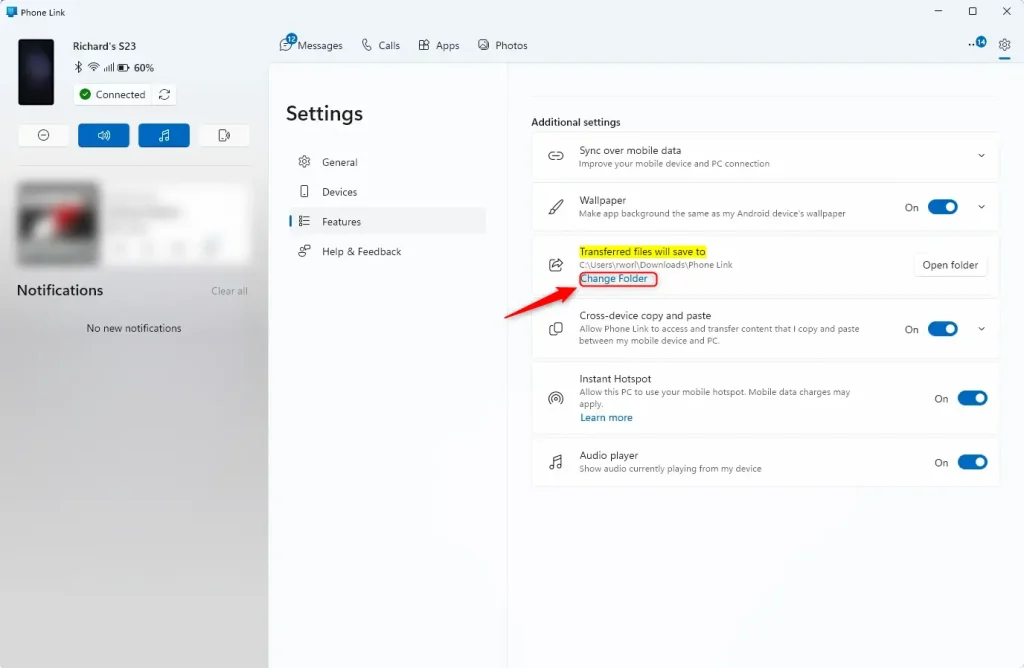
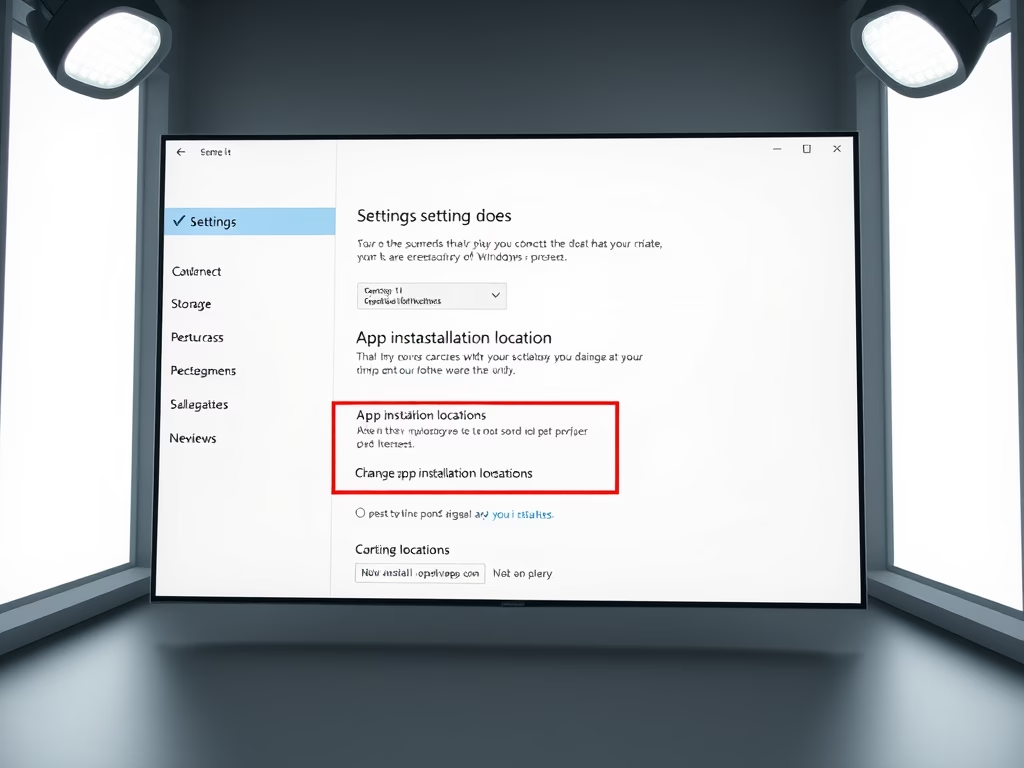
On the right of the Features settings page, under Additional settings, click on the Change Folder link under Transferred files will save to.
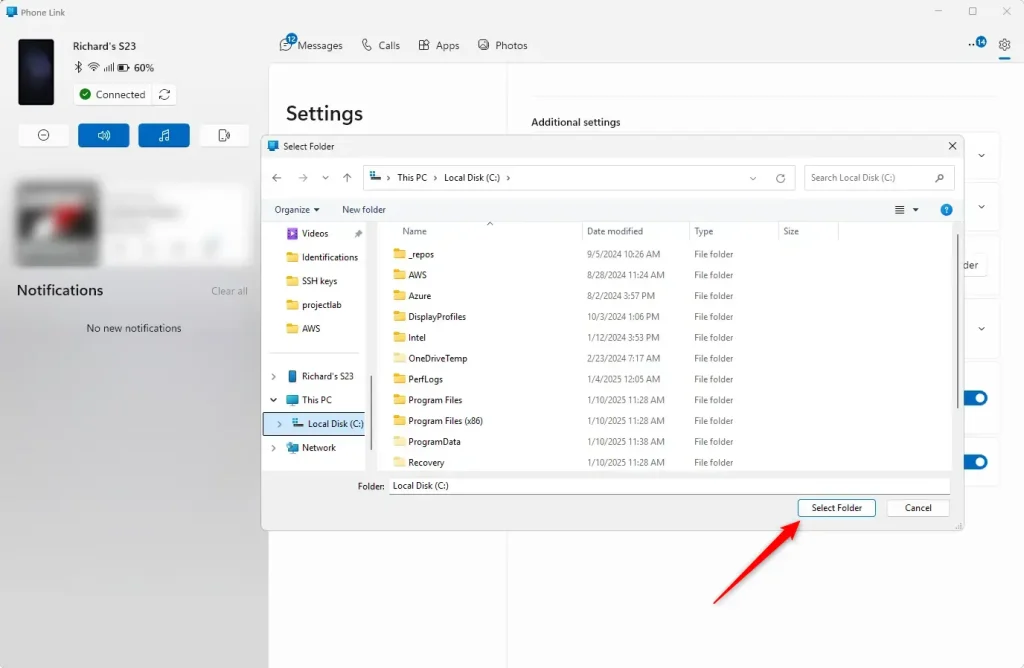
Navigate to the folder you want using File Explorer and click Select Folder.
That should do it.
Conclusion:
In summary, changing the default downloads folder for the Phone Link app on Windows 11 is a straightforward process that can enhance your file management experience. Here are the key points to remember:
- The default storage location for files received via the Phone Link app is C:Users<username>DownloadsPhone Link.
- You can easily modify this location to suit your preferences better.
- Access the Phone Link app settings to navigate to the Features menu and find the option to change the folder.
- Use File Explorer to choose a new folder and streamline your file organization.
- These steps ensure a more personalized and efficient experience when transferring files between your phone and PC.


Leave a Reply Cancel reply