
If you want to play games or use apps from the Microsoft Store without internet access, you need to set up Offline permissions on your Windows 11 PC. This guide will show you how to turn Offline permissions On or Off easily.
What is Offline Permissions?
The Microsoft Store is a built-in app on Windows 11 that lets you download games, apps, movies, and more. Many games support offline play, meaning you can enjoy them without an internet connection.
However, to play offline, you must tell your PC to allow Offline permissions. This means you’re letting your device run those games or apps without needing to check online every time.
Important Things to Know
- Some games that need online multiplayer or co-op will not work offline, even if Offline permissions are on.
- You must set up your device while connected to the internet before going offline.
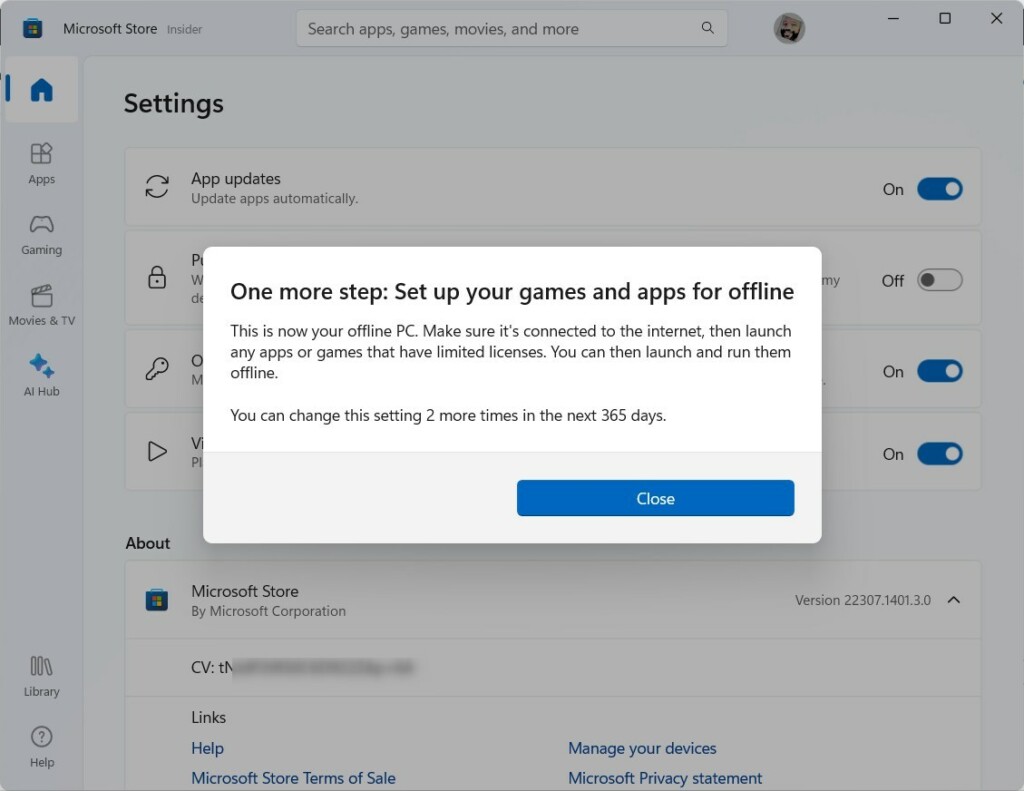
- You can only change which device is your designated offline device 3 times per year.
How to Turn On or Off Offline Permissions
- Make sure your PC is connected to the internet. It needs to be online to set this up.
- Check for Windows updates:
How to update Windows 11 - Open Microsoft Store:
Click the Microsoft Store icon on your taskbar or search for it in the Start menu. - Click your Profile icon at the top right, next to the search box.
- Choose Settings from the menu.
- Find and click on Offline permissions.
- Toggle the switch to On to enable offline play, or Off to disable it.
Note: When you turn Offline permissions on, your current device becomes the designated offline device. Any other devices you set before will lose their offline permissions.

Prepare Your Games for Offline Play
After enabling Offline permissions, you need to open each game you want to play offline once while connected to the internet.
- Make sure your device is online and set as your designated offline device (see steps above).
- Open the game you want to play offline.
- Sign in to your Xbox account when asked.
- Start playing the game for a few moments, then you can close it.
Repeat this for every game you want to play offline. After this setup, you can play those games anytime without needing an internet connection.
Switch Back to Online Play
When you want to go back to playing games online, just open Microsoft Store and turn the Offline permissions switch Off again.
Summary
- Offline permissions let you play Microsoft Store games without internet.
- You must set your device as the offline device while online.
- Each game needs to be opened once online and signed in to Xbox.
- You can only change your offline device 3 times a year.
- Turn Offline permissions off to switch back to online gaming.
For more help, visit Xbox Support – Play games offline on Windows.
That’s it! Now you know how to use Offline permissions on Windows 11.

Leave a Reply Cancel reply