How to Enable or Disable Pen Press and Hold for Right-clicking in Windows 11

You enable or disable the pen’s press and hold feature for right-clicking in Windows 11 through its Settings app.
This setting lets you control whether holding your pen tip down on the screen performs the same action as a right-click on your mouse.
This functionality is particularly useful when you’re using a stylus for drawing, note-taking, or navigating your PC, allowing for quicker access to context menus.
For instance, in recent builds like Windows 11 build 26120.3671 (Beta 24H2), Microsoft introduced more granular control over this feature.
Go to Settings, then Bluetooth & devices, and select Pen & Windows Ink. Toggle the ‘Enable press and hold to perform a right-click equivalent’ option to turn the feature on or off. This setting controls if holding your pen tip down acts as a right-click.
Option One
Enable or Disable Pen Press and Hold for Right-clicking in Settings
You can easily turn the pen press and hold for right-clicking on or off in Windows 11 using the Settings app.
- Open Settings by pressing ⊞ Win+I.
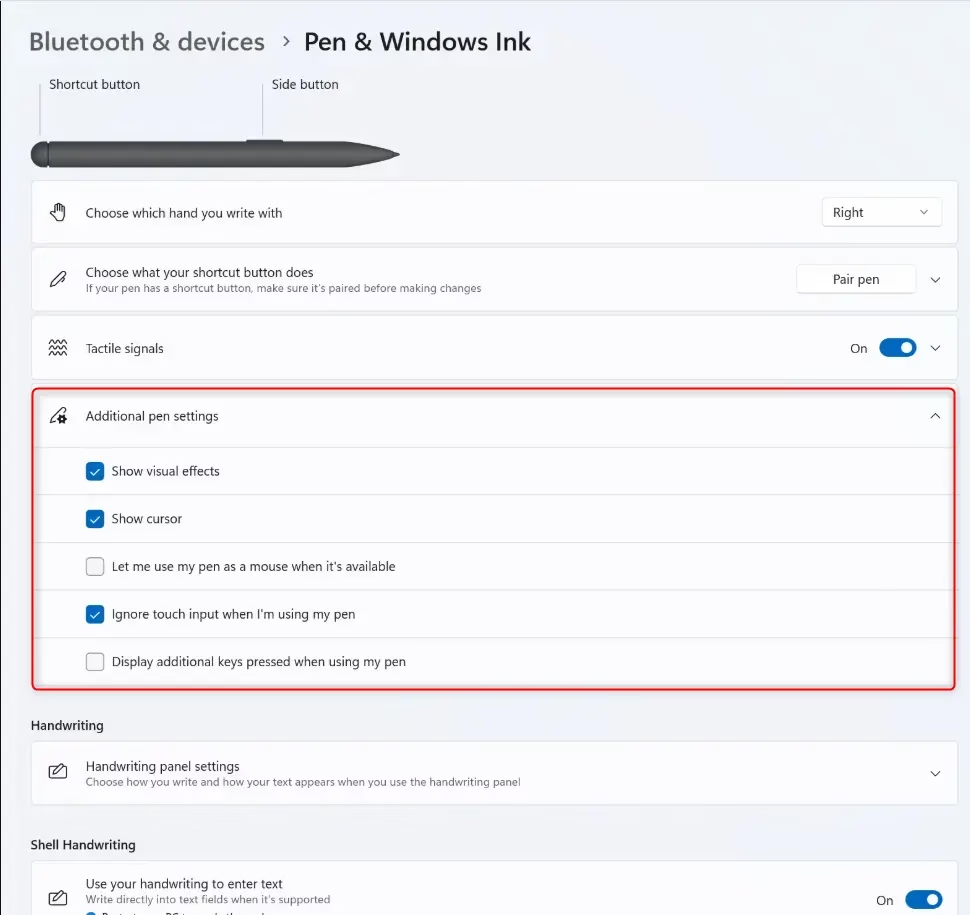
- On the left side, click Bluetooth & devices. On the right side, click Pen & Windows Ink.
- Click Additional pen settings to expand it.
- Check the box (to enable) or uncheck the box (to disable) Enable press and hold to perform a right-click equivalent. Choose what you want.
- You can now close Settings.
Option Two
Enable or Disable Pen Press and Hold for Right-clicking in Control Panel
You can also change the pen press and hold for right-clicking setting using the Control Panel.Option Three
Enable or Disable Pen Press and Hold for Right-clicking Using Registry
- [Admin Required] Open Windows Terminal as an administrator and run one of the commands below.
For advanced users, you can change the pen press and hold for right-clicking setting in Windows 11 by editing the Registry.
This is the default setting.
reg add "HKCU\Software\Microsoft\Wisp\Pen\SysEventParameters" /v HoldMode /t REG_DWORD /d 1 /fDisable Pen Press and Hold for Right-clicking
reg add "HKCU\Software\Microsoft\Wisp\Pen\SysEventParameters" /v HoldMode /t REG_DWORD /d 3 /fSummary
You’ve learned three ways to control the pen press and hold feature for right-clicking in Windows 11: through Settings, Control Panel, or the Registry.
How to activate Pen and touch in 🪟 Windows 11?
You can activate pen and touch features in Windows 11 by going to Settings, then Bluetooth & devices, and finally Pen & Windows Ink.
How do I get the classic taskbar back on 🪟 Windows 11?
Windows 11 does not natively support reverting to the classic Windows 10 taskbar. Microsoft removed this functionality to prioritize the new interface design. While some third-party software tools claim to restore classic taskbar features, they are not officially supported and may cause system instability or compatibility issues with future Windows updates.
Is 🪟 Windows 11 ice cream real?
No, Windows 11 ice cream is not a real product. It is likely a misunderstanding or a humorous reference to the naming conventions of software versions. Microsoft does not produce food products, and there is no official Windows-branded ice cream available for purchase in any retail or online markets.
Can I revert to the old start menu design?
Windows 11 doesn’t have a built-in way to go back to the old Start menu design from Windows 10.
Was this guide helpful?

About the Author
Richard
Tech Writer, IT Professional
Richard, a writer for Geek Rewind, is a tech enthusiast who loves breaking down complex IT topics into simple, easy-to-understand ideas. With years of hands-on experience in system administration and enterprise IT operations, he’s developed a knack for offering practical tips and solutions. Richard aims to make technology more accessible and actionable. He's deeply committed to the Geek Rewind community, always ready to answer questions and engage in discussions.



No comments yet — be the first to share your thoughts!