

This post describes the steps to change or switch the primary mouse button in Ubuntu Linux.
By default, Ubuntu Linux uses the left mouse button as its primary button for selecting, dragging, clicking, and performing normal mouse operations.
The primary mouse button sits on the left-hand side of the mouse for the benefit of right-handed users. However, left-handed users can usually reverse this position on Ubuntu Linux.
When you change the button position in Ubuntu Linux, all normal mouse operations like selecting, clicking, and dragging are done by the right mouse button. The left button will invoke a contextual menu in the window interface.
Left-handed users may want to use the right mouse button for normal operations and the left for contextual menu. The steps below show those users how to use Ubuntu Linux.
How to switch the primary mouse button in Ubuntu Linux
As mentioned above, you can swap the behavior of the left and right buttons on your mouse or touchpad to make it more comfortable for left-handed use.
Below is how to do it.
Ubuntu Linux has a centralized location for the majority of its settings. From system configurations to creating new users and updating, all can be done from the System Settings panel.

Alternatively, click on the System menu at the top-right corner of the top bar on your desktop.
On the System menu, select Settings, as highlighted below.

Click on Mouse & Touchpad tile in the Settings app to open the panel.
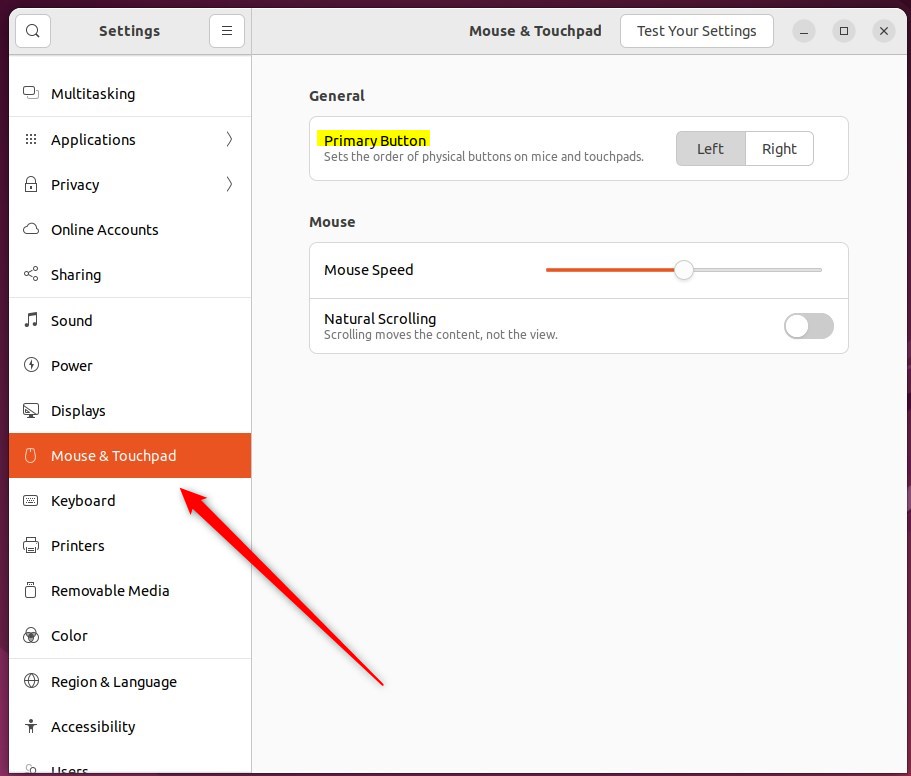
In the System Settings -> Mouse & Touchpad panel, under General, click to switch the Primary button to Right or Left.
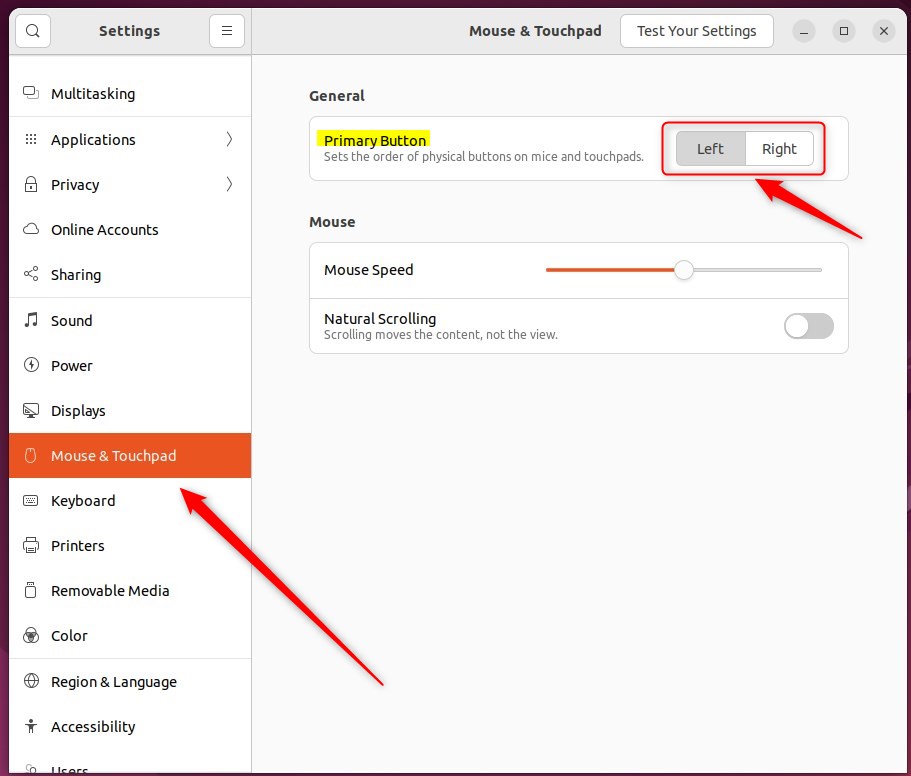
This setting will affect your mouse, touchpad, and other pointing devices.
That should do it! You can now close the Settings app.
Conclusion:
- Changing the primary mouse button in Ubuntu Linux can greatly improve the experience for left-handed users.
- By following the simple steps outlined in this post, users can comfortably swap the behavior of the left and right mouse buttons.
- Accessing the System Settings panel and navigating to the Mouse & Touchpad section allows a quick adjustment to the primary button setting.
- This guide provides an accessible solution for customizing the mouse behavior in Ubuntu Linux, catering to diverse user preferences.



Leave a Reply to How to Enable Mouse Gestures in Microsoft Edge – Geek Rewind Cancel reply