If you find it hard to use a regular mouse, Windows 11 has a handy feature called Mouse Keys. This lets you move the mouse pointer using the number keys on your keyboard.
For example:
- Press the 5 key to click
- Press the + key to double-click
- Use other number keys (like 8, 2, 4, 6) to move the pointer up, down, left, or right
You can also change how fast the pointer moves when using Mouse Keys. This is called “acceleration” — it controls how quickly the pointer starts moving and how fast it moves.
Change Mouse Keys Speed Using Windows Settings
Follow these simple steps to adjust the speed:
- Open Settings:
- Click the Start button and select Settings, or
- Press Windows key + I on your keyboard to open Settings quickly.
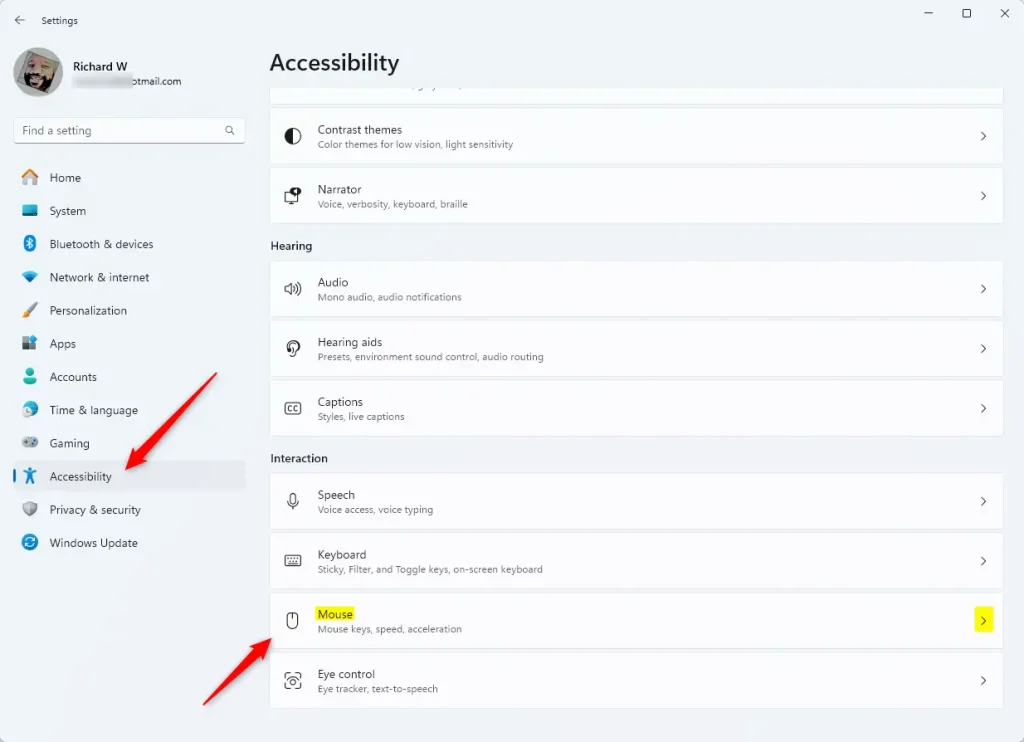
- In the Settings window, click Accessibility on the left side.
- On the right side, scroll down and find the Mouse section, then click it to open.
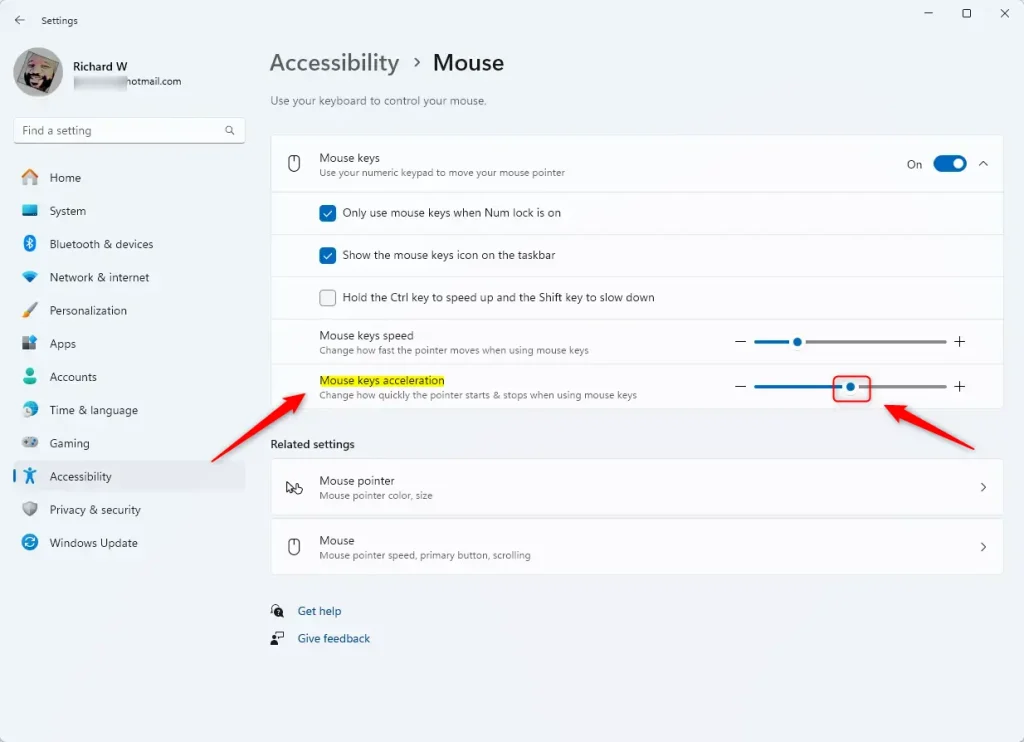
- Turn the Mouse Keys switch to On.
- Now, you’ll see a slider called Mouse Keys acceleration. Move this slider left or right to make the pointer move slower or faster. The default is about halfway.
Here’s what it looks like:
When you’re done, you can close the Settings window — the changes take effect right away.
Change Mouse Keys Speed Using Registry Editor (Advanced)
If you want more control, you can change the Mouse Keys speed using the Windows Registry Editor. (Note: Be careful when using Registry Editor — changing the wrong settings can cause problems.)
Here’s how:
- Open Registry Editor as an administrator:
- Press Windows key + S, type regedit, then right-click on Registry Editor and choose Run as administrator.
- Navigate to this folder (called a “key”):
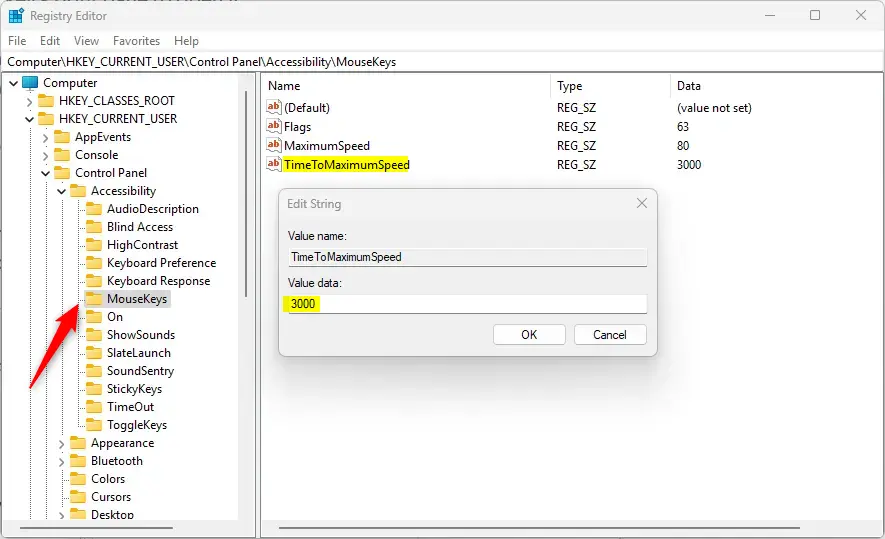
ComputerHKEY_CURRENT_USERControl PanelAccessibilityMouseKeys
- Look for an entry called TimeToMaximumSpeed on the right side.
- If it’s there, double-click it. If it’s not, right-click on an empty space, choose New > String Value, and name it TimeToMaximumSpeed.
- Set the value to a number between 1000 (makes the pointer speed up faster) and 5000 (makes it slower). For example, 2000 will speed up quicker than 4000.
Here’s a screenshot showing what this looks like:
After changing this, you might need to restart your computer for the change to work.
Summary
- Mouse Keys lets you control the mouse pointer with your keyboard’s number keys.
- You can change how fast the pointer moves using the Settings app — easy and safe.
- If you want more control, you can adjust speed in the Registry Editor (advanced users only).
- Try different speeds to find what feels best for you.
Enjoy your easier mouse control with Mouse Keys!


Leave a Reply