How to Change LED Brightness in Windows 11 Dynamic Lighting

You change LED brightness in Windows 11 Dynamic Lighting through the device settings within the Windows 11 Settings app.
Windows Dynamic Lighting is a feature that allows you to control compatible RGB lighting accessories, like keyboards and mice, directly from your operating system. It uses the new Human Interface Device (HID) class specification for RGB keyboards and the HID Runtime Designer (HRD) to enable this centralized control.
This means you can adjust the brightness, and often colors and effects, for your supported hardware without needing individual manufacturer software. For example, you might find your Razer keyboard or Philips Hue smart lights integrate seamlessly.
You access these controls by navigating to Personalization > Dynamic Lighting in Windows 11. From there, you can select your devices and make your desired adjustments.
What is Windows Dynamic Lighting?
Windows Dynamic Lighting lets you control the lights on your compatible devices. You can adjust them one by one or all at once through the Windows Settings app. Once your devices are connected, they appear as cards at the top of the settings page. You can pick each device and change its light settings.
Why Adjust LED Brightness?
- Make your lights softer to reduce eye strain, especially in dark rooms.
- Make your lights brighter if you prefer more glow or want to see better.
- Customize the look of your computer setup to match your style.
How to Change LED Brightness Step-by-Step
- Open the Settings app: Click the Start menu and select Settings. Or press the Windows key + I on your keyboard.
- Go to Personalization: In the Settings window, click Personalization on the left side menu.
- Find and click Dynamic Lighting: On the right side, look for the Dynamic Lighting tile and click it.

- Adjust the brightness: Inside the Dynamic Lighting settings, select the Brightness option. Use the slider to set the brightness between 0 (very dim) and 100 (very bright).
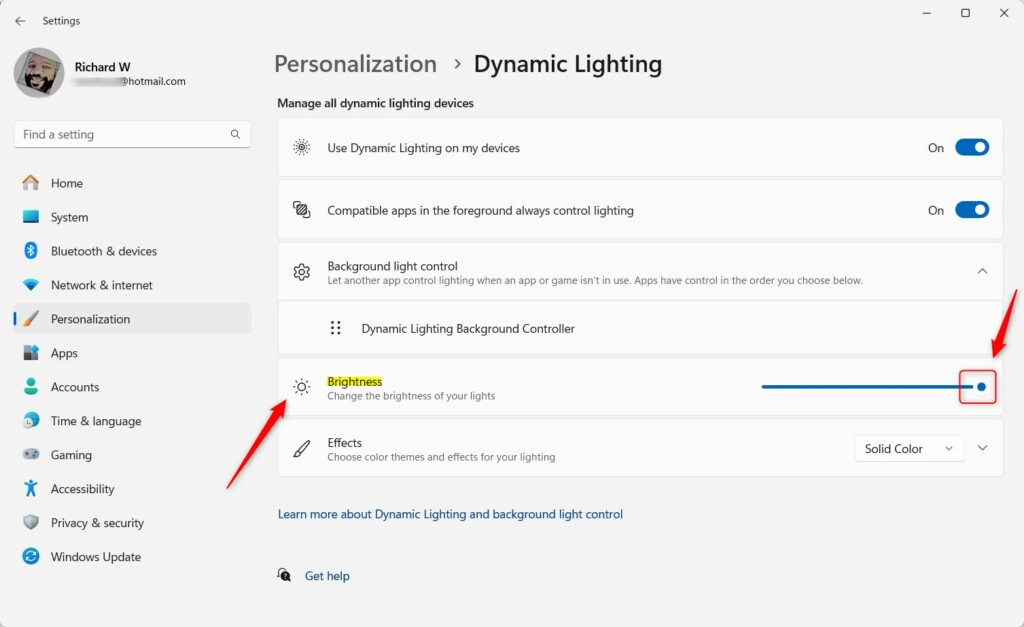
- Reset if needed: If you want to go back to the default brightness for all devices, click Reset for all devices.
- Close the Settings app: Once you’re happy with the brightness, just close the window. Your changes will be saved automatically.
Bonus: Change Brightness Using Windows Registry (Advanced Users)
If you want, you can also change the brightness by editing the Windows Registry. This is for users comfortable with advanced settings.
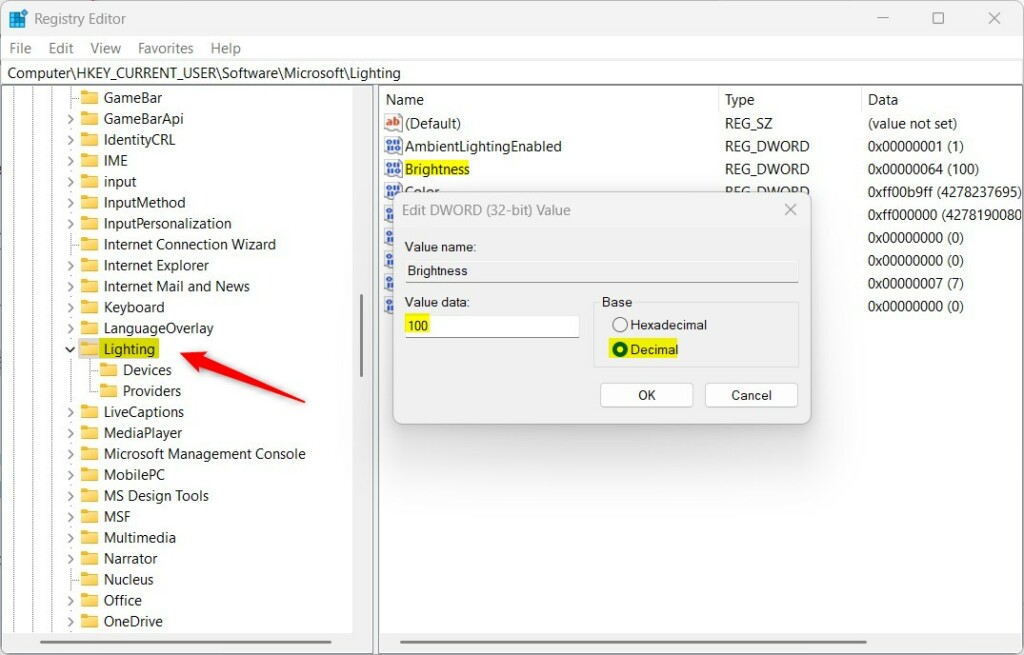
- Go to this folder/key:
HKEY_CURRENT_USER\Software\Microsoft\Lighting - Double-click the Brightness value on the right.
- Type a number between 0 and 100 to set your brightness level.
- Click OK to save.
Note: Be very careful when using the Registry Editor. Changing the wrong setting can affect your PC.
Summary
- You can easily change the brightness of your LED lights on devices that support Windows Dynamic Lighting.
- Use the Settings app for a quick and safe way to adjust brightness with a slider.
- If you’re experienced, you can also change brightness directly via the Registry Editor.
- Adjusting brightness helps reduce eye strain and lets you customize your computer’s look.
- Try different brightness levels to find what feels best for your eyes and your room!
Was this guide helpful?

About the Author
Richard
Tech Writer, IT Professional
Richard, a writer for Geek Rewind, is a tech enthusiast who loves breaking down complex IT topics into simple, easy-to-understand ideas. With years of hands-on experience in system administration and enterprise IT operations, he’s developed a knack for offering practical tips and solutions. Richard aims to make technology more accessible and actionable. He's deeply committed to the Geek Rewind community, always ready to answer questions and engage in discussions.


No comments yet — be the first to share your thoughts!