

This tutorial shows you how to adjust the brightness of SDR content or HDR content on your Windows 11 account.
Why Does This Matter?
HDR content gives you better brightness and color compared to regular content (called standard dynamic range [SDR] content). Regular content can show details in bright areas OR dark areas, but not both at the same time. For example, if a scene shows a bright window, you lose details in the shadows.
HDR shows a much wider range of colors and light. You see details in both bright and dark areas. Colors look more vivid and real. Bright parts stay bright and dark parts stay dark—without losing details.
What Happens When HDR is On?
When you enable HDR in Windows 11, regular content (including your desktop background and menus) looks dull and flat. Only actual HDR content appears normal.
You might need to adjust the brightness balance between SDR and HDR content because displays read these signals differently. The results change based on your display brand and model.
How the Settings Work
For external HDR displays: The SDR content brightness setting changes how bright SDR content looks compared to HDR content.
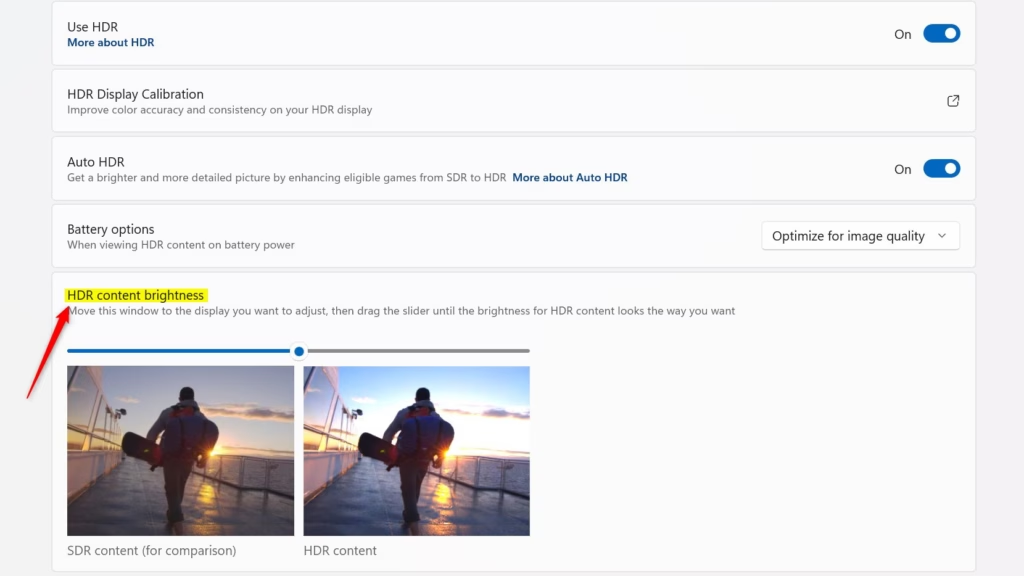
For built-in HDR displays (like HDR laptops): The HDR content brightness setting changes how bright HDR content looks compared to SDR content. A separate brightness setting controls SDR content or handles it automatically.
Brightness Tips
Brightness setting: When watching HDR content in a bright room, increase brightness to see better. But this reduces the contrast range. For better HDR appearance, watch in a darker area and use low brightness. Very low brightness increases contrast between bright and dark parts, but you’ll see less detail in dark scenes (like a dimly lit room at night).
SDR or HDR content brightness setting: The default setting works well for most people. You can increase it to improve contrast between bright and dark areas, but this reduces detail in dark scenes.
More Information
HDR settings in Windows – Microsoft Support
Learn how to control HDR settings in Windows, turn on HDR, and fix common HDR display problems.
After Enabling HDR in Windows, the Colors Are Washed Out
This article explains an issue where colors and images look darker and washed out after turning on HDR mode in Windows.
Steps to Adjust HDR or SDR Brightness
- Open Settings by pressing
Win+I. - Click System on the left side, then click Display on the right side.
- Click HDR or Use HDR on the right side.
- If you have multiple displays connected to your PC, choose the HDR-capable display you want to adjust in the Select a display to view or change its settings dropdown menu.
- If you have multiple displays connected to your PC, move the Settings window to the HDR display you’re adjusting.
- Move the SDR content brightness (external HDR display) or HDR content brightness (built-in HDR display) slider to the brightness level that gives you the right balance between HDR and SDR content.
- When finished, close Settings.

That’s it!
Summary
HDR content offers better brightness, colors, and details compared to regular SDR content. When you enable HDR in Windows 11, regular content may look dull. You can adjust the brightness balance between SDR and HDR content using the Settings app. The SDR content brightness setting is for external HDR displays, while the HDR content brightness setting is for built-in HDR displays like laptops. Use the default settings for best results, and adjust only if needed. Watch HDR content in darker areas with low brightness for the best appearance.

Leave a Reply