How to Change Font Size in Windows 11 Handwriting Panel

You change the font size in the Windows 11 Handwriting Panel by adjusting display scaling settings.
The Handwriting Panel is a Windows 11 feature that converts your handwritten input into typed text, often used with touchscreens and pen input devices.
While there isn’t a direct font size slider specifically for the Handwriting Panel, adjusting the overall display scaling in Windows 11 affects the size of text within the panel, allowing you to make it smaller or larger.
For example, setting scaling to 125% makes everything, including the Handwriting Panel’s text, noticeably bigger than the default 100%.
You can change the font size in Windows 11 Handwriting Panel via Settings. Go to Bluetooth & devices, then Pen & Windows Ink, and select Small, Medium, or Large. This adjusts the text size within the panel.
Why Change the Font Size?
A larger font size is easier to read. A smaller size takes up less space on your screen. Picking the right size helps you work faster and more comfortably.
Method 1Using Windows Settings (Easiest Way)
You can easily change the Windows 11 handwriting font size through the Settings app by going to Bluetooth & devices, then Pen & Windows Ink, where you can select your preferred text size.
- Open the Settings app:
- Click the Start menu and select Settings, or
- Press
Windows key + Ion your keyboard
- Click on Bluetooth & devices on the left side
- On the right side, find and click Pen & Windows Ink
- Look for the section called Use your handwriting to enter text and click to expand it
- Choose your preferred font size:
- Small
- Medium (the default option)
- Large
- Close the Settings app when you’re done
Method 2Using Windows Registry Editor (Advanced Users Only)
For advanced users, changing the Windows 11 handwriting font size can be done by editing the Windows Registry, which involves locating a specific value and adjusting it to your desired setting.
⚠️ Admin Required: You need administrator privileges to open the Registry Editor.
- Open the Registry Editor:
- Press
Windows key + R - Type
regeditand press Enter
- Press
- Navigate to this folder path:
HKEY_CURRENT_USER\Software\Microsoft\TabletTip\EmbeddedInkControl - If the EmbeddedInkControl folder is missing:
- Right-click on TabletTip
- Select New > Key
- Name it EmbeddedInkControl
- Inside EmbeddedInkControl, right-click on the right side pane
- Select New > DWORD (32-bit) Value
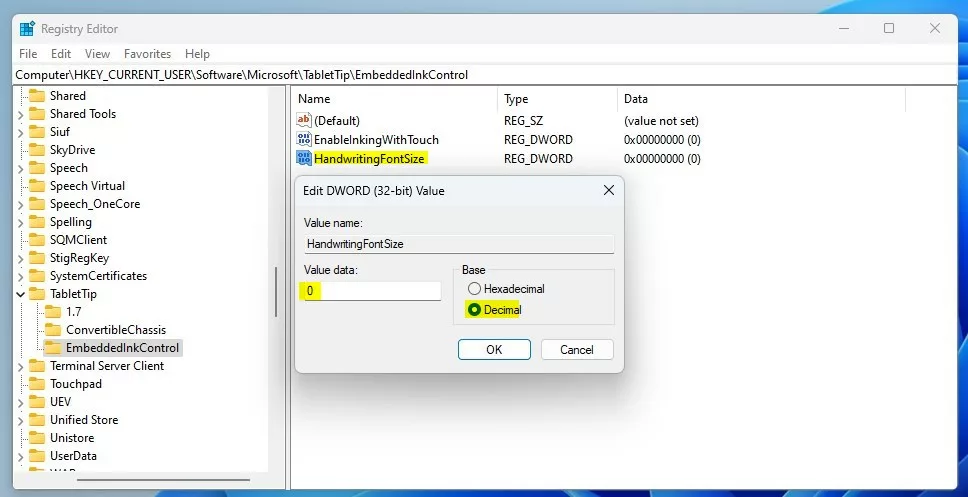
- Name this new value HandwritingFontSize
- Double-click HandwritingFontSize
- Set the Base to Decimal
- Enter one of these numbers for your font size:
0for Small1for Medium2for Large
- Click OK
- Close the Registry Editor
- Restart your computer to apply the changes
Summary
Changing your Windows 11 handwriting font size is straightforward, with two main methods available: the simple Settings app for quick adjustments or the Registry Editor for more technical control.
- Easiest method: Use the Windows Settings app. Go to Bluetooth & devices, then Pen & Windows Ink, and pick your size.
- Advanced method: Use the Windows Registry Editor to manually edit the HandwritingFontSize value.
Pick whichever method feels right for you. Do you have questions or run into problems? Leave a comment below!
How to make writing bigger on 🪟 Windows 11?
To change your display in Windows, select Start > Settings > Accessibility > Text size. To make only the text on your screen larger, adjust the slider next to Text size.
What size font is handwriting usually?
Most handwriting has a body height that is between 1/8 inch and 1/4 inch tall, so any ascenders and descenders extend beyond that, and add to the total size.
Why is my Windows font suddenly small?
Check Display Settings: Go to Settings > System > Display. Under the Scale and layout section, ensure that the scaling is set to 100% or your preferred size.
Was this guide helpful?

About the Author
Richard
Tech Writer, IT Professional
Richard, a writer for Geek Rewind, is a tech enthusiast who loves breaking down complex IT topics into simple, easy-to-understand ideas. With years of hands-on experience in system administration and enterprise IT operations, he’s developed a knack for offering practical tips and solutions. Richard aims to make technology more accessible and actionable. He's deeply committed to the Geek Rewind community, always ready to answer questions and engage in discussions.


No comments yet — be the first to share your thoughts!