The text cursor is the blinking vertical line that shows where you will type letters or numbers on your screen. By default, it blinks about every 530 milliseconds (about half a second).
If you have trouble seeing the cursor because it blinks too fast or too slow, you can change how quickly it blinks. This can make it easier to find when typing.
You can change the cursor blink speed using either the Control Panel or the Windows Registry Editor. Both methods are shown below in simple steps.
Change Cursor Blink Rate Using Control Panel
This is the easiest way. Follow these steps:
Open the Control Panel on your Windows 11 computer.
In the Control Panel window, look for the option called “View by” at the top right and select Icons (not Categories). This will show a list of all settings.
Find and click on Keyboard from the list.
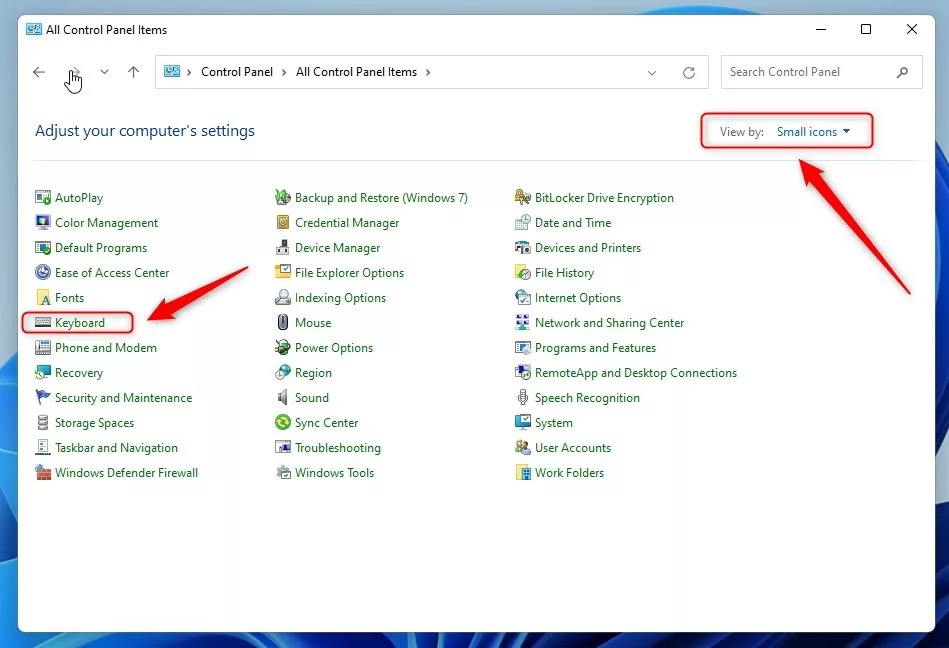 Keyboard option in Control Panel
In the Keyboard Properties window, click the Speed tab.
Under Character repeat, you will see a slider labeled Cursor blink rate. Drag the slider left to make the cursor blink slower, or right to make it blink faster.
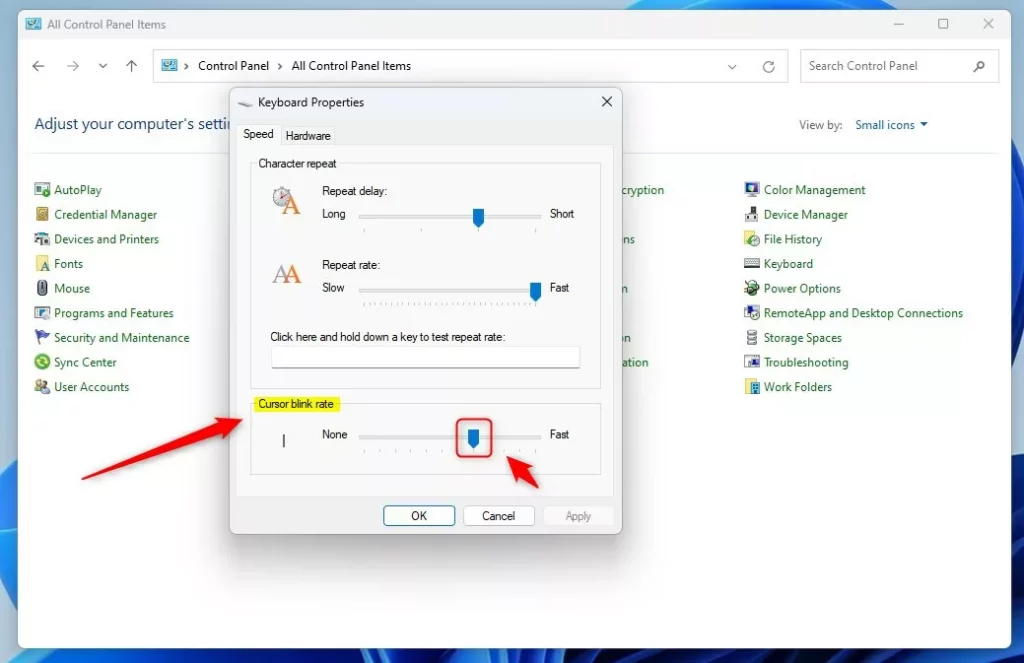
Adjust the cursor blink rate using the slider Click OK to save your changes.
Change Cursor Blink Rate Using Windows Registry Editor
If you want more control or the Control Panel method doesn’t work, you can use the Registry Editor. Be careful when using this tool!
Open the Windows Registry Editor.
Navigate to this path in the left sidebar:
HKEY_CURRENT_USER\Control Panel\Desktop
If you don’t see the Desktop folder under Control Panel, right-click Control Panel, choose New > Key, and name it Desktop.
Click on the Desktop folder. In the right pane, right-click and select New > String Value.
Name this new value CursorBlinkRate.
Double-click the CursorBlinkRate entry and enter a number between:
- 200 (cursor blinks fast)
- 1200 (cursor blinks slow)
Enter -1 if you want to stop the cursor from blinking completely.
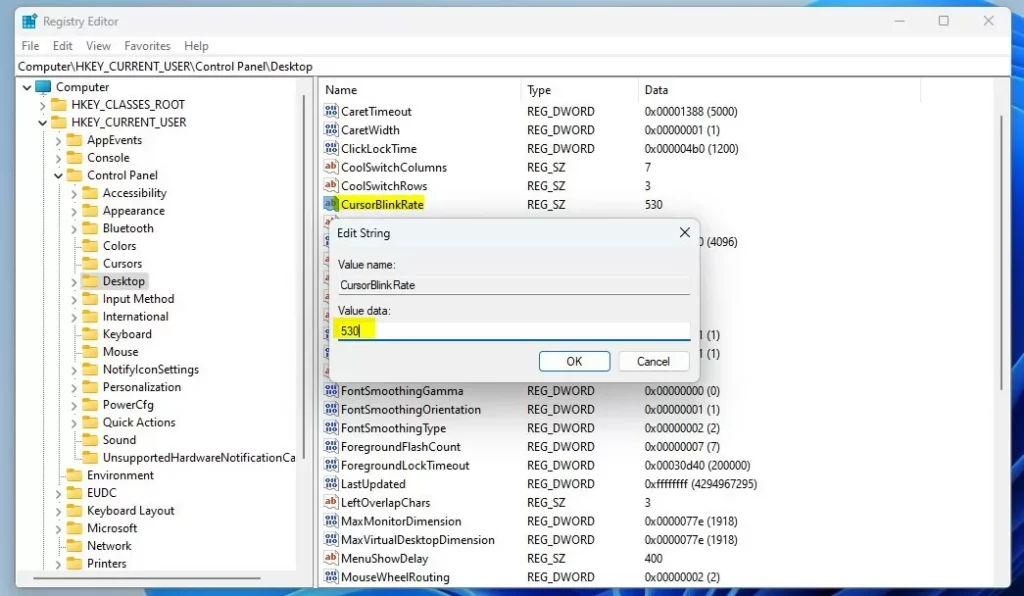
Setting the cursor blink rate value in Registry Editor Close the Registry Editor and restart your computer to apply the changes.
Summary
- You can make the cursor blink faster or slower to help you see it better while typing.
- The easiest way to change the blink rate is through the Control Panel’s Keyboard settings.
- If you want more options, you can edit the blink rate using the Registry Editor, but be careful!
- After changing the blink rate in the Registry Editor, you must restart your PC to see the effect.
If you want to learn more about opening the Control Panel or the Registry Editor, check out these guides.

Leave a Reply Cancel reply