How to Change Braille Display Notification Timeout in Windows 11

You change the Braille Display Notification Timeout in Windows 11 to control how long notifications appear on your braille display when using Narrator.
This setting specifically impacts how long spoken notifications remain visible as braille output before automatically disappearing. Adjusting this timeout ensures you have enough time to read important messages without them vanishing too quickly.
For instance, you might want to extend the timeout if you find yourself needing more time to process certain alerts from Narrator and your braille device.
Windows 11 allows you to set this duration to anywhere from 3 seconds up to 5 minutes, giving you granular control over your notification experience.
Open Settings, navigate to Accessibility, then Narrator, and finally Braille. Under Notifications timeout after, select your desired duration. This adjusts how long braille notifications remain visible with Narrator.
Steps to Change Notification Timeout for Braille Display
- Open Settings. Click the Start menu (the Windows icon in the bottom-left corner) and choose Settings. Or press
Windows key + Ion your keyboard to open the Settings app quickly. - Go to Accessibility. In the Settings window, find and click Accessibility on the left side menu.
- Open Narrator Settings. On the right side, click on the Narrator section to see more options.
- Find Braille Settings. Scroll down to the Braille section and click on Use a braille display with Narrator to open it.
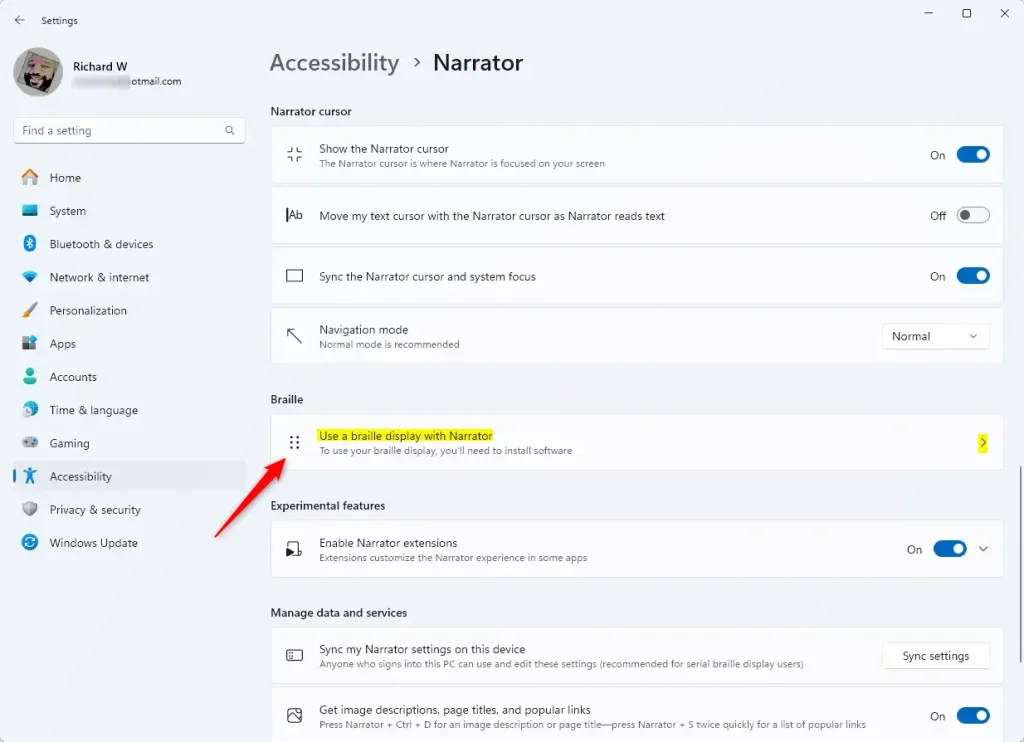
- If you haven’t installed braille support yet, click Download and install braille to add it to your computer. (Learn more about installing braille support)
- Add your braille display. Under Braille displays and drivers, click Add a braille display and choose your device’s brand and connection type.
- Find the Notifications section. Click on Notifications timeout after.
- Pick your timeout length. Choose how long you want notifications to stay on your braille display before they disappear. You can select options like 5 seconds, 10 seconds, or more.
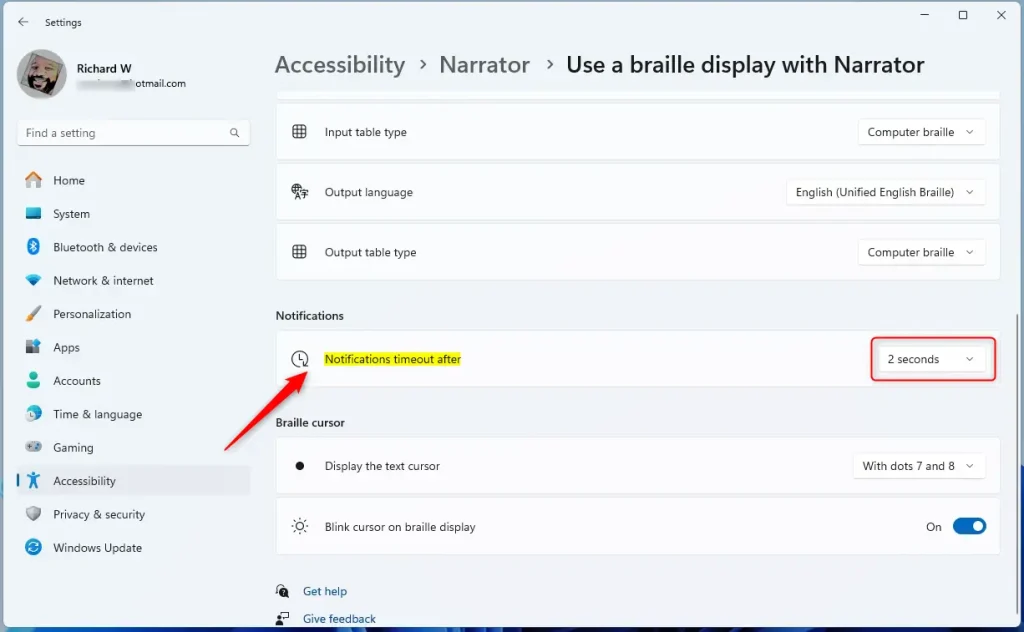
What happens when you’re done? Your braille display notifications will now stay visible for the time you chose.
Summary
- You learned how to open the Settings app and find the Narrator braille display options.
- You can change how long notifications stay on your braille display to make reading easier and avoid interruptions.
- If you want to learn more about using Narrator and braille displays, check out this helpful guide: How to Use a Braille Display with Narrator on Windows 11.
Was this guide helpful?

About the Author
Richard
Tech Writer, IT Professional
Richard, a writer for Geek Rewind, is a tech enthusiast who loves breaking down complex IT topics into simple, easy-to-understand ideas. With years of hands-on experience in system administration and enterprise IT operations, he’s developed a knack for offering practical tips and solutions. Richard aims to make technology more accessible and actionable. He's deeply committed to the Geek Rewind community, always ready to answer questions and engage in discussions.




No comments yet — be the first to share your thoughts!